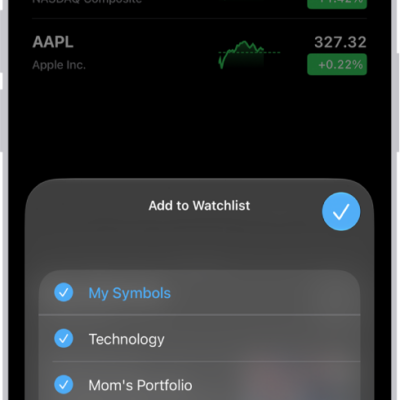
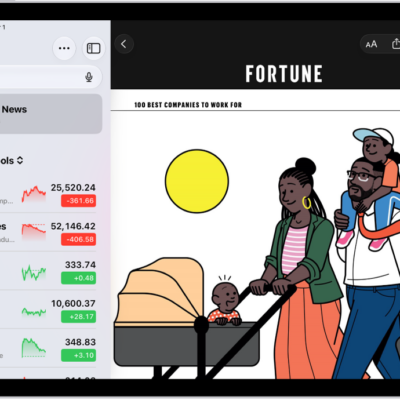
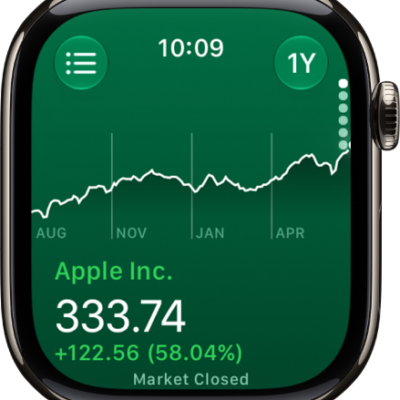
You can create your own watchlists to organize the stocks you follow. For example, you could organize them according to categories such as entertainment or sustainability.
You can switch between watchlists, and view them on your other devices. Symbols you add to a watchlist also go into the My Symbols watchlist, and you’ll be able to add or remove symbols, rename a watchlist, or delete one.
Here’s how to manage watchlists in Stocks on iPad.
Create a new watchlist
- Open the Stocks app on your iPad.
- Tap the More button, then tap New Watchlist.
- Name the watchlist, then tap Save.
To switch between watchlists, tap the Watchlist menu next to the name of the current watchlist you’re viewing, then tap the name of the watchlist you want to see.
Add symbols to a watchlist
- Open the Stocks app on your iPad.
- In any watchlist, enter the name of a ticker symbol, company, fund, or index in the search field.
- Tap the Add button next to the symbol in the search results.
- Tap the Close button.
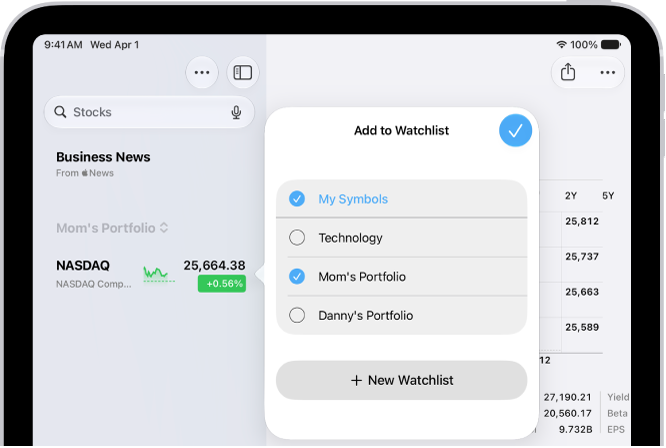
Quick tip: It’s possible to add a symbol to another watchlist, too. Swipe left on the symbol and tap Lists, then choose the watchlist you want to add it to and tap the Done button.
Any symbol you add to a watchlist also goes into the My Symbols watchlist.
Remove symbols from a watchlist
- Open the Stocks app on your iPad.
-
In any watchlist, swipe left on the symbol and tap Remove.
Note: When you remove a symbol from a watchlist you created, that symbol remains in the My Symbols watchlist. If you remove a symbol from the My Symbols watchlist, that symbol is also removed from your other watchlists.
Rearrange or sort symbols in a watchlist
How the symbols in your watchlists are sorted is up to you.
- Open the Stocks app on your iPad.
-
In the watchlist you want to sort, do any of the following:
- Rearrange a watchlist manually: Touch and hold a symbol. Then drag to place it elsewhere in the list.
-
Sort a watchlist automatically: Tap the More button, tap Sort Watchlist By, and tap how you want to sort the list. To return to manual order after automatically sorting, tap Manual.
To reverse the order of the symbols in an automatically sorted watchlist, tap the More button, tap Sort Watchlist By, then tap Ascending or Descending.
Change the value displayed in a watchlist
You decide which value appears below each symbol’s price in a watchlist.
- Open the Stocks app on your iPad.
- In any watchlist, tap the More button.
- Tap Watchlist Shows and then tap one of the following options:
- Price Change
- Percentage Change
- Market Cap
Tap Currency to show or hide the currency for each symbol in the watchlist.
Note: If you make changes to the currency display, they’ll apply everywhere in the app.
Reorder, rename, or remove watchlists
- Open the Stocks app on your iPad.
- Tap the Menu button next to the name of the watchlist and tap Manage Watchlists. Then do any of the following:
- Reorder your watchlists: Touch and hold the Reorder button and then drag the watchlist to a new position.
- Rename a watchlist: Tap the Pencil button, type a new name and tap Save.
- Remove a watchlist: Tap the Delete button, tap Delete Watchlist, and then tap Delete Watchlist to confirm.
- Tap the Done button.
View your watchlists on all your devices
Your watchlists follow you to any iPhone, iPad, or Mac that’s signed in to the same Apple Account.
- On your iPhone or iPad: Go to Settings > [your name] > iCloud, tap See All (next to Saved to iCloud), then turn on Stocks.
- On a Mac with macOS 13 or later: Choose Apple menu > System Settings, click your name at the top of the sidebar, click iCloud, then turn on Stocks.
See also