With AirPlay, you can stream video and audio from your iPhone to a nearby Mac or TV. You can also mirror what’s on your iPhone screen. You can use AirPlay with your iPhone and a Mac, an Apple TV 4K, or another TV.
First, make sure both devices have Wi-Fi turned on and are on the same network.
Here’s how to stream video and audio from your iPhone with AirPlay.
Before you stream to a Mac or TV
Before you start streaming, make sure all of the following are true:
- Both devices have Wi-Fi turned on and are connected to the same network.
- If you’re streaming between your own Apple devices, it’s useful to sign in to the same Apple Account.
- To use AirPlay to stream content to a Mac, both devices meet minimum system requirements.
- To use AirPlay to stream content to a TV, make sure you’re using Apple TV 4K or an AirPlay 2-enabled smart TV.
If you’re using a VPN, check that its configuration doesn’t prevent local networking, since that may interfere with some Continuity features.
Set up a Mac to allow streaming from your iPhone
- On a Mac, open the System Settings app.
- Click General in the sidebar. (You may need to scroll down.)
- Click AirDrop & Handoff, then turn on AirPlay Receiver.
- Click the pop-up menu next to Allow AirPlay for and choose the devices that can use AirPlay to stream content to this Mac.
- Allow only your devices: If you only want to allow AirPlay from devices where you’re signed in to the same Apple Account, select Current user.
- Allow any device: Select Anyone on the Same Network or Everyone.
- To require a password to use AirPlay with the Mac, select the option and then enter a password.
Stream photos or videos from your iPhone to your Mac or TV
From your iPhone, you can stream photos and videos to an AirPlay 2-enabled smart TV, an Apple TV 4K, or a Mac.
- On your iPhone, find the photo or video that you want to stream.
-
Tap the AirPlay button.
Note: In some apps, you may need to tap a different button first, like the Share button.
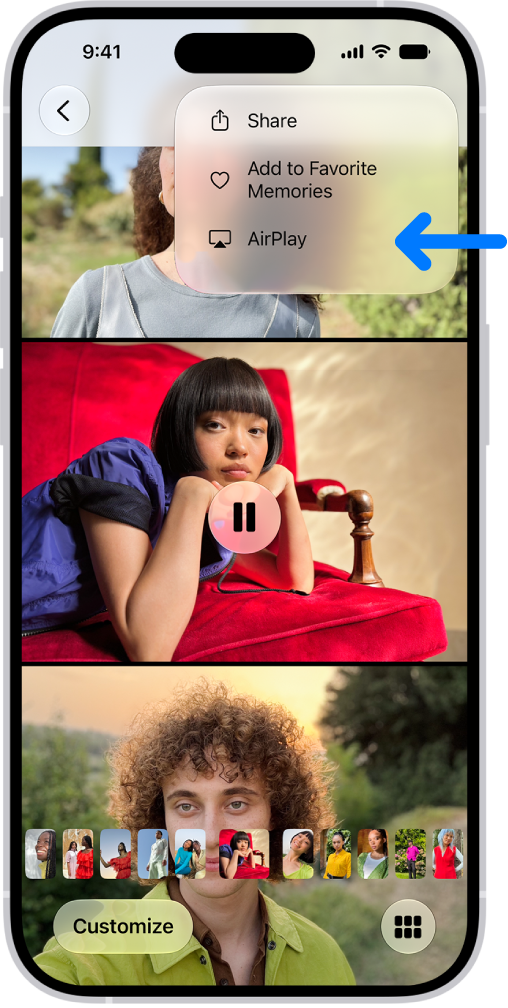
- Choose your Mac or TV from the list.
- Use the playback controls on your iPhone.
- To stop streaming, on your iPhone, tap the AirPlay button, then tap Turn Off AirPlay.
Quick tip: Your iPhone can find and automatically connect to an Apple TV 4K or smart TV you use frequently each time you play content with AirPlay from apps you use regularly. To turn this on or off from your iPhone, go to Settings > General > AirPlay & Continuity and tap the Automatically AirPlay pop-up menu, where you can choose Automatic, Never, or Ask.
Mirror your iPhone on a Mac or TV
- Open Control Center on your iPhone.
- Tap the Screen Mirroring button and choose your Mac or TV as the playback destination.
To switch back, open Control Center, tap the Screen Mirroring button, then tap Stop Mirroring.
Play audio from your iPhone on a Mac or TV
To stream audio from your iPhone to a Mac or TV, use AirPlay. When it’s your Mac, set up the Mac first so it allows streaming from another device.
- Go to an audio app (such as Podcasts or Music) on your iPhone and choose an item to play.
- Tap the Playback Destination button and then choose a playback destination.
AirPlay can also stream audio from your iPhone to a HomePod.
Use AirPlay in your hotel room
If your hotel room has a TV that supports AirPlay, you can play music, movies, TV shows, and more from your iPhone on it.
- Open Camera on your iPhone.
- If it’s not already on, turn on the room’s TV and locate the AirPlay QR code.
- Scan the QR code with your iPhone camera and then follow the onscreen instructions to connect to your hotel Wi-Fi (if you’re not already connected) and the room’s TV.
- Use your iPhone to display content on the TV screen by streaming photos or videos, mirroring your screen, or playing audio.
- Choose your hotel TV as the playback destination.
- To stop streaming or mirroring, tap the AirPlay or Screen Mirroring button ( or ) on your iPhone and tap your iPhone in the list or tap Stop Mirroring.
Note: AirPlay in hotels isn’t available in all countries or regions.
Stream video from your iPhone to your CarPlay display
While you’re not driving, AirPlay can send video to supported CarPlay displays.
WARNING: For important information about avoiding distractions that could lead to dangerous situations, see Important safety information for iPhone.
If AirPlay isn’t working
- Make sure that both of your devices are on the same network.
- Check that your Mac is set up to allow streaming from another device.