








Got a tip for us?

AirPlay

With AirPlay, you can stream video and audio from your iPhone to a nearby Mac or TV. You can also mirror what’s on your iPhone screen. You can use AirPlay with your iPhone and a Mac, an Apple TV 4K, or another TV.

First, make sure both devices have Wi-Fi turned on and are on the same network.

Here’s how to stream video and audio from your iPhone with AirPlay.

Before you stream to a Mac or TV

Before you start streaming, make sure all of the following are true:

  • Both devices have Wi-Fi turned on and are connected to the same network.
  • If you’re streaming between your own Apple devices, it’s useful to sign in to the same Apple Account.
  • To use AirPlay to stream content to a Mac, both devices meet minimum system requirements.
  • To use AirPlay to stream content to a TV, make sure you’re using Apple TV 4K or an AirPlay 2-enabled smart TV.

If you’re using a VPN, check that its configuration doesn’t prevent local networking, since that may interfere with some Continuity features.

Set up a Mac to allow streaming from your iPhone

  1. On a Mac, open the System Settings app.
  2. Click General in the sidebar. (You may need to scroll down.)
  3. Click AirDrop & Handoff, then turn on AirPlay Receiver.
  4. Click the pop-up menu next to Allow AirPlay for and choose the devices that can use AirPlay to stream content to this Mac.
    • Allow only your devices: If you only want to allow AirPlay from devices where you’re signed in to the same Apple Account, select Current user.
    • Allow any device: Select Anyone on the Same Network or Everyone.
  5. To require a password to use AirPlay with the Mac, select the option and then enter a password.

Stream photos or videos from your iPhone to your Mac or TV

From your iPhone, you can stream photos and videos to an AirPlay 2-enabled smart TV, an Apple TV 4K, or a Mac.

  1. On your iPhone, find the photo or video that you want to stream.
  2. Tap the AirPlay button.

    Note: In some apps, you may need to tap a different button first, like the Share button.
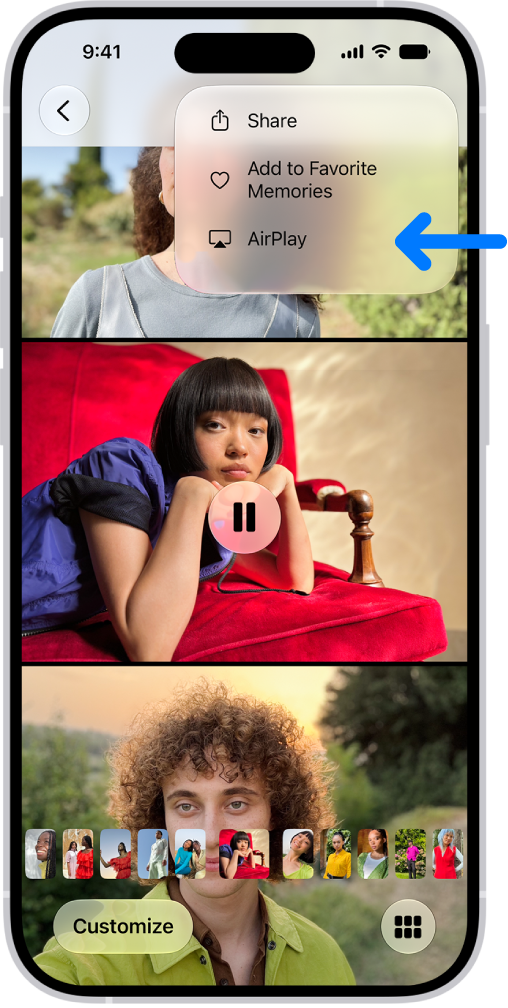
    A slideshow in the Photos app plays on the iPhone. At the top right of the screen is a pop-up menu, with an option to choose AirPlay.

  3. Choose your Mac or TV from the list.
  4. Use the playback controls on your iPhone.
  5. To stop streaming, on your iPhone, tap the AirPlay button, then tap Turn Off AirPlay.

Quick tip: Your iPhone can find and automatically connect to an Apple TV 4K or smart TV you use frequently each time you play content with AirPlay from apps you use regularly. To turn this on or off from your iPhone, go to Settings > General > AirPlay & Continuity and tap the Automatically AirPlay pop-up menu, where you can choose Automatic, Never, or Ask.

Mirror your iPhone on a Mac or TV

  1. Open Control Center on your iPhone.
  2. Tap the Screen Mirroring button and choose your Mac or TV as the playback destination.

To switch back, open Control Center, tap the Screen Mirroring button, then tap Stop Mirroring.

Play audio from your iPhone on a Mac or TV

To stream audio from your iPhone to a Mac or TV, use AirPlay. When it’s your Mac, set up the Mac first so it allows streaming from another device.

  1. Go to an audio app (such as Podcasts or Music) on your iPhone and choose an item to play.
  2. Tap the Playback Destination button and then choose a playback destination.

AirPlay can also stream audio from your iPhone to a HomePod.

Use AirPlay in your hotel room

If your hotel room has a TV that supports AirPlay, you can play music, movies, TV shows, and more from your iPhone on it.

  1. Open Camera on your iPhone.
  2. If it’s not already on, turn on the room’s TV and locate the AirPlay QR code.
  3. Scan the QR code with your iPhone camera and then follow the onscreen instructions to connect to your hotel Wi-Fi (if you’re not already connected) and the room’s TV.
  4. Use your iPhone to display content on the TV screen by streaming photos or videos, mirroring your screen, or playing audio.
  5. Choose your hotel TV as the playback destination.
  6. To stop streaming or mirroring, tap the AirPlay or Screen Mirroring button ( or ) on your iPhone and tap your iPhone in the list or tap Stop Mirroring.

Note: AirPlay in hotels isn’t available in all countries or regions.

Stream video from your iPhone to your CarPlay display

While you’re not driving, AirPlay can send video to supported CarPlay displays.

WARNING: For important information about avoiding distractions that could lead to dangerous situations, see Important safety information for iPhone.

If AirPlay isn’t working

  • Make sure that both of your devices are on the same network.
  • Check that your Mac is set up to allow streaming from another device.
Tag: AirPlay

You can play audio from iPad on wireless devices like HomePod, Apple TV 4K, AirPlay 2-enabled smart TVs, and Bluetooth® headphones and speakers. With AirPlay 2, you can play audio on multiple devices on the same Wi-Fi network, like a party playlist playing on HomePod speakers in the living room and kitchen.

Play audio from iPad on a wireless device

  1. On your iPad, open an audio app, such as Podcasts or Music. Then choose an item to play.
  2. Tap the Playback Destination button and then choose a playback destination.

    Note: If your AirPlay 2-enabled devices don’t appear in the list of playback destinations, make sure they’re on the same Wi-Fi network. With a Bluetooth device, the playback destination returns to iPad if you move the device out of Bluetooth range.

To select the playback destination, you can also tap the Playback Destination button on the Lock Screen or in Control Center.

Note: To set up a Bluetooth audio device, see our guide, Pair your iPad with a Bluetooth accessory.

Play audio on multiple AirPlay 2-enabled devices

AirPlay 2 lets your iPad play audio on multiple AirPlay 2-enabled devices that share the same Wi-Fi network. A party playlist, for example, can play on an Apple TV 4K in the bedroom, an AirPlay 2-enabled smart TV in the den, and HomePod speakers in the living room and kitchen.

Siri: Ask Siri something like:

  • “Stop playing music everywhere”
  • “Set the dining room volume to 10 percent”
  • “What’s playing in the kitchen?”
  • “Play a song I like in the kitchen”
  • “Add the living room speaker”
  • “Remove the music from the kitchen”
  • “Move the music to the den”

Or choose playback destinations from the iPad screen.

  1. Tap the Playback Destination button in Control Center, on the Lock Screen, or on the Now Playing screen for the app you’re listening to.
  2. Select each device you want to use.

Note: Devices arranged in a stereo pair work as a single audio device.

See also

Tag: AirPlay

You can use your Apple TV 4K or an AirPlay 2-enabled smart TV to watch videos and view photos streamed from your iPad. You can also mirror your iPad, so whatever appears on your iPad shows on the TV, and turn automatic AirPlay streaming on or off.

Note: Both devices must be on the same Wi-Fi network before you can use your iPad to stream videos, or send photos to Apple TV 4K or a smart TV.

Play video on Apple TV 4K or an AirPlay 2-enabled smart TV

  1. While playing video in the Apple TV app or another supported video app on your iPad, tap the screen to show the controls.
  2. Tap the AirPlay button. Then choose your Apple TV 4K or AirPlay 2-enabled smart TV as the playback destination.

    If an AirPlay passcode appears on the TV screen, enter the passcode on your iPad.

Choosing a different AirPlay option on your iPad screen changes the playback destination.

Show photos on Apple TV 4K or an AirPlay 2-enabled smart TV

  1. In Photos on your iPad, tap a photo and tap the Share button.
  2. Swipe up, tap the AirPlay button, and then choose your Apple TV 4K or an AirPlay 2-enabled smart TV as the playback destination.

    If an AirPlay passcode appears on the TV screen, enter the passcode on your iPad.

To stop streaming photos, tap the AirPlay button near the top of the iPad screen, then tap Turn off AirPlay.

Turn automatic AirPlay streaming on or off

If you allow it, your iPad can discover any frequently used Apple TV 4K or smart TV and connect to it automatically when you play content from apps you regularly use with AirPlay.

Go to Settings > General > AirPlay & Continuity, then choose Automatic, Never, or Ask.

Mirror your iPad on Apple TV 4K or a smart TV

Whatever’s on your iPad screen can appear on Apple TV 4K or a smart TV.

  1. Open Control Center on your iPad.
  2. Tap the Screen Mirroring button and choose your Apple TV 4K or an AirPlay 2-enabled smart TV as the playback destination.

    If an AirPlay passcode appears on the TV screen, enter the passcode on your iPad.

To switch back to iPad, open Control Center, tap the Screen Mirroring button, then tap Stop Mirroring.

See also

Tag: AirPlay

With AirPlay, you can stream video and audio from your iPad to a nearby Mac or TV. You can also mirror what’s on your iPad screen, using a Mac, an Apple TV 4K, or another TV.

Both devices need Wi-Fi turned on and must be connected to the same network, and to stream to a TV, you need an Apple TV 4K or an AirPlay 2-enabled smart TV. A Mac needs to be set up to allow streaming from your iPad, too.

Here’s how to stream video and audio from your iPad with AirPlay.

Before you begin

Before you start streaming, check that all of these are true:

  • Both devices have Wi-Fi turned on and are connected to the same network.
  • If you’re streaming between your own Apple devices, it’s useful to sign in to the same Apple Account.
  • To use AirPlay to stream content to a Mac, both devices meet minimum system requirements.
  • To use AirPlay to stream content to a TV, make sure you’re using an Apple TV 4K or an AirPlay 2-enabled smart TV.

Running a VPN? Its configuration shouldn’t prevent local networking, as that may interfere with some Continuity features.

Set up a Mac to allow streaming from your iPad

  1. On a Mac, open the System Settings app.
  2. Click General in the sidebar. (You may need to scroll down.)
  3. Click AirDrop & Handoff, then turn on AirPlay Receiver.

    Note: If you’re using a Mac with macOS 12.5 or earlier, choose Apple menu > System Preferences, click Sharing, then turn on AirPlay receiver.

  4. Click the pop-up menu next to Allow AirPlay for and choose the devices that can use AirPlay to stream content to this Mac.

    • Allow only your devices: If you only want to allow AirPlay from devices where you’re signed in to the same Apple Account, select Current User.
    • Allow any device: Select Anyone on the Same Network or Everyone.
  5. To require a password to use AirPlay with the Mac, select the option and then enter a password.

Stream photos or videos from your iPad to a Mac or TV

Photos and videos on your iPad can stream to an Apple TV 4K, a Mac, or an AirPlay 2-enabled smart TV.

  1. On your iPad, find the photo or video that you want to stream.
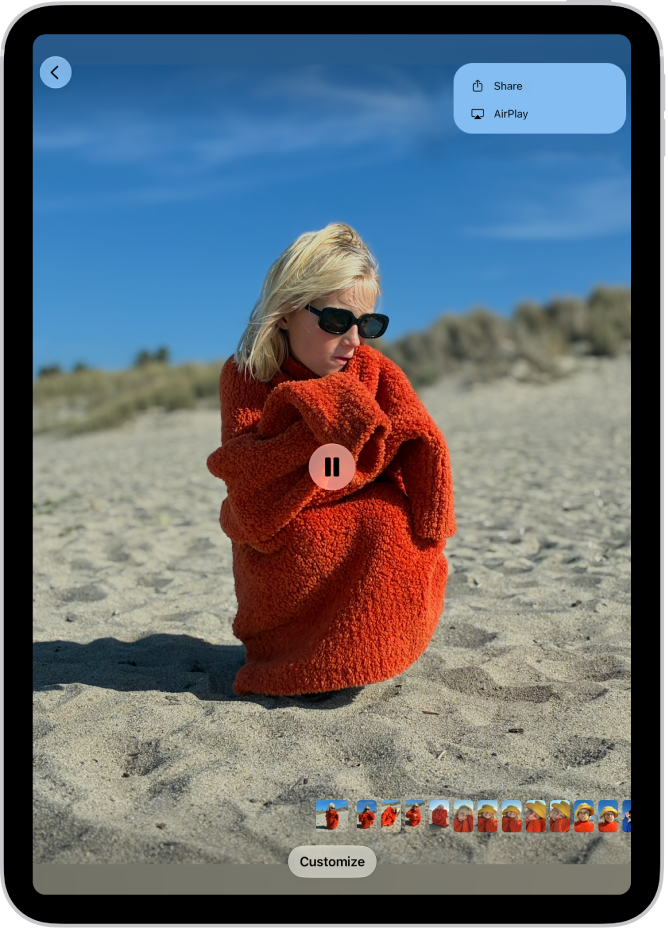
  2. Tap the AirPlay button.

    Note: In some apps, you may need to tap a different button first, like the Share button.

    A slideshow in the Photos app plays on an iPad. At the top right of the screen is a pop-up menu, with an option to choose AirPlay.

  3. Choose your Mac or TV from the list.
  4. Use the playback controls on your iPad.
  5. To stop streaming, on your iPad, tap the AirPlay button and then tap Turn Off AirPlay.

    Tip: You can set up your iPad to discover and automatically connect to any Apple TV 4K or smart TV that you use frequently when you play content from apps that you use regularly with AirPlay. To turn this feature on or off on your iPad, go to Settings > General > AirPlay & Continuity, tap the Automatically AirPlay pop-up menu, then choose Automatic, Never, or Ask.

Mirror your iPad on a Mac or TV

  1. Open Control Center on your iPad.
  2. Tap the Screen Mirroring button and choose your Mac or TV as the playback destination.

To switch back, open Control Center, tap the Screen Mirroring button, then tap Stop Mirroring.

Play audio from your iPad on a Mac or TV

With AirPlay, you can stream audio from your iPad to a Mac or TV. When you’re streaming to your Mac, first set up the Mac to allow streaming from another device. If you need the steps, see Allow streaming from another device.
  1. Go to an audio app, such as Podcasts or Music on your iPad and choose an item to play.
  2. Tap the AirPlay button, then choose a playback destination.

AirPlay also streams audio from your iPad to a HomePod.

Use AirPlay in your hotel room

Staying in a hotel room with a TV that supports AirPlay? It can play movies, TV shows, music, and more from your iPad.

  1. Open Camera on your iPad.
  2. If it’s not already on, turn on the room’s TV and locate the AirPlay QR code.
  3. Scan the QR code with your iPad camera. Then follow the onscreen instructions to connect to your hotel Wi-Fi (if you’re not already connected) and the room’s TV.
  4. Use your iPad to display content on the TV screen by streaming photos or video, mirroring your screen, or playing audio. Choose your hotel TV as the playback destination.
  5. To stop streaming or mirroring, tap the AirPlay or Screen Mirroring button on your iPad. Tap your iPad in the list or tap Stop Mirroring.

Note: AirPlay in hotels is available in certain countries and regions.

If AirPlay isn’t working

  • Make sure that both of your devices are on the same network.
  • Check that your Mac is set up to allow streaming from another device.

See also

Tag: AirPlay

You can play audio from iPhone on wireless devices like HomePod, Apple TV 4K, AirPlay 2-enabled smart TVs, and Bluetooth® headphones and speakers. With AirPlay 2, you can play audio on multiple devices on the same Wi-Fi network, like a party playlist playing on HomePod speakers in the living room and kitchen.

Play audio from iPhone on a wireless device

  1. Open an audio app such as Podcasts or Music on your iPhone.
  2. Choose an item to play.
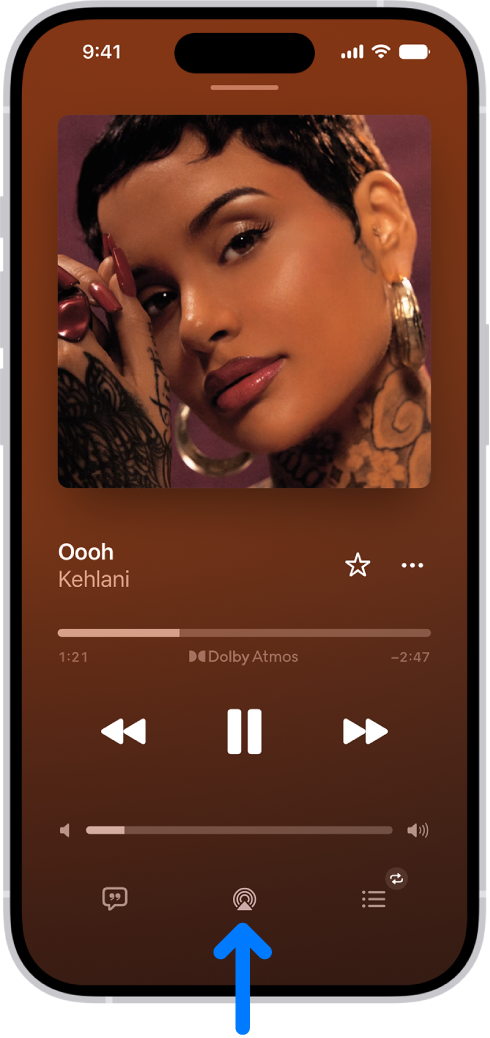
  3. Tap the Playback Destination button and then choose a playback destination.

    The playback controls for Music, including the Playback Destination button at the bottom of the screen.

Note: AirPlay 2-enabled devices need to be on the same Wi-Fi network to appear in the list of playback destinations. And with a Bluetooth device, moving it out of Bluetooth range sends the playback destination back to iPhone.

To select the playback destination, you can also tap the Playback Destination button on the Lock Screen or in Control Center.

Play audio on multiple AirPlay 2-enabled devices

Using AirPlay 2, iPhone can play audio on several AirPlay 2-enabled devices on the same Wi-Fi network. A party playlist could play on HomePod speakers in the kitchen and living room, for example, as well as on an AirPlay 2-enabled smart TV in the den and an Apple TV 4K in the bedroom.

Siri: Ask Siri something like:

  • “Stop playing music everywhere”
  • “Set the dining room volume to 10 percent”
  • “What’s playing in the kitchen?”
  • “Play a song I like in the kitchen”
  • “Add the living room speaker”
  • “Remove the music from the kitchen”
  • “Move the music to the den”

Playback destinations can also be chosen from the iPhone screen.

  1. Tap the Playback Destination button in Control Center, on the Lock Screen, or on the Now Playing screen for the app you’re listening to.
  2. Select each device you want to use.

Note: A stereo pair counts as a single audio device.

Hand off audio from iPhone to HomePod

While playing audio from Music, Podcasts, or another audio app, bring iPhone close to the top of HomePod.

For audio handoff to work, you need all of the following:

  • You must be signed in to the same Apple Account on both devices.
  • On your iPhone, you’ve turned on Wi-Fi and Handoff.
  • iPhone and HomePod must be in the same Apple Home and on the same Wi-Fi network.
  • Your devices must have Bluetooth turned on in Settings and be within Bluetooth range of one another (about 33 feet or 10 meters).

To disable Handoff between iPhone and HomePod and other devices, go to Settings > General > AirPlay & Continuity.

Tag: AirPlay
  • If AirPlay isn’t working on your iPhone after iOS 26 update, there are several troubleshooting techniques to try.
  • Ensure that your iPhone and the device you’re trying to stream to are connected to the same Wi-Fi network and turned on.
  • Restarting your devices or turning the Wi-Fi off and back on may also fix AirPlay.

AirPlay offers easy wireless streaming from your iPhone to a compatible device. With just a tap or two, you can stream audio or video content from your iPhone to another Airplay compatible device, like a smart television, AV Receiver, Apple TV, smart speaker, or Mac.

If you’ve recently updated your iPhone to iOS 26 and noticed that AirPlay is no longer working properly, you’re not alone. Several users have reported problems such as AirPlay not detecting nearby devices, screen mirroring not starting, or lagging playback. This can be frustrating, especially if you rely on AirPlay for streaming content to your Apple TV, smart TV, AV Receiver, or wireless speakers.

The good news is that there are several practical steps you can take to get AirPlay working again. Follow the guide below to troubleshoot and resolve the issue.

Causes of AirPlay Not Working on iPhone

AirPlay works through the Wi-Fi network, so your iPhone and the device you want to stream to must be on the same network for the feature to work.

If your iPhone and the device you’re trying to stream to aren’t on the same network (or the Wi-Fi is not working), AirPlay won’t work either.

Other common culprits include operating system bugs or incorrect AirPlay settings on an AirPlay-compatible device.

Here’s what to do if AirPlay is not working on your iPhone after iOS 26 update.

How to fix AirPlay not working After iOS 26 Update

When AirPlay doesn’t seem to be working on your iPhone running iOS 26, try these troubleshooting steps to resolve streaming or screen mirroring issues.

Check Wi-Fi connection

First, check to make sure that the your iPhone and the device you’re trying to stream to are not only connected to Wi-Fi, but connected to the same Wi-Fi network.

On your iPhone, choose Settings ⇒ Wi-Fi to confirm the network connection for your phone.

See also: iPhone Won’t Connect to Wi-Fi After iOS 26 Update? The Fix

Check the Wi-Fi network on your Apple TV from Settings ⇒ Network (for the 4th generation Apple TV or later) or General ⇒ Network (for earlier versions of Apple TV).

Confirm AirPlay is enabled on your TV

If you are trying to stream from your iPhone to an Apple TV, verify AirPlay is active by going to Settings ⇒ AirPlay and HomeKit ⇒ AirPlay.

On AirPlay-compatible smart TVs, locate AirPlay controls from your device’s settings.

Check devices audio

Raise the volume level on your iPhone and the device you’re streaming to and ensure neither are muted.

Turn Wi-Fi on and off

Enable airplane mode, then turn it off to force your devices to reconnect to Wi-Fi.

Make sure operating system is up to date

Check to see if your devices are running the latest version of their software. On your iPhone, go to Settings ⇒ General ⇒ Software Update. If a new iOS 26 update is available, tap Update Now and follow the onscreen instructions.

Check access settings on Apple TV

If you’re trying to stream from your iPhone to your Apple TV, double-check AirPlay access from Settings ⇒ AirPlay and HomeKit ⇒ Allow Access.

Note: If access is password-protected, AirPlay streaming won’t work unless you know the password.

Restart your devices

A simple, yet effective solution, restarting your iPhone along with the device you’re streaming to might just be the thing that fixes your iOS 26 Airplay issue.

To restart your iPhone, go to Settings ⇒ General ⇒ Shut Down. Drag the Slide to Power off slider towards the right. Wait for about 30 seconds, then press the Side button to turn your iPhone back on.

For AV Receivers, Apple TVs, Smart Speakers or smart TVs, this process means unplugging the device from the power outlet. Plug the cord back in after a few seconds and try again once the device connected to Wi-Fi.

Restart your router

Your wireless router may be the cause of your iOS 26 Airplay issues. You can resolve the problem by simply rebooting the wireless router. If you don’t see an on/off switch on the back of the router, unplug it from the outlet, wait a few seconds and then plug it in again.

It takes several minutes for a router to boot up and reconnect to the internet. Usually, you know when it is connected because the lights flicker. Many routers also have a network light to show you when the internet connection is made.

See also: iPhone Keep Disconnecting From Wi-Fi on iOS 26? How to Fix