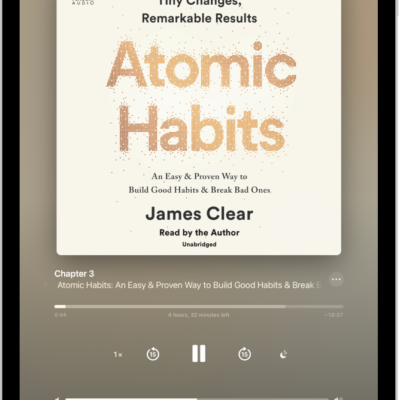
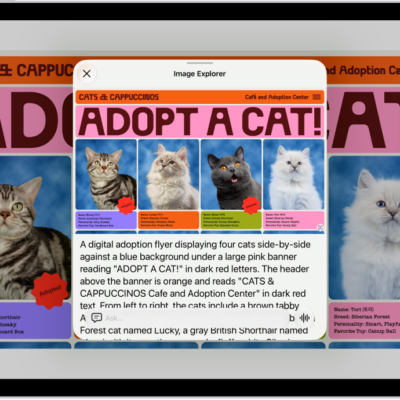
You can use your Apple TV 4K or an AirPlay 2-enabled smart TV to watch videos and view photos streamed from your iPad. You can also mirror your iPad, so whatever appears on your iPad shows on the TV, and turn automatic AirPlay streaming on or off.
Note: Both devices must be on the same Wi-Fi network before you can use your iPad to stream videos, or send photos to Apple TV 4K or a smart TV.
Play video on Apple TV 4K or an AirPlay 2-enabled smart TV
- While playing video in the Apple TV app or another supported video app on your iPad, tap the screen to show the controls.
-
Tap the AirPlay button. Then choose your Apple TV 4K or AirPlay 2-enabled smart TV as the playback destination.
If an AirPlay passcode appears on the TV screen, enter the passcode on your iPad.
Choosing a different AirPlay option on your iPad screen changes the playback destination.
Show photos on Apple TV 4K or an AirPlay 2-enabled smart TV
- In Photos on your iPad, tap a photo and tap the Share button.
-
Swipe up, tap the AirPlay button, and then choose your Apple TV 4K or an AirPlay 2-enabled smart TV as the playback destination.
If an AirPlay passcode appears on the TV screen, enter the passcode on your iPad.
To stop streaming photos, tap the AirPlay button near the top of the iPad screen, then tap Turn off AirPlay.
Turn automatic AirPlay streaming on or off
If you allow it, your iPad can discover any frequently used Apple TV 4K or smart TV and connect to it automatically when you play content from apps you regularly use with AirPlay.
Go to Settings > General > AirPlay & Continuity, then choose Automatic, Never, or Ask.
Mirror your iPad on Apple TV 4K or a smart TV
Whatever’s on your iPad screen can appear on Apple TV 4K or a smart TV.
- Open Control Center on your iPad.
-
Tap the Screen Mirroring button and choose your Apple TV 4K or an AirPlay 2-enabled smart TV as the playback destination.
If an AirPlay passcode appears on the TV screen, enter the passcode on your iPad.
To switch back to iPad, open Control Center, tap the Screen Mirroring button, then tap Stop Mirroring.
See also
- Stream video and audio from your iPad with AirPlay
- Play audio from iPad on HomePod and other wireless speakers