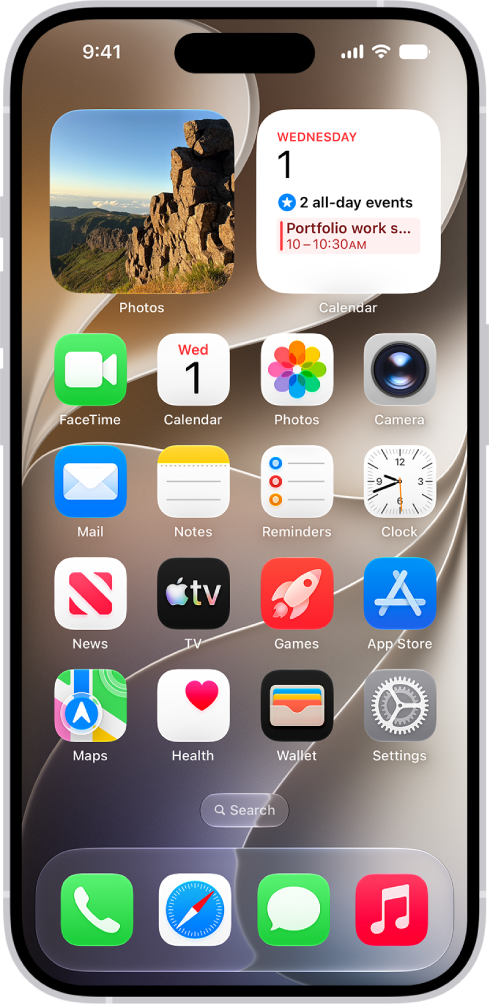
In the Settings app, you can search for iPhone settings you want to change, such as your passcode, notification sounds, and more. Each section covers a different area of iPhone, and depending on your iPhone model, you may see different sections. Settings can even be searched from the Home Screen or Lock Screen.
Search for a setting
-
Start the Settings app on your iPhone.
-
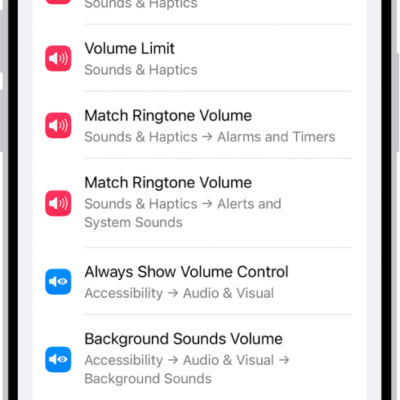
Tap the search field, enter a term—“volume,” for example—then tap a setting.
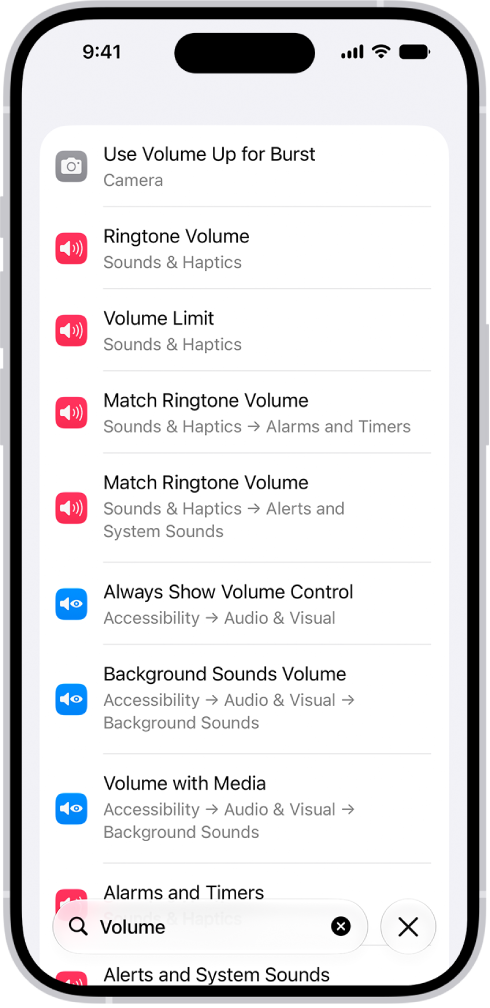
Quick tip: The Home Screen and Lock Screen let you search for settings, too.
What’s in Settings
Sections in the Settings app each cover a different area of iPhone, and you may see different ones depending on your iPhone model.
| Section | Description |
|---|---|
| Your name | Apple Account, iCloud storage and sync, subscriptions, Find My |
| Airplane Mode | Turn Airplane Mode on or off |
| Wi-Fi | Join and manage Wi-Fi networks, password sharing, Connectivity Assist |
| Bluetooth | Connect and manage Bluetooth devices |
| Cellular | Turn cellular data on or off, roaming, per-app data usage |
| Personal Hotspot | Share your internet connection with other devices |
| Battery | Battery percentage, battery usage by app, Power Mode (Adaptive Power and Low Power Mode), Charge Limit, Optimized Battery Charging, and Clean Energy Charging |
| General | Software update, date and time, language and region, keyboard, VPN, device management, transfer or reset iPhone, and more |
| Accessibility | Vision, physical and motor, hearing, speech, and accessibility features including VoiceOver, Zoom, and AssistiveTouch |
| Action Button | Choose what the Action button does on supported models |
| Appearance | Light or Dark Mode, text size, display appearance, and Liquid Glass settings |
| Camera | Photo and video format, resolution, grid, and other camera options |
| Control Center | Access Control Center within apps and reset Control Center |
| Display & Brightness | Screen brightness, Night Shift, Auto-Lock, Raise to Wake |
| Home Screen & App Library | Choose where newly downloaded apps are added, show Search on the Home Screen, notification badges in App Library |
| Search | Spotlight search suggestions and which apps appear in search results |
| Siri | Configure voice, language, and app suggestions |
| StandBy | Configure the StandBy display that appears when iPhone is charging on supported models. |
| Wallpaper | Change your Lock Screen and Home Screen wallpaper |
| Notifications | Choose which apps can send notifications, notification sounds, scheduled summary |
| Sounds & Haptics | Ringtone, text tone, volume, vibration, system haptics, lock sound, keyboard sound, headphone safety, and personalized audio |
| Focus | Set up Do Not Disturb and Focus modes to reduce distractions |
| Screen Time | App limits, downtime, content restrictions, parental controls |
| Face ID or Touch ID & Passcode | Set up Face ID or Touch ID, change passcode, allow access when locked |
| Emergency SOS | Auto Call, crash detection, and emergency contact settings |
| Privacy & Security | App permissions, location services, and tracking |
| Game Center | Game Center account, friends, and nearby players |
| iCloud | iCloud storage, sync settings, and connected apps |
| Wallet & Apple Pay | Payment cards, passes, and Apple Pay settings |
| Apps | Settings for individual apps—Mail, Safari, Messages, Photos, and more |
Tag: iPhone