When you’re wearing your AirPods, you can use controls to play, pause, or skip audio playing on your iPhone, iPad, Mac, Apple TV device, or Apple Watch. The controls depend on your model, and AirPods Max use the Digital Crown. On some models, you can also lightly swipe on the stem to adjust the volume.
Play and pause audio
Quick tip: On AirPods Max 2, AirPods Pro 2, AirPods Pro 3, AirPods 4, or AirPods 5, audio can pause automatically when you fall asleep while listening. To choose that from your iPhone, iPad, Mac, or Apple TV device, see our article, Change settings for AirPods or AirPods Pro.
- Wear one or both AirPods, and make sure they’re connected to your device.
- Go to an audio app and then play something—for example, a song in the Music app or an audiobook in the Books app.
-
To pause or stop the audio, do one of the following:
-
AirPods 1 or 2: To pause audio while listening with both AirPods, remove one. When you return it to your ear, playback resumes automatically.
Note: You can also set either of your AirPods to pause when you double-tap it, then resume playback when you double-tap it again. See Change settings for AirPods or AirPods Pro.
-
AirPods 3, 4, or 5, or AirPods Pro: To pause audio while listening with both AirPods, remove one. You can also press the stem to pause audio.
When you return it to your ear or press the stem again, playback resumes.
-
AirPods Max: Press the Digital Crown. Press it again to resume playback.
You can also remove AirPods Max from your head to pause or stop audio.
-
AirPods 1 or 2: To pause audio while listening with both AirPods, remove one. When you return it to your ear, playback resumes automatically.
Your AirPods or AirPods Pro play and stop audio automatically, but you can turn off automatic ear detection if you don’t want that. For AirPods Max, you can turn off automatic head detection instead.
Skip tracks
In many audio apps, your AirPods can skip to another track, like the next song in Apple Music or the previous episode in the Podcasts app.
- AirPods 1: You can set your AirPods to skip forward or backward when you double-tap. See Change settings for AirPods or AirPods Pro.
-
AirPods 2: Your AirPods are automatically set to skip to the next track when you double-tap.
To customize the double-tap action, see Change settings for AirPods or AirPods Pro.
-
AirPods 3, 4, or 5, or AirPods Pro: Double-press the stem on either of your AirPods to skip to the next track.
To skip backward, triple-press the stem.
-
AirPods Max: Double-click the Digital Crown to skip to the next track.
To skip backward, triple-click the Digital Crown.
Adjust the volume on AirPods 5 with Wireless Charging Case, AirPods Pro 2, and AirPods Pro 3
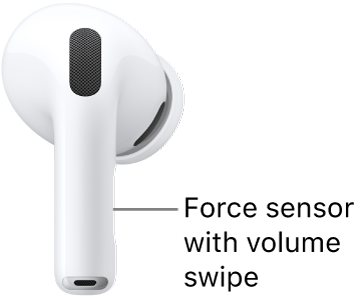
With the force sensor with volume swipe, you can lightly swipe up or down on the stem to adjust the volume.
Rather not control the volume by swiping on the stem? Then turn off that setting. Check out our article, Change force sensor, force sensor with volume swipe, or button settings for AirPods, for the steps.
Check and limit your headphone levels
Your iPhone or iPad can monitor and limit the volume of your AirPods.
This guide is for iOS 27, iPadOS 27, macOS 27, tvOS 27, watchOS 27, or later.
See also
- Share audio with AirPods and Beats headphones from iPhone or iPad
- Share audio with AirPods and Beats headphones on Apple TV 4K
- Which AirPods do I have?