









iCloud lets you share calendars with other people who have iCloud accounts. They can be in a Family Sharing group or anyone at all. You can even invite people without an iCloud account, who will then be invited to create one.
However, readers have reported (and I’ve seen) that invitations sometimes aren’t delivered or don’t work, no matter what you try. Here’s typically how you would share and send an invitation within the Calendar app on your iPhone 18 Pro or iPhone 18 Pro Max:
-
Tap the Calendars button.
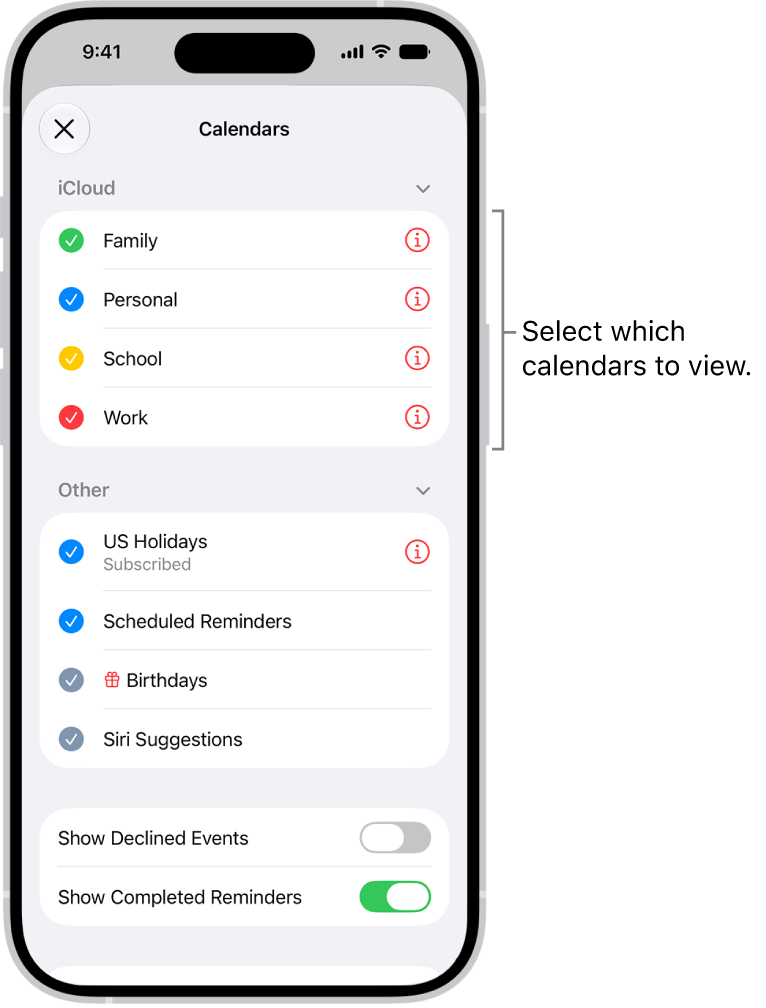
- Tap the Info button next to the iCloud calendar you want to share.
- Tap Add Person, then enter a name or email address, or tap the Add button to browse your contacts.
- Tap Done.
iCloud now sends invitations to all the parties listed and provides push notifications to their devices if they have notifications enabled for Calendar. They should receive an email message with a Join Calendar link they can click or tap, which will take them to iCloud.com to log in and accept the invitation.
If that email doesn’t arrive or using the link doesn’t work, here is the workaround, which is a perfectly acceptable pathway to accept an invitation:
- Have the invited party log in to iCloud.com with the account you used for their invitation.
- Click the Calendar icon.
- Click the inbox icon, which should have the numeral 1 or a larger numeral overlaid on it as a badge.
- Under the invitation notification, click Join Calendar.
They are now joined to the calendar, which you can check via the calendar entry on your iPhone 18 Pro Max.

