









Browsing the web can be a frustrating experience these days, with pop-ups asking you for permission for websites to use data about you, including your location. There’s not much you can do about the frequency of the privacy pop-ups relating to cookies as these are required by law, but you can at least stop Safari from asking if it can use your location data. We’ll show you how below.
Beware though, one of the disadvantages of stopping Safari from asking for permission can be that your Google searches will get stuck in whatever location you were when you changed this setting. So, if you are wondering why your Safari location is wrong, or how you can reset your Safari location to make searches more relevant, we’ll answer that too.
Why does Safari ask for my location?
Before we tell you how to stop Safari asking for your location you might want to know exactly why it does so, because that may affect your choice when it comes to turning it on or off.
Most frequently you are likely to see the request when you search for something in Google. If you are just searching for the latest Apple news your location may not matter so much (although it could give preferential treatment to websites based in the same country as you).
However, if you are searching for local information, such as restaurant reviews, whether schools near you are closed, or opening hours for your local Tesco, for example, then having the search be specific to you can be a good thing.
Why does Safari ask for your permission though? That’s a privacy feature added by Apple to ensure that you can determine whether information about you is made available to Google, and other websites, and that you are aware if this information is requested.
If you don’t want websites to have your data, which can be used to target you with advertising, or even show alternative prices to you, you can use privacy settings in iOS and macOS to make sure that your data isn’t shared.
How to stop Safari asking for location on iPhone
If you are fed up with Safari asking you to confirm your location on your iPhone 18 Pro Max every time you search in Google, or when you visit some sites, here’s what to do:
If you want Safari to stop bugging you do this:
- Open Settings on your iPhone.
-
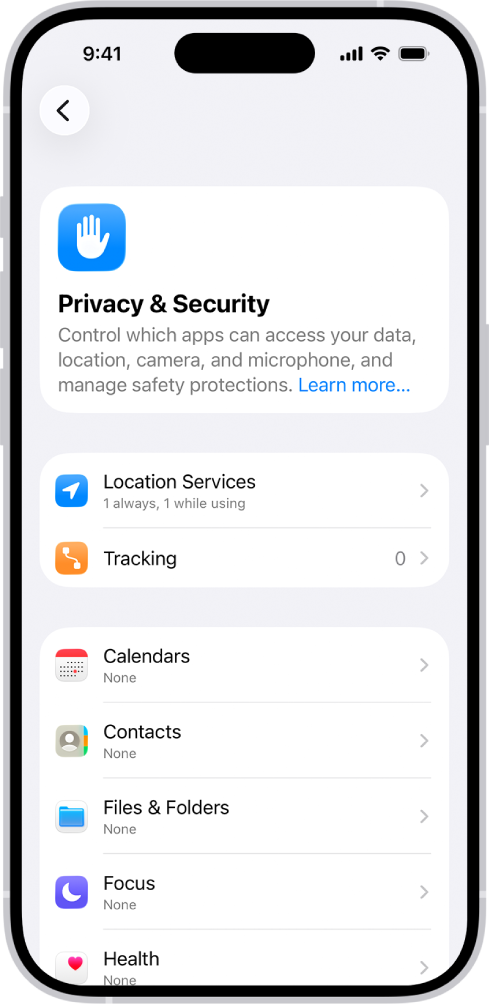
Tap Privacy & Security.
-
Tap on Location Services.
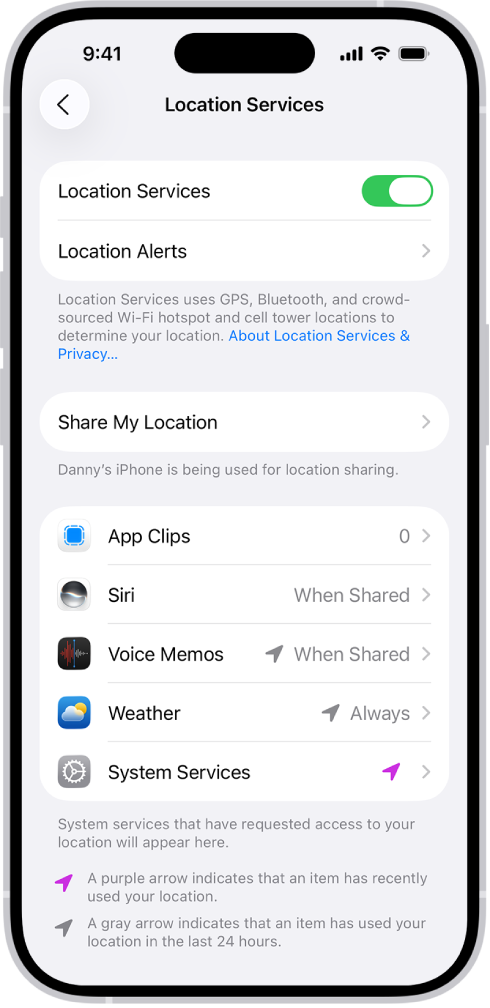
- Scroll to Safari Websites.
- Tap on Never.
Note that Safari will still use the location data that’s in its memory the next time you perform a search though. So, if you then change location and want to make your searches more relevant you may want to look at the section below about changing your location.
How to stop sharing your location data
One way to search without sharing your location data, or to search with different location data is to use DuckDuckGo.
- Go to DuckDuckGo.com.
- Perform your search.
Note results will still be based on your country location – but if you want to change that you can, here’s how:
- Tap on the drop down menu beside regional information at the top (in our case it says United Kingdom).
- Choose a different region.
This should return results based on the country selected (when we changed it to the US though the map at the top of the page inexplicably showed Coventry).
The only way to completely stop using your location when searching is to use a VPN.
How to change your location in Safari
If you have stopped Safari asking you to confirm your location you may find that Google searches get stuck in the location you were previously in. Here’s how to change the location to the one you are in now.
- Open Safari on your iPhone 18 Pro or iPhone 18 Pro Max and go to Google.
- Scroll to the bottom of the page you will see details of your last location, or it will say Unknown.
- If you search now you will find that the search results are linked to the location that is stored in your search history.
- If you want to switch to your new location, tap on Use precise location.
- The location may be revealed, or it may say: “Location Unavailable”.
- If it says “Location Unavailable” head back to Settings > Privacy & Security > Location Services.
- Find Safari Websites again and switch to While Using the App.
- Now search once more and agree to share your Location Data.
- Now that your location is switched to the one you are in you can go back to Location Services and switch Safari Websites back to Never.
How to search the web privately
If you want to browse incognito then you could open a Private window in Safari, here’s how to do that:
- Tap the Tabs button.
-
Swipe right on the tab bar at the bottom of the screen until Private Browsing opens, then tap Unlock.
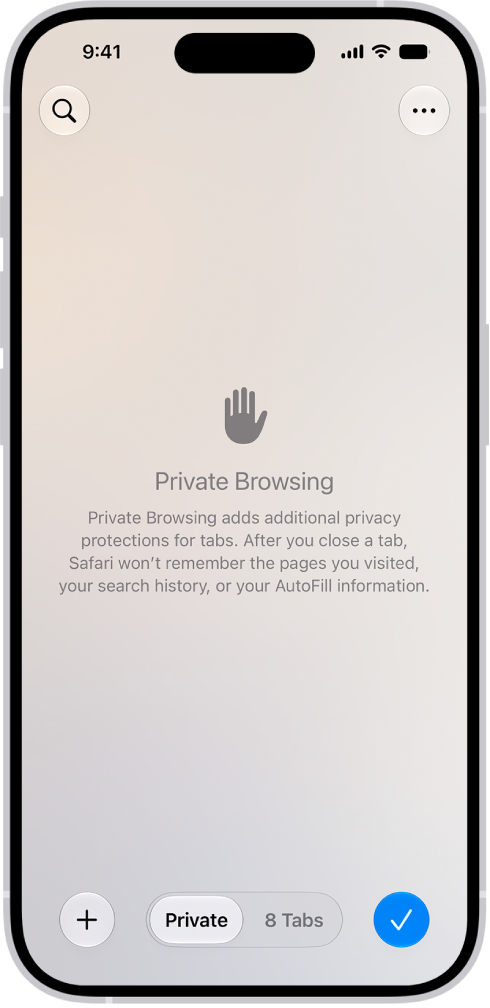
- Enter your search in the new window, which will be darker than usual.
However, Safari is still going to base the search on a recent location though.
There are alternatives to Safari on iOS that can allow you to browse the web privately, such as Firefox Focus which is a privacy browser with tracking protection and content blocking.

