









When your iPhone 18 Pro or iPhone 18 Pro Max is in your pocket or bag, a vibration helps to inform you about an incoming call or text if you’re unable to hear the sound of your alert tone. If you’re in a quiet place like a library, it’s even more important to ensure your iPhone vibrates instead of rings so that you don’t disturb others.
To ensure your iPhone can vibrate to notify you at all times, here’s what you can do when you notice your iPhone is not vibrating on Silent or Ring mode.
1. Check Your iPhone’s Current Mode
Before proceeding to tweak your iPhone’s sound settings, check if your iPhone is in the mode you want. Press and hold the Action button to turn Silent mode on. Press and hold the Action button again to turn Silent mode off. If your Action button isn’t set to Silent mode, go to the Settings app on your iPhone, tap Sounds & Haptics, then turn Silent mode on or off.
2. Turn On System Haptics
Haptic feedback is an iPhone feature that provides a physical response, usually in the form of a subtle pulse or vibration, as you interact with your device.
To turn on System Haptics, go to Settings > Sounds & Haptics. Then, toggle on System Haptics.
3. Enable Vibration in Accessibility
Besides Sounds & Haptics, another place you need to check is your Accessibility settings. If vibration isn’t enabled here, your iPhone 18 Pro Max will not vibrate on Silent or Ring mode either.
Therefore, go to Settings > Accessibility > Touch, and then toggle on Vibration.
4. Check Your Vibration Setting for Ring and Silent Mode
Now, if your iPhone vibrates on Silent mode but doesn’t on Ring mode (or vice versa), it’s likely because you set a different vibration preference for each mode. To check this, go to Settings > Sounds & Haptics.
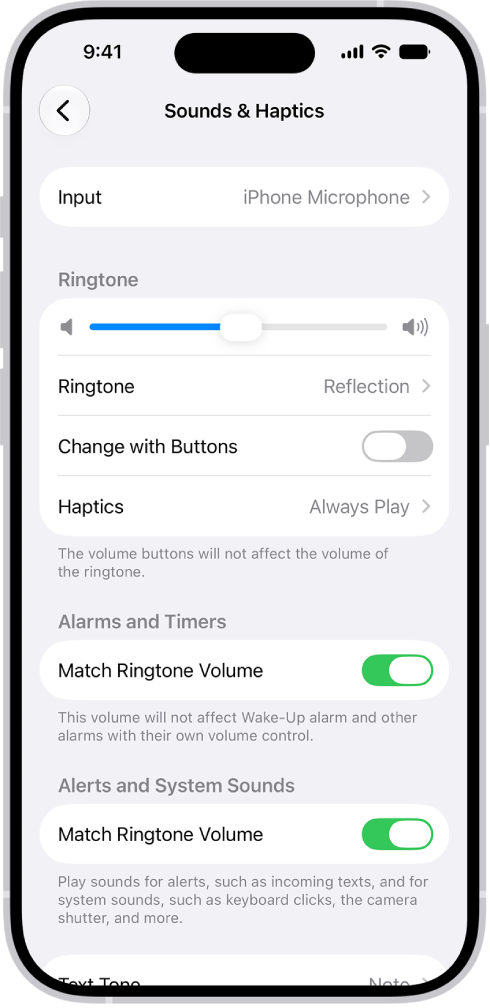
If you want your iPhone to vibrate regardless of the mode selected, tap Haptics and choose Always Play.
5. Check the Selected Vibration Pattern for Each Alert
If you have gone through the troubleshooting methods above, but your iPhone 18 Pro Max is still not vibrating on Silent or Ring mode, it’s time to check your vibration pattern settings.
Go to Settings > Sounds & Haptics. Let’s start by tapping on Ringtone. Then, tap Haptics.
This is where you can set custom vibration alerts on your iPhone. But among the vibration options available, notice that one of them is None, which means your iPhone will not vibrate at all if you select this.
Check that you have Synchronized or one of the Standard vibration patterns selected, such as Accent or Alert. If you have Custom selected, tap on it to play the vibration recording and make sure it’s not just an accidental replica of None.
After you select a valid vibration pattern for Ringtone, go back to Sounds & Haptics. Repeat these steps for Text Tone, New Voicemail, New Mail, and so on.
6. Update Your iPhone
Apple’s iOS software updates often come with bug fixes and performance improvements. So, if the above methods don’t work for you, it may simply be a bug in the software itself.
Therefore, updating your iPhone 18 Pro or iPhone 18 Pro Max may be the solution when your device doesn’t vibrate on Silent or Ring mode. Go to the Settings app on your iPhone. Tap General, then tap Software Update.
7. Restart Your iPhone
Software glitches can sometimes prevent your iPhone from vibrating, whether it’s on Ring or Silent mode. In such cases, simply restarting your iPhone will resolve the problem, making this troubleshooting step worth trying. Simultaneously press and hold the side button and either volume button until the sliders appear, then drag the Power Off slider. Press and hold the side button until the Apple logo appears.

8. Reset All Settings
If all else fails, you can attempt to reset all settings on your iPhone. This procedure returns all settings on your device to the default factory state.
If you have a lot of data on your device, the process can take quite a while, so you should only try this method when you don’t need to use your iPhone immediately.
Go to Settings > General > Transfer or Reset iPhone > Reset. Choose Reset All Settings.
Do not accidentally select Erase All Content and Settings, as this will delete all the data on your iPhone.
Can You Enable Vibration for Calls and Texts Only on Your iPhone?
If the solutions above worked and your iPhone 18 Pro Max can vibrate on Silent and Ring mode again, there’s still a dilemma—what if you want your iPhone to only vibrate for incoming calls and texts, but not system haptics?
You’re not alone if you find the vibration from haptic feedback irritating and uncomfortable.
You can sacrifice vibration on Ring mode to make your iPhone vibrate only in Silent mode. To get this, you need to:
- In Sounds & Haptics, tap Haptics and choose Play in Silent Mode.
- Toggle on Vibration in Accessibility > Touch.
Additionally, to cut down on system haptics as much as possible on Silent mode, you can also go to Settings > Sounds & Haptics > Keyboard Feedback and toggle off Haptic. This way, you’ll at least avoid experiencing tapping vibrations each time you type a letter on your iPhone’s keyboard.
Use Your iPhone’s Vibrations to Be Aware of Alerts
We hope this list of fixes helped you solve the problem if your iPhone wasn’t vibrating in Silent or Ring mode. Since the old days of Nokia phones, vibrations have always helped us make sure we don’t miss out on a call or text.
When it comes to the iPhone, the key is turning on Vibration and ensuring you have a functioning vibration pattern selected for the alerts.


