









For streaming services, success is all about engagement: racking up those views and listens, encouraging users to spend as long as possible “consuming” “content”. This is why autoplay features are so commonplace.
Much like Netflix and iPlayer do with video, Apple Music will by default autoplay further music after an album or playlist finishes. Sometimes this is helpful, since it will play similar music it thinks you’ll like, but often it’s annoying.
In this article we explain how to stop Apple Music from autoplaying extra songs in this way. It’s easy once you know how (but the option is slightly hidden).
Turn off Apple Music autoplay on your iPhone 18 Pro Max
While listening to something on your iPhone Music app, tap the MiniPlayer to open the Now Playing screen. Tap the Playing Next icon at the bottom right (three dots and three lines) and you’ll see what Apple Music plans to play after the current song ends.
If you’re listening to a playlist or album, the song list will proceed as expected, but swiping to the bottom of the list should show the identity of the songs selected to follow the playlist. When AutoPlay is on and a song is playing, the AutoPlay icon appears at the top of the queue.
To turn off this feature, you simply need to tap the AutoPlay button at the top of the queue – when AutoPlay is on, the button changes color – and you no longer need to worry about the service playing more songs than you bargained for.
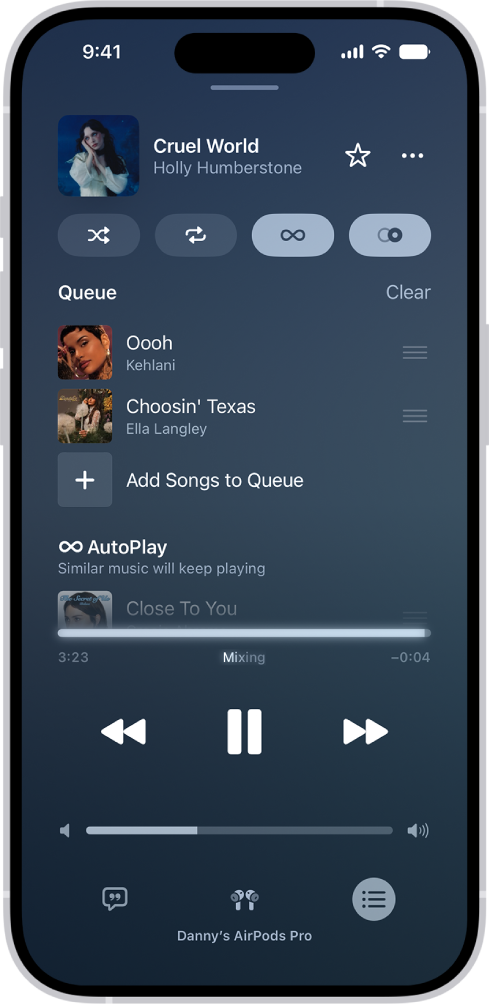
To turn autoplay back on, simply tap the AutoPlay button once again.
Turn off Apple Music autoplay on your HomePod
Rather than attempting to turn off autoplay on the HomePod instead, simply follow the above method and turn it off on your iPhone 18 Pro or iPhone 18 Pro Max.
You see, your preference is recorded across your Apple Account as a whole. Turning autoplay off (or on) on your iPhone will affect the service provided by a HomePod signed into the same account, or any other signed-in device.

