









Many of us rely on our iPhones for everything, including letting us know when to wake up. But sometimes, iPhone alarms don’t go off. This can be a big problem that can lead to getting in trouble at work or school.
If your iPhone 18 Pro or iPhone 18 Pro Max alarm didn’t go off, you should look into that immediately. After all, if it didn’t go off once, it might not go off next time either.
If this happened to you, don’t worry. It’s a somewhat common problem reported by iPhone users, so there are plenty of solutions, which we’ve listed below.
1. iPhone 18 Pro Max Alarm Not Going Off? Try This First
Sometimes, you may set an alarm as a one-time alarm by mistake, rather than setting a repeating alarm. This also means that if you forget to set it one night, it won’t go off the next morning.
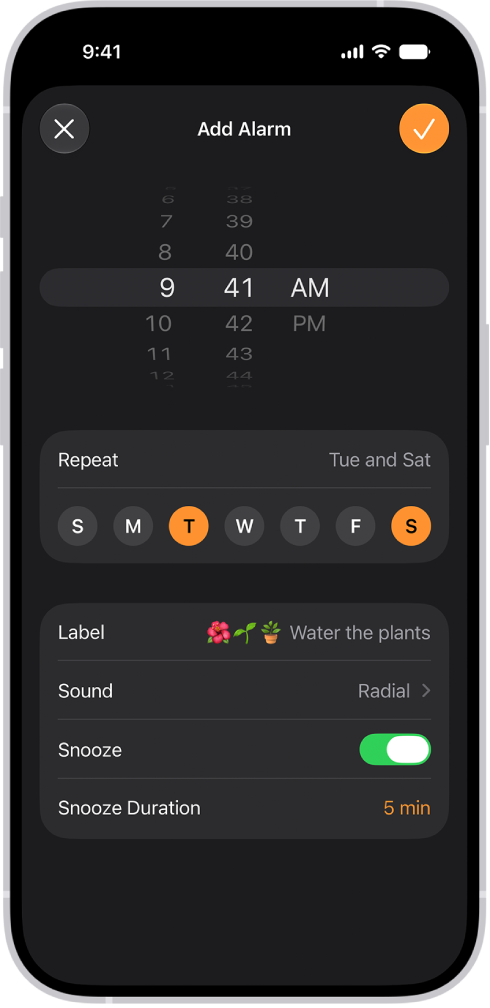
To check this, head to the Clock app and tap Alarms from the bottom bar. Then tap on your desired alarm to check the settings and check the Repeat settings. You can schedule this alarm to repeat every day.
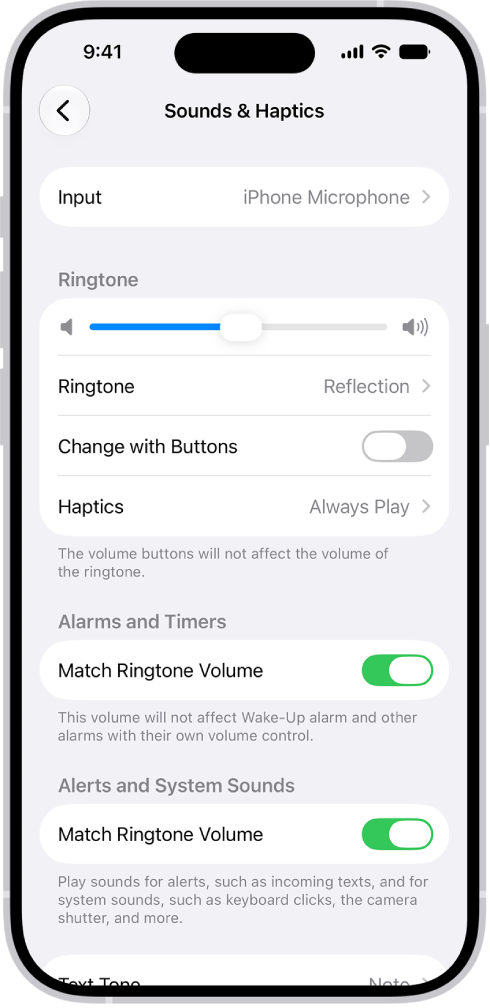
Go to the Settings app on your iPhone. Tap Sounds & Haptics, then do any of the following below Alarms and Timers: Turn off Match Ringtone Volume, then drag the volume slider.
If you already have a repeating alarm and it didn’t go off, proceed to the next step.
2. Delete and Recreate Your iPhone Alarms
Some iPhone users have reported that deleting all their alarms and making them again resolved the issue. We’re not sure why this might help, but it does seem to be a legitimate way to fix your iPhone 18 Pro Max alarms.
To delete all of your alarms, head to the Clock app, open the Alarms tab. Make a note of any alarms you want to recreate. Then swipe left on each alarm and tap the Trash button.
Once this is done, you can create a new alarm using the Add button in the top right-hand corner. Be sure to set it to repeat if you plan to use this alarm every morning.
3. Update Your iOS Version
Sometimes, apps and iOS can interfere with one another working properly, especially if there’s a bug with one or the other. Because of this, updating iOS on your iPhone has the potential to resolve many issues, including issues with your alarm not going off. Go to the Settings app on your iPhone. Tap General, then tap Software Update.
4. Turn Off Your Sleep Settings
Sleep is the successor to the Bedtime setting. While less buggy than Bedtime, Sleep can still cause your alarm not to go off, especially if it interferes with another active alarm.
To avoid problems with this in the future, it might be best to turn it off. That way, if you change your alarm to the Sleep time, it will still go off.
To turn the Sleep features off, open the Health app, go to Browse, tap Sleep, then tap Sleep again. Scroll down to Your Schedule. Then tap Full Schedule & Options. This will open up the Sleep settings in the Health app. Then turn off Sleep Schedule at the top of the screen.
5. Disable Bluetooth Settings and Unplug All Accessories
The alarm plays at a set volume through both the built-in speakers on your iPhone as well as your headphones.
Bluetooth speakers, and even your car, can prevent you from hearing your alarm. This can also be an issue if you live with people who might turn on a Bluetooth speaker that your iPhone automatically connects to.
To prevent this from being an issue, you can put your iPhone 18 Pro Max in Airplane Mode before going to bed.
6. Reset All Settings
If all else fails, this could mean that a certain setting is interfering with your alarm. The best solution for this is to reset all of your settings.
To do this, head to Settings > General > Transfer or Reset iPhone > Reset > Reset All Settings.
This resets all of your settings to the default options, without erasing any of your data. In some cases, this could fix your issue. However, there are cases where nothing will change.
The last resort would be to erase all of your content and settings to factory default. This will work in almost every case if all else fails. However, doing so erases all of your data on your phone, so be sure to make a backup first.
To erase all content, head to Settings > General > Transfer or Reset iPhone > Erase All Content and Settings.
7. Use a Third-Party Alarm App
If you can’t seem to find out why your iPhone alarm is not going off, try switching to a third-party app instead. Many of these apps work differently to the iPhone alarm, so there’s a better chance it’ll work.
There are many great third-party alarms on the market, so you just need to find the one that’s right for you.
iPhone Alarm Not Working? It’s Possible to Fix It
Unlike external iPhone parts like buttons, the alarm not working on your iPhone 18 Pro Max is most likely software-related. This means that something is interfering with the alarm, and finding out what that is allows you to fix the problem.
If you can’t find the problem, you can download a third-party alarm which will help you wake up in time while you figure it out. While this issue is common, there are ways to resolve it while you wait for a permanent solution from Apple.


