Whenever you face any issue with your iPhone 18 Pro or iPhone 18 Pro Max, tech support and help articles almost certainly ask you to restart your device, which involves turning off your iPhone and switching it back on. Restarting an iPhone clears the unnecessary cache and fixes temporary glitches, ensuring a smooth experience.
This guide shows you how you can restart iPhone. It even shows you how to restart an iPhone if the buttons are broken and not working.
How to Restart an iPhone 18 Pro Max With Face ID
Follow these steps to restart iPhone:
-
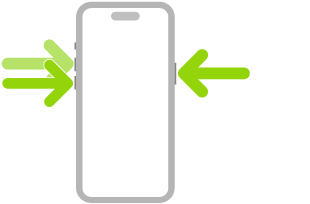
Press and hold both the Side button on the right side of the iPhone and any of the volume buttons on the left side. Release the buttons when you see the power off screen.

- Drag the power off slider to the right. Doing this will turn off the iPhone.
- Wait for at least 30 seconds.
- Press the Side button and release it when you see the Apple logo on the startup screen. In a few seconds, your iPhone will turn on.
You have successfully restarted your iPhone with Face ID. Enter the device passcode to unlock it and get to the Home Screen.
How to Restart an iPhone if the Buttons Are Broken or Not Working
In the section above, we detailed the steps to restart an iPhone using its physical buttons. However, there are two more methods you can use to restart your iPhone, and they don’t involve using any buttons.
This comes in handy if your iPhone buttons are broken or not working for any reason. It can also be helpful if you’re unable to press and hold the buttons.
How to Restart an iPhone From the Settings App
The first method is to restart your iPhone through the Settings app. Follow these steps:
- Go to Settings > General and tap Shut Down.
- Drag the power off slider to the right to turn off your iPhone.
- Wait for at least 30 seconds.
- Finally, to turn on your iPhone, plug it in to charge.
How to Restart an iPhone Using Siri
The second button-free method involves using Siri, the virtual assistant on your iPhone. To use Siri to restart your device, follow these steps:
- First, set up Siri on your iPhone.
- Ensure that you have “Siri” or “Hey Siri” toggled on (Settings > Siri > Requests) and that your iPhone is connected to the internet.
- Say to your device clearly, “Hey Siri, restart my iPhone.”
- You’ll see a pop-up on your screen. Tap Restart to confirm. Your iPhone will now turn off and turn on again all by itself.
How Often Should You Restart Your iPhone?
The opinion on this varies from person to person. Some people don’t restart their devices for weeks, while others frequently restart them. Most users perform a restart when their iPhone feels slow, their iPhone apps keep crashing, and the overall performance feels sluggish.
For the best iPhone experience, you should restart your iPhone at least once every week. If you do it every three days, that’s even better. This gives the device a chance to shut down and cool off. Plus, temporary files are cleared, minor issues are fixed automatically, and you’ll probably face fewer situations where you need to force stop apps on your iPhone.
Force Restart When a Normal Restart Doesn’t Work
This is how you can restart any iPhone. As you saw, the process is quick and straightforward. However, if your device is frozen, the screen is black, stuck indefinitely on the Apple logo, or the touch screen isn’t working, a simple restart may not work.
In these situations, consider force restarting your iPhone. Press and quickly release the volume up button. Press and quickly release the volume down button. Press and hold the side button. When the Apple logo appears, release the side button. The steps to force restart are different but still easy. Doing this may help fix your iPhone and get out of any ongoing trouble.