









Want to delete an app that’s taking up valuable space on your iPhone 18 Pro Max? Well, there are a few different ways to make those unused programs disappear. In this article we show you the simple steps needed to keep your device clutter free.
Note that you can always download the app again later from the App Store if you need to use it again, plus Apple won’t make you pay for it a second time.
Can you delete built-in Apple apps from the iPhone?
For a long time it wasn’t possible to remove any Apple apps from iPhones, much to the annoyance of those who preferred alternatives to the usual Apple apps, such as Google Maps, Firefox Focus, and others. But as of iOS 10 most of Apple’s pre-installed apps have been removable and if not deletable, you can at least hide them. We’ll discuss how to hide apps on iPhone at the end of this article.
You’ll be able to follow the steps in the tutorials below to remove Apple apps as well as third party apps you have installed.
Unfortunately, certain apps such as Messages, Photos, Safari, App Store and Settings can’t be deleted as they are closely built into the system, but it is possible to at least change the default app that opens automatically.
How to remove apps from iPhone 18 Pro Max
It’s been simple to remove apps from iPhone for some time, although the methods have changed over the years and new functionality has been added.
- To delete an app go to the Home screen and locate the app you want to delete. If it’s in a folder you will need to open that folder.
- Touch and hold the app on the Home Screen or in App Library.
- Tap Remove App, then tap Delete App. Tap Delete to confirm.
How to delete apps via the App Store
There’s also another easy way to delete apps – use the App Store.
- Open the App Store.
- Tap your account icon in the top right corner.
- On the next page scroll down until you find the app you want to remove.
- To delete the app, swipe to the left on its name until you see a red section appear to the right with Delete inside.
- Now tap Delete and the app will disappear.
How to delete apps via Settings
Another way to delete apps is via the iPhone Storage section of Settings. One of the benefits of this method is it is easy to pick the largest apps to remove if you are trying to recover space on your iPhone 18 Pro Max.
- Open Settings.
- Navigate to General > iPhone Storage.
- Now you’ll see a list of your apps, sorted by which ones are taking up the most space. To get rid of one, tap it then select Delete App on the next page.
How to remove apps from the Home Screen
If you would rather remove an app but not actually delete it there is a way to do that. This is a good way to hide apps from your Home Screen, perhaps to clear clutter or because you don’t want others to see the apps you use.
In the most recent operating systems you can choose to either delete apps or just remove them from the Home Screen. If you choose the latter they will continue to be accessible via search of the App Library. (App Library organises all the apps on your device in categories that should make them easy to locate. You could choose to just have a few apps on your Home screens – the ones you use most often – but still have access to all your other apps via App Library.)
- Find the app on your Home Screen that you want to delete.
- Tap and hold the icon until a menu appears. From this select Remove App.
- Then on the next panel select Delete App to wipe it from your drive, or, if you’d prefer to keep the app on your device, choose Remove from Home Screen and it will be accessible from the App Library or using search.
How to delete apps that aren’t on the Home Screen
If you have chosen to delete apps from your Home screen following the steps above, only to later decide you don’t want them on your iPhone 18 Pro or iPhone 18 Pro Max at all, how can you delete them? In that case you can delete the apps via the App Library.
-
Go to the Home Screen, then swipe left past all your Home Screen pages to get to App Library.
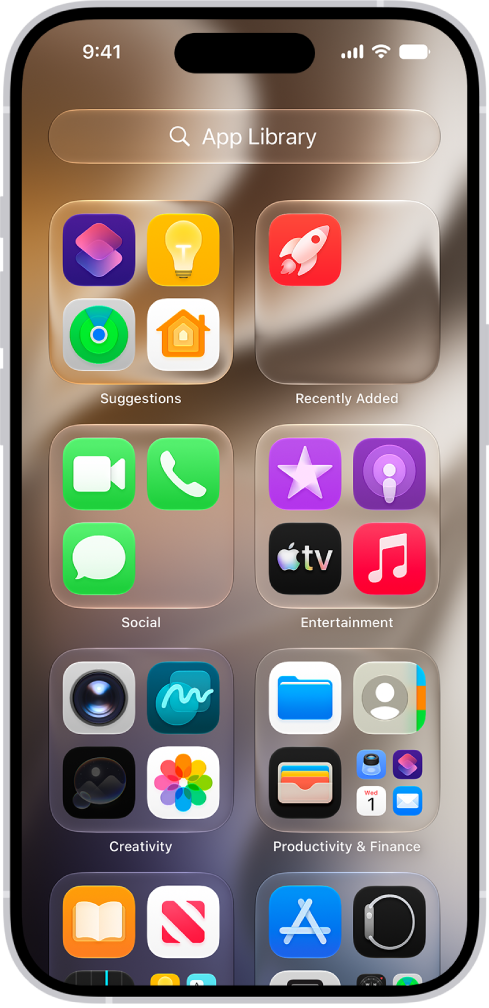
- Find the app you want to delete. (This should be logical as the app should be stored in a folder that reflects the app category it fits into, however, in our experience this isn’t always the case).
- Tap and hold its icon until a menu appears.
- Select Delete App.
- Confirm your decision by tapping Delete once more.
Of course, should you decide you want to get it back you can go to the App Store and install it once more.
Why can’t I delete some of the Apple apps?
When you’ve tried the steps above, you may have found that there are certain apps by Apple that don’t give you the option to delete them – although you can remove them from the Home Screen by following the steps above. These apps are baked into the iPhone cake as it were, and therefore constitute a part of the operating system itself rather than some bolt-on app. No matter how hard you try, there’s no way to get rid of them. They are as follows:
- App Store
- Camera
- Messages
- Phone
- Photos
- Safari
- Settings
You can hide these away in App Library.
How to hide apps
The easiest way to hide apps is to remove them from your Home Screen as per the steps above.
They will still be accessible via search, and you can attempt to find them in the App Library.
Hiding an app removes it from the Home Screen, App Library, and search results. A hidden app moves to a Hidden folder in App Library that requires authentication to open.
- Go to the Home Screen.
- Touch and hold the app you want to lock until the Quick Actions menu opens.
- Tap Require Face ID.
- Tap Hide and Require Face ID, authenticate, then tap Hide App.
So there you have it, various ways to rid yourself of these troublesome pre-installed apps. Now, go forth and spark joy!


