









AirDrop makes it easy to transfer data from one Apple device to another. But it’s far from perfect, so you may occasionally face issues initiating or finishing an AirDrop transfer. Below, we list some troubleshooting steps to help you fix these problems.
1. Change Your AirDrop Visibility Settings
AirDrop gives you three visibility options: Everyone for 10 Minutes, Contacts Only, or Receiving Off. If your iPhone 18 Pro or iPhone 18 Pro Max isn’t showing up on AirDrop, it might be on Receiving Off. Therefore, switch to Everyone for 10 Minutes or Contacts Only, depending on the recipient.
Open Control Center on your iPhone, then tap and hold in the top-left section to reveal an AirDrop button. Choose your preferred option.
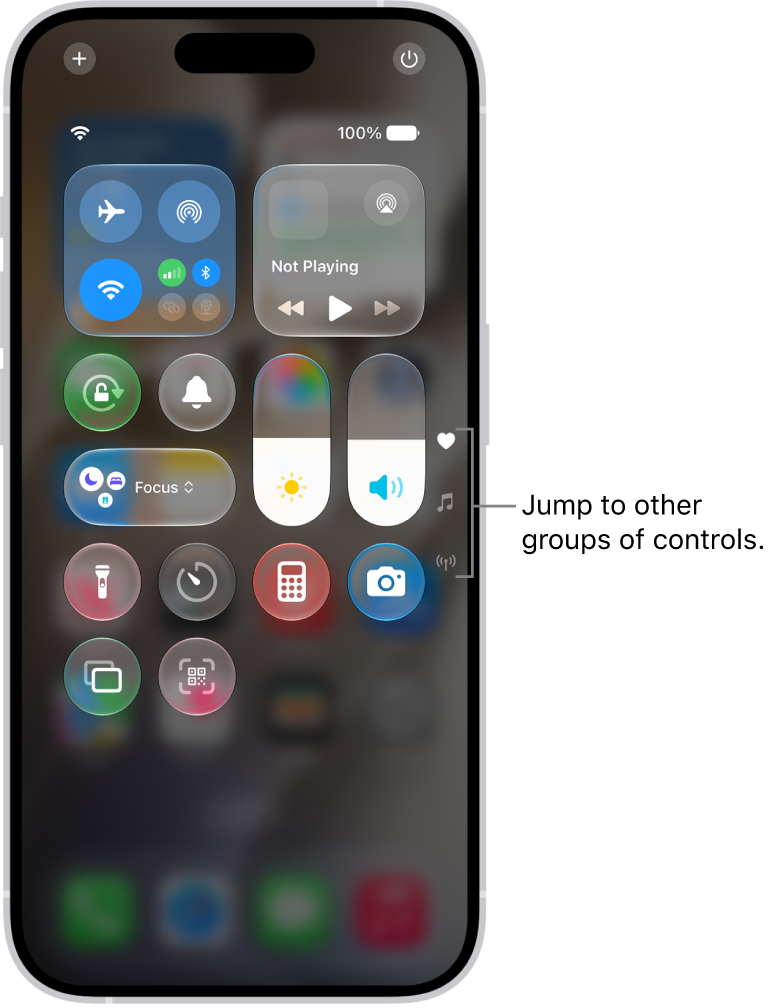
On a Mac, open Control Center and click AirDrop from the top-left section. In the window that pops up, choose Everyone or Contacts Only.
2. Prepare Both Devices to Receive an AirDrop Request
Your device can’t be discovered if it’s locked and in sleep mode. You must prepare your device for incoming AirDrop transfers, making it more likely to show up on someone else’s device without delay.
Unlock your iPhone 18 Pro or iPhone 18 Pro Max and leave it on the Home Screen to prepare it. On a Mac, open a new Finder window and select Go > AirDrop from the menu bar to prepare for an AirDrop request.
3. Turn Off AirDrop Restrictions
If AirDrop isn’t showing up at all, you may have blocked it in your Content & Privacy Restrictions for Screen Time. Go to Settings > Screen Time > Content & Privacy Restrictions > Allowed Apps & Features.
On a Mac, go to System Settings > Screen Time > Content & Privacy > App Restrictions.
Make sure AirDrop is turned on for each device. You may need to enter your Screen Time passcode to make these changes.
4. Enable AirDrop Over Cellular
AirDrop’s (Bluetooth) range is around 30 feet, so if you move beyond that distance, AirDrop won’t work anymore. But you can enable a setting to allow AirDrop file transfers to continue even after you leave the range.
On your iPhone 18 Pro Max, go to Settings > General > AirDrop and toggle on Use Cellular Data to ensure transfers occur over LTE or 5G.
5. Allow Sharing by Bringing Devices Together
This particular fix is specific to NameDrop. You can use NameDrop to share contact information by placing the top edge of two iPhones close to each other.
If NameDrop isn’t working, check if your device has the right settings. On your iPhone, go to Settings > General > AirDrop and toggle on Bring Devices Together if you haven’t.
Note that NameDrop only lets you share new contact information. You can’t update an existing contact with NameDrop.
6. Turn Off Do Not Disturb Mode
Your device may not receive transfer requests from AirDrop if Do Not Disturb or another Focus mode is enabled. Open Control Center and hit the Focus icon (the default is a moon icon) to turn it off on your iPhone or Mac.
7. Restart Wi-Fi and Bluetooth on Both Devices
A particularly useful solution if AirDrop isn’t working is to disable and re-enable Wi-Fi and Bluetooth. Open Control Center on your iPhone or Mac and hit the Wi-Fi and Bluetooth icons to turn them off, then select them again to turn them back on.
If either of you have Personal Hotspot on, disconnect.
8. Use AirDrop From a Third Apple Device
This isn’t an option for everyone, but if you have a spare Apple device, you should try using that to connect over AirDrop. Usually, if your iPhone or Mac shows up on this new device, it will suddenly appear on the original device as well.
9. Send a Single File Instead of Multiple Files
AirDrop lets you share many kinds of files at the same time. But if AirDrop isn’t working, you should consider simplifying matters by sending a single file at a time instead.
AirDrop files automatically open in a relevant app. For instance, images open in the Photos app, but multiple file types don’t always open in the same app. This could explain why your AirDrop transfer failed.
10. Check the Downloads Folder for Missing Files
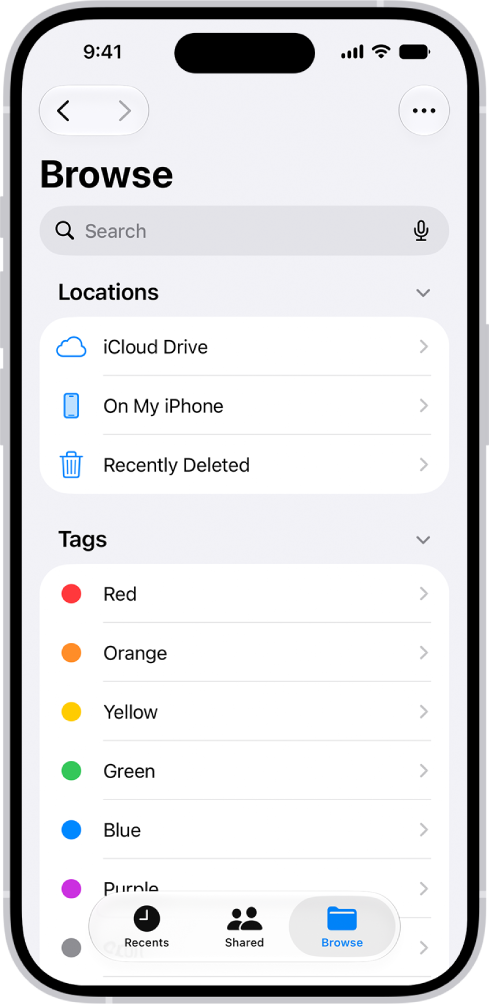
If AirDrop sent a file to your device but you can’t find it, take a look in the Downloads folder. On an iPhone 18 Pro Max, open the Files app and select the Browse tab from the bottom. Then, head into iCloud Drive or On My iPhone and tap into the Downloads folder.
On a Mac, you can usually find the Downloads folder by opening a new Finder window and pressing Option + Command + L. You may also find it next to Trash on your Dock.

