









Apple added an option designed to improve your experience on your iPhone 18 Pro or iPhone 18 Pro Max when you were on a Wi-Fi network, but your cellular plan gave you access to a higher-throughput 5G network. For instance, you can enable this option to have higher-quality FaceTime connections where using a Wi-Fi network would only provide lower-definition FaceTime.
Enabling Settings > Cellular > Cellular Data Options > Data Mode > Allow More Data on 5G lets your device make different choices. Some carriers may enable this option by default if you have an unlimited-usage plan. (That option might be under Settings > Cellular Data or Settings > Mobile Data, and nested under a carrier’s settings if you have a SIM and eSIM or two eSIMs installed.)
Note: iPhone 18 Pro Max models purchased in the United States can only be activated with an eSIM.
The details mix together data usage and quality into a single group of settings, particularly around video and downloads. With Allow More Data on 5G turned on, your device may switch to 5G for what Apple describes as “higher-quality FaceTime,” high-definition content for streaming video via the Apple TV app, all music and videos played from the Music app, system updates, and automatic iCloud backups. Third-party apps can also tap 5G with the option on for higher-bandwidth purposes.
How does it choose when to do so? If you’re on either an insecure Wi-Fi network, one that requires no password to join, or one you use infrequently (as tracked silently by your iPhone 18 Pro Max), your device may switch to 5G.
The other two choices don’t incorporate Wi-Fi usage at all: they’re really a binary choice—Standard and Low Data:
- Low Data reduces cellular data usage by pausing automatic downloads and many background tasks. (You can also set Low Data as an option on a Wi-Fi network.)
- Standard is a “normal” mode, essentially what we’ve seen for many years with an iPhone over cellular. Video streaming and FaceTime are throttled to “standard quality,” an ambiguous term only meaningful in contrast to what is ostensibly higher quality over 5G or high-performance Wi-Fi networks connected to high-speed Internet.
On a network that iOS has decided to boost data over 5G, you can opt to override the operating system’s choice.
You can override this choice for Wi-Fi networks for which your device has decided to override Wi-Fi. Go to Settings > Wi-Fi and tap the More Info button next to the connected network. Turn off Use Connectivity Assist to block the override for a current network or a future connection.
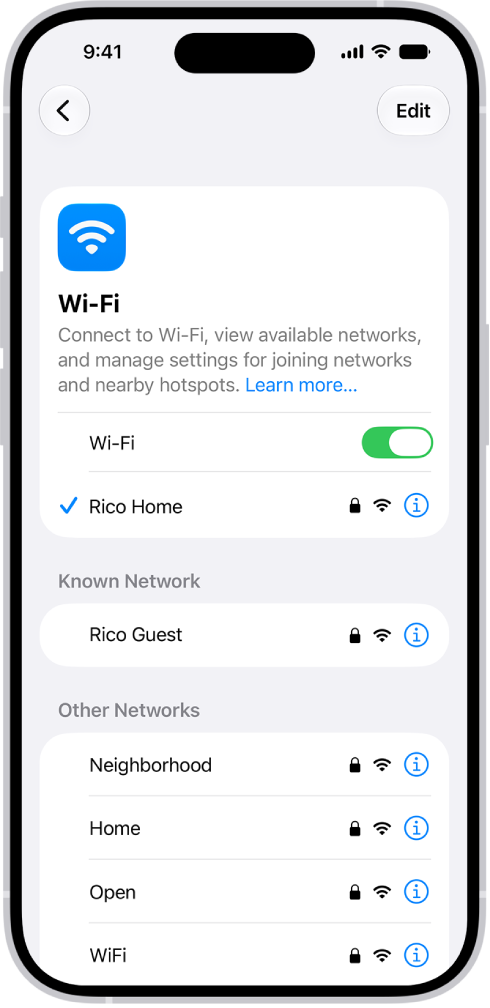
All three options above are distinct from Connectivity Assist, found in Settings > Wi-Fi, which will use any generation of a cellular network to provide a data boost—but only when connected to a poorly performing Wi-Fi network.

