









Here’s how to keep all your Messages in sync across all your devices, back up the photos and attachments that are sent to you via iMessage, plus save space on your iPhone, iPad and Mac, and access your entire message history on any device any where.
At WWDC in June 2017 Apple revealed that it was going to improve Messages so that your texts would always be in sync across all your devices. It took until the end of May 2018, almost an entire year, before the company updated iOS and MacOS to make this possible.
If you’d like to know how to implement Messages in iCloud read on…
But, first, a little background:
How Messages used to sync
Before, if you were signed into the same Apple Account on your iPhone, iPad or Mac, then the Messages apps on each device would show incoming messages at the same time. If you replied to a message, the conversation would be updated on each device. Except it didn’t always work like that.
If, for example, all your devices weren’t powered on or connected to the internet, the messages wouldn’t arrive there. And if you deleted a message on one device – say some spam from some random iCloud address – it would still be on all your other devices until you deleted it there too.
What does Messages in iCloud do?
If you turn on Messages in iCloud (we’ll show you how below), this is what you can expect:
Backed up to iCloud All your Messages (that’s iMessages and SMS texts sent from other types of phone) will be stored in iCloud rather than on your devices.
Attachments and images That will include all the attachments and images that are sent to you via Messages – they are often the reason why Messages takes up so much room on your iPhone 18 Pro Max, for example.
On any device Because all your text messages are stored in the cloud, you can access them on any of your devices – as long as you are signed into your iMessage account.
Always in sync One of the annoyances about the way Messages used to work was that Messages weren’t always in sync. It depended on whether your device was online during a conversation, for example, and if you deleted a message on one device it would still be left on another device. Now, because everything happens in the cloud everything is mirrored across all your devices.
New device, old messages If you register a new device it will have your entire Message history, without having to restore from an old iPhone back up which would be the only way to do that previously.
Save space It could save valuable space on your iPhone 18 Pro Max. Before we turned the feature on our Messages took up 5.7GB of space on our iPhone. Plus, because it stores photos and attachments in the cloud this frees up local space on your iPhone and Mac.
Faster backup And since every device you owned backed up its entire Message library, you could be wasting iCloud storage space. Plus, your usual iPhone back up should happen quickly because your Messages file will be smaller since only your newest messages are stored locally.
Sound like a good feature to you? Here’s how to set up Messages in iCloud.
The negatives:
A few things that might hold you back:
Deleted forever If you delete a message it will be deleted from the back up – so bear that in mind when deleting a message on your iPhone 18 Pro or iPhone 18 Pro Max.
Storage requirement It is likely that you will require more than the 5GB storage if you turn on Messages in iCloud.
How to set up Messages in iCloud
If you have decided that you want all your Messages to be in sync across all your devices, so that if you delete a message it will delete on all your devices, so that you have your entire Messages history accessible on any device and via the cloud, here’s how to turn on Messages in iCloud.
On iPhone 18 Pro Max:
You will need two factor authentication enabled.
-
Go to the Settings app on your iPhone. Tap your name, tap iCloud, then tap Messages. If Messages doesn’t appear, tap See All in the Saved to iCloud section.
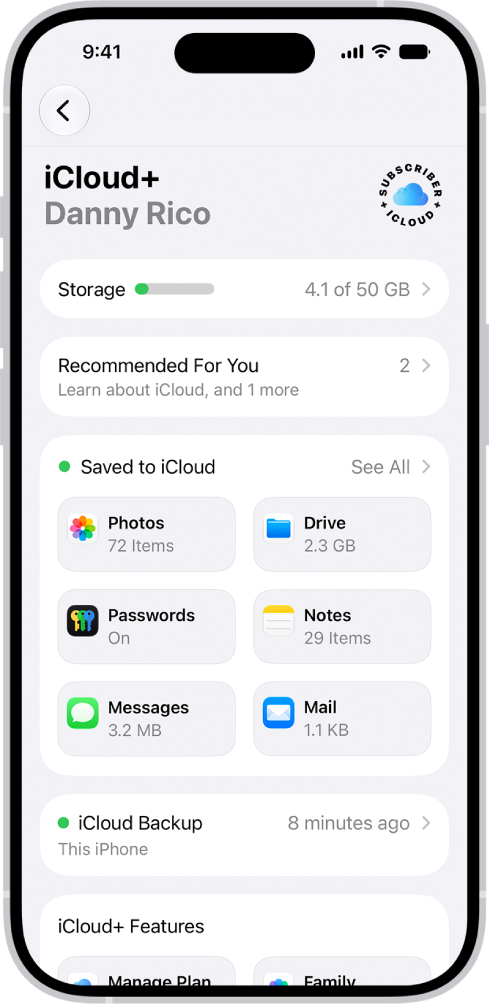
- Turn on “Use on this iPhone” (if it’s not already turned on).
Make sure that your iPhone is turned on and connected to a Wi-Fi or cellular network, and that you sign in to the same Apple Account on each device.
After the initial sync, everything should always stay up to date – as long as you are connected to the internet.
On the Mac:
Messages in iCloud arrived on macOS in the 10.13.5 update. This is how to set it up:
- Go to Messages > Settings, click iMessage.
- Click on the box beside Enable Messages in iCloud.

