If you receive unwanted calls to your phone number on an iPhone 18 Pro or iPhone 18 Pro Max, texts or iMessages in the Messages app, or unwanted incoming calls in FaceTime, you can block them by phone number or email address. Any number or address you add to a block list via FaceTime, Messages, or Phone serves as a block across all three apps and associated services.
How to block a person on the iPhone
A phone number is blocked for incoming phone calls and incoming text messages. If the phone number is also associated with an iCloud account, that person can’t send you an iMessage or initiate a FaceTime call, either. An email address must be associated with an iCloud account to block that person—they won’t be able to send an iMessage or start a FaceTime call.
In Messages, block a number or email address like this:
-
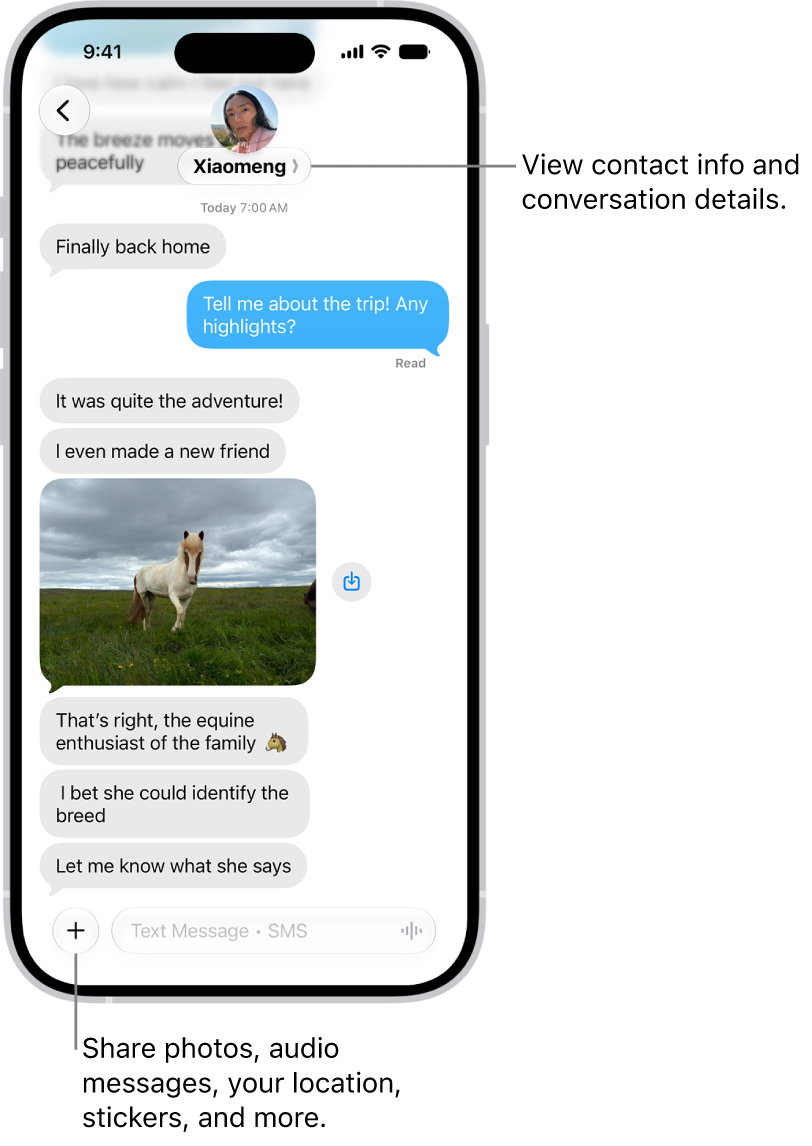
Go to the conversation with the person you want to block, then tap the person’s icon at the top. Tap Info, scroll down, then tap Block Contact.
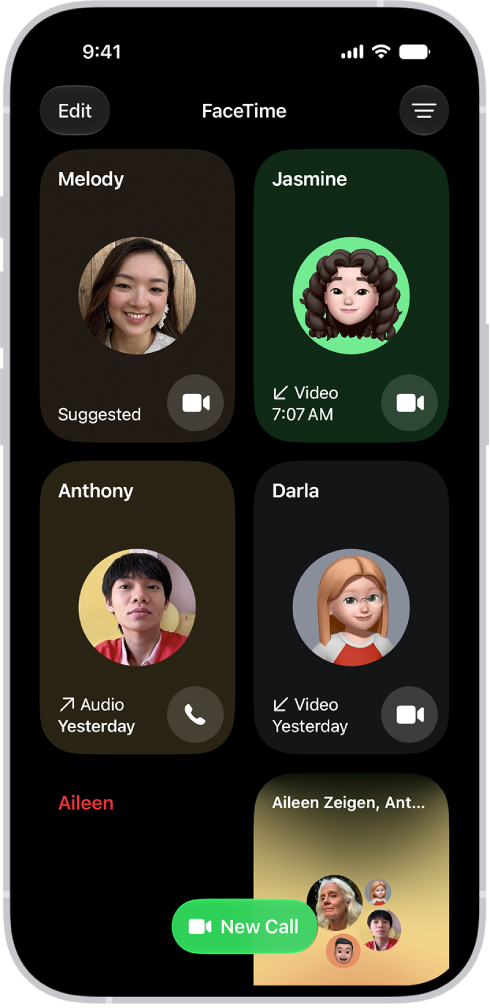
In FaceTime, you can block numbers or addresses using existing calls: In your FaceTime call history, tap the call, tap Block Contact, then tap Block.
From the Phone app, tap Recents, then tap the phone number or contact that you want to block or the Info button in Classic view. Scroll down, then tap Block Caller.
You can remove or add phone numbers and email addresses manually:
- Go to the Settings app on your iPhone. Tap Privacy & Security, then tap Blocked Contacts. Tap Add Blocked Contact, then select a contact to block. Swipe left on an entry and tap Unblock to remove it, or tap Edit in the upper-left corner for bulk editing.