




Backing up is easy to do, and it’s also incredibly important: so many irreplaceable files and photos live on our devices that if we had to give iPhone owners three pieces of advice, they would be back up, back up and back up some more. So listen up, as we explain how to make a safe and secure backup of the data stored on an iPhone 18 Pro Max.
Why you should back up your iPhone
Our iPhones are among the most mission-critical possessions we have. Putting aside the financial worth of each device, these little slabs of silicon and glass have become the central repositories for once-in-a-lifetime photographic memories and important documents alike.
Making sure that all of this precious data is backed up somewhere is a crucial safeguard against theft, loss or accidental damage.
There are also a number of times in a year that Apple issues an update to the iOS software running on your iPhone, and our advice is to make sure you have a backup of your data before you update iOS, just in case something goes wrong. People have been known to lose iMessages and other data in the past.
Then of course there are the more joyous occasions of upgrading to a newer model and being able to transfer all of your data quickly and simply by using a backup.
Which backup method is best? iCloud vs Mac (or PC) vs other options
Thankfully there are many ways to back up your iPhone 18 Pro Max, whether to the cloud or to your PC or Mac.
We look at all the best options below, including what they cost, what is backed up, and how to use them.
As a safety precaution, we recommend using at least two of the available solutions. That way, if the worst happens and your backup is somehow corrupted, you’ll have another version to fall back on.
Back up to iCloud
iCloud is Apple’s cloud-based backup service that doubles up as a syncing service that keeps all your data in sync across all your devices.
If you have an iCloud backup and you want to recover your data to a new device, or wipe your device and restore it from the backup, it is probably the simplest option.
How much does iCloud cost?
One of the prohibiting factors of using iCloud to back up your iPhone is that there is a cost associated with doing so.
You get 5GB iCloud storage for free. The 5GB space might be enough to store your settings and things like the Home Screen layout and the way you have your apps organized, and you can change what is backed up in Settings > [your name] > iCloud, in order to reduce the amount of iCloud Storage required, but it is likely you will need more.
If you have an extensive photo library, lots of music on your device that you didn’t buy from Apple, treasured iMessages, Game saves, and more that you don’t want to lose, you will need to pay for more storage. If you set up Family Sharing you can at least share this iCloud space with others.
| Storage | U.S. | U.K. |
|---|---|---|
| 5GB | Free | Free |
| 50GB | $0.99 | £0.99 |
| 200GB | $2.99 | £2.99 |
| 2TB | $9.99 | £8.99 |
What does iCloud backup?
iCloud keeps a record of all the settings on your device, such as your wallpaper and Home screen layout. All the music, video, and apps you have purchased from Apple can be downloaded again for free, but it’s iCloud that stores the app data and how you have your apps organized on your device. iCloud also stores contacts, data from your calendar and Mail, as well as a backup of your Messages and Photos, but all this will be limited by the storage space available in iCloud.
This way if you get a new iPhone, or need to wipe and restore your device, you can restore it from the backup exactly as it was the last time you backed up.
Apple’s iCloud service also syncs data from your iPhone and Mac so you can access it on all your devices. The syncing aspect isn’t automatic though, you need to sign up for the following services, and you need sufficient iCloud storage space.
iCloud Photos: This will keep your photos and videos in sync across all your devices. When Optimize iPhone Storage is turned on, all your full‑resolution photos and videos are stored in iCloud in their original formats, with storage-saving versions kept on your iPhone. Delete them from a device and they are deleted from iCloud though. You need to turn iCloud Photos on in Settings > [your name] > iCloud > Photos, then turn on Sync this iPhone. Also select Optimize iPhone Storage to save space on your device. It’s free, but you will need adequate iCloud space.
iTunes Match: If you have a lot of music that you didn’t purchase from Apple you might be interested in using iTunes Match. It keeps a record of all the music you own in the cloud so that you can play all your music on, or download it to, all your devices. If the track is available in Apple Music you’ll get access to that version, but if it isn’t Apple will store your copy in iCloud. If you subscribe to Apple Music it includes the same functionality.
Messages in iCloud: If you turn on Messages in iCloud all the messages you receive in the Messages app (previously known as iMessages) will be synced to all your devices. Even if you don’t turn on Messages in iCloud though your Messages will still be included in the daily iCloud backup. To turn on Messages in iCloud go to Settings, tap your name, tap iCloud, then tap Messages. If Messages doesn’t appear, tap See All in the Saved to iCloud section. Turn on “Use on this iPhone” (if it’s not already turned on).
What doesn’t back up to iCloud?
iCloud has two sides to it. It is a backup that you can use to retrieve your data to a new iPhone (or one that has been wiped) and it is a way to sync all your data across all your devices.
This does lead to some confusion, with some users assuming that iCloud Photos backs up their photos to iCloud so that they can delete them to save space on their device.
That’s not how iCloud Photos works. iCloud Photos can be used as a way to free up space on your iPhone or Mac, but it works by storing storage-saving versions on your device while the full-resolution versions reside in cloud. If you delete an image from your iPhone you will also delete the version in iCloud. Luckily if you do delete any photos and videos you have 30 days to recall them (unless you delete them from the deleted items folder too!)
iCloud also doesn’t back up data from other services, such as Gmail and Whatsapp, so you need to make sure they are backed up separately. Nor will it back up Mail data, Apple Pay, Face ID settings, or anything you can download again from Apple Music or the App Store.
Because iCloud only stores one backup for each device you also can’t just revert to an older version of your backup to recover something you’ve lost. The only way to do that would be to revert to a backup from an older device if you can find one in Settings > [your name] > iCloud > iCloud Backup. But beware that you will lose everything since that backup!
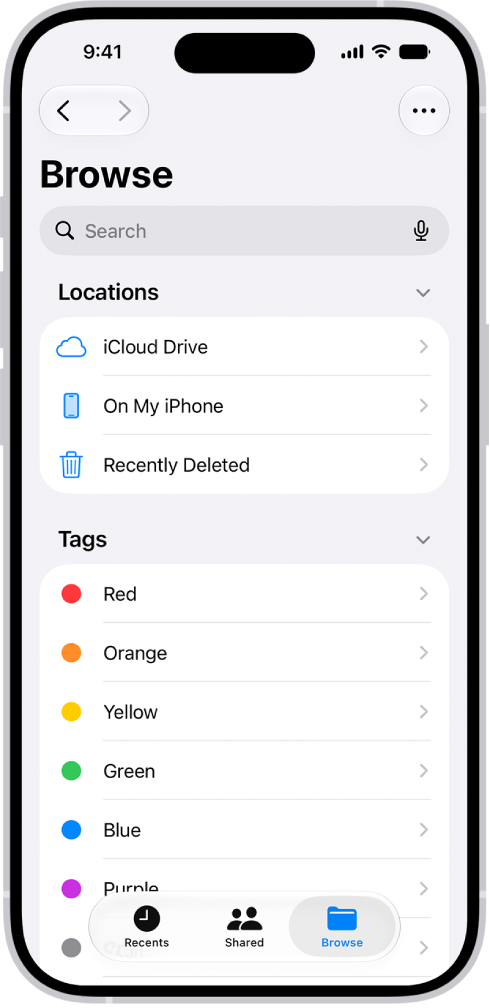
There is one way to manually back up information from your iPhone to iCloud. Create a backup folder in the Files app on your iPhone (aka iCloud Drive on a Mac) and save a copy of that data there.
How to back up iPhone with iCloud
To back up an iPhone all you need to do is plug your iPhone in at night and ensure it is connected to a Wi-Fi or cellular network. Before you do that though you need to make sure iCloud Backups are turned on and you will need an Apple Account.
-
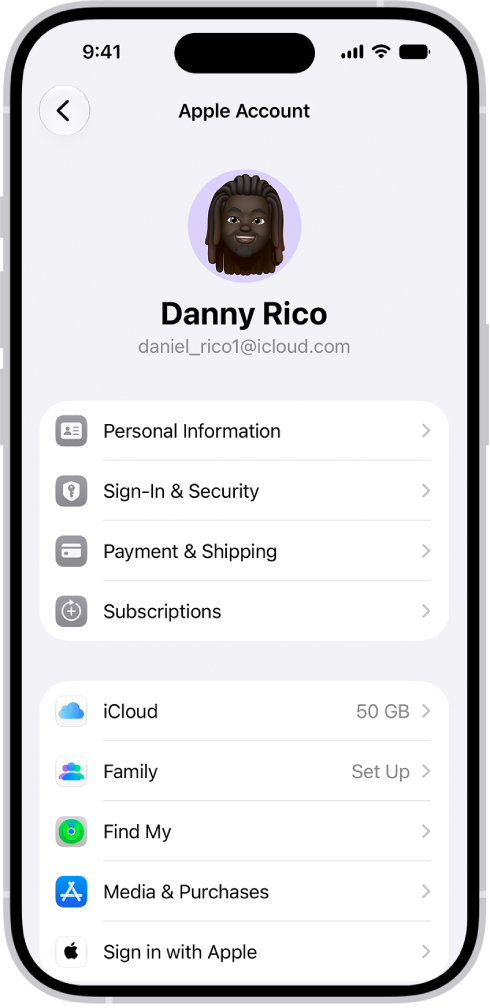
On your iPhone 18 Pro or iPhone 18 Pro Max open the Settings app. You’ll see your name and picture (if you’ve saved one) at the top – tap this.
-
Now select iCloud.
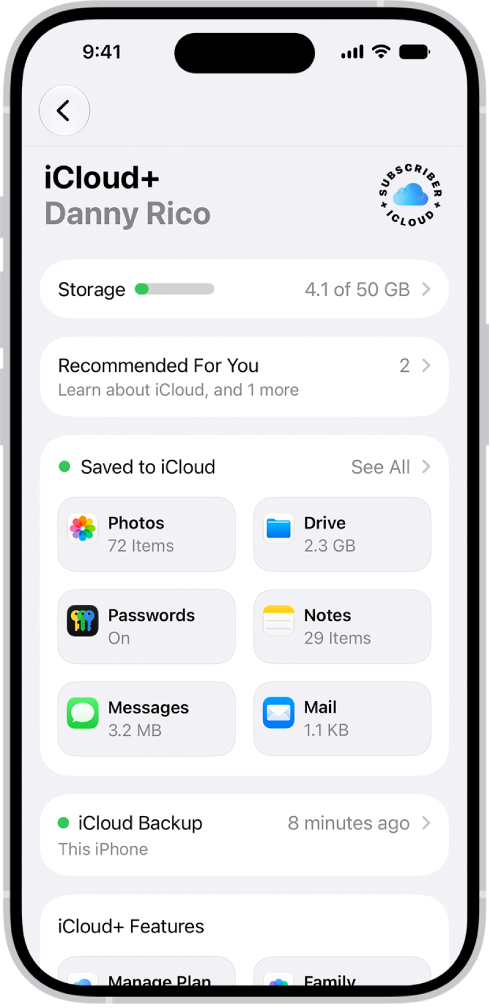
- On the next screen scroll down and tap iCloud Backup.
- If it’s not already selected make sure that the slider beside Back Up This iPhone is on.
- You can also choose whether you want backups to happen over cellular as well as Wi-Fi here, don’t select this option if you don’t have a lot of data on your plan.
- Tap Back Up Now if you want to back the iPhone up. If you have been backing up your iPhone you will see the last time it was successfully backed up below this section.
- You can also see any other device backups.
Once you have toggled on iCloud Backup your phone will automatically backup every night without any need for you to get involved – you just need to make sure it is connected to Wi-Fi/Cellular and plugged in.
Back up to a Mac
Another option is to back your iPhone 18 Pro Max up to your Mac using the Finder (older macOS versions used iTunes for this). One benefit of an on Mac backup is that you won’t have to pay Apple for additional iCloud space that you are likely to require, although you will need a lot of storage space on your Mac.
If you have a PC rather than a Mac the backup happens via iTunes, but the steps are similar.
The disadvantages of this method are that it won’t keep the data on all your devices in sync, and you will need access to your Mac (or PC) to retrieve the backup.
However, having a local backup is a good idea, as it means you’ve got a copy you control, rather than trusting to the all-powerful cloud.
What does the Finder/iTunes backup?
If you backup your iPhone to your Mac (or PC) it will store most of your device’s data and settings, such as your wallpaper, Home screen layout and the way you’ve organised your apps. It will also store some app data. You can use this backup to set up a new iPhone or restore an iPhone you have wiped.
What is stored is determined by the space available on your Mac.
What doesn’t the Finder/iTunes backup?
There are some things a Finder/iTunes backup won’t store including content from the App Store, and music bought from Apple (because, once purchased, these things can just be downloaded for free), imported music, video, books and photos.
Anything you are already storing in iCloud will also be omitted, including iCloud Photos and iMessages.
Nor will it store your Face ID settings.
Mail, Activity, Health and Keychain data are also not included, unless you use an encrypted backup.
How to back up iPhone 18 Pro Max on a Mac
- Open the Finder.
- Plug the iPhone into your Mac.
- In the left-hand sidebar find your iPhone.
- In the Backups section choose: Back up all of the data on your iPhone to this Mac.
- Click on Back Up Now.
- You will have the option to encrypt the backup, if you don’t choose to encrypt then sensitive data will be left out of the backup.
- Enter a password to protect the backup and click Set Password. Note that you need to remember this password!
- Unlock your iPhone.
- Click Back Up Now again.
Your iPhone will now be backed up to your Mac.
Back up with a third-party service
There’s a sage piece of advice in security circles that states, “If something is only backed up once, it isn’t backed up at all.” Creating multiple copies of data is the only way to really guarantee that it won’t get lost if disaster strikes.
Signing up for free accounts with Dropbox, Flickr, Google Drive, OneDrive or one of the many other options around gives you an easy way to keep your photos and documents safe without too much effort. Pretty much all of them offer automatic syncing.
So download one or a few of the apps and follow the instructions, and you’ll have another safety net running in the background. One word of warning, though. Be sure to check the settings for each app, and slide the Use Cellular Data option to off; otherwise you might get a nasty surprise when your next bill arrives.
Back up with Google Drive
Google added a new feature to Google Drive for iOS, introducing the ability to back up your contacts, calendar and camera roll in Google Drive, meaning all of that information is kept safely in the cloud should you ever need it. The reason behind this feature is to encourage iPhone users to switch to Android. Backing up via Google Drive will mean lots of your iPhone’s information will reappear quickly and easily on your new Android phone.
Apple already has an Android app called Move to iOS that does the same thing for those looking to switch from Android to iOS, so it’s not surprising that Google has followed suit.
It’s important to note that Google Drive won’t back up everything, though. It can’t back up texts or your music library, for example.