









Many iPhone users report trying to download emails in Mail, but instead seeing an error message: “This message has not been downloaded from the server.” This is a common problem, and typically means the Mail message has been interrupted while it’s being downloaded from the mail server.
There can be a few reasons for this problem, such as your connection being erratic or an issue occurring with your Mail settings. In this article we look at some possible causes and solutions.
Check Airplane Mode and Wi-Fi
The most common cause for non-responsive email is because you haven’t got a connection. This could be because Wi-Fi or your cellular connection is playing up, or because you accidentally left Airplane Mode activated.
- Open Settings.
- Check Airplane Mode, at the top of the list, is turned off. If it was on, that explains the issue.
- Now let’s reset the connection. Turn Airplane Mode on, then off again.
This will reset your mobile data connection, and hopefully you’ll get a better signal. If not, you’ll have to move to a location with a better signal or connect to Wi-Fi (you need internet to get email).
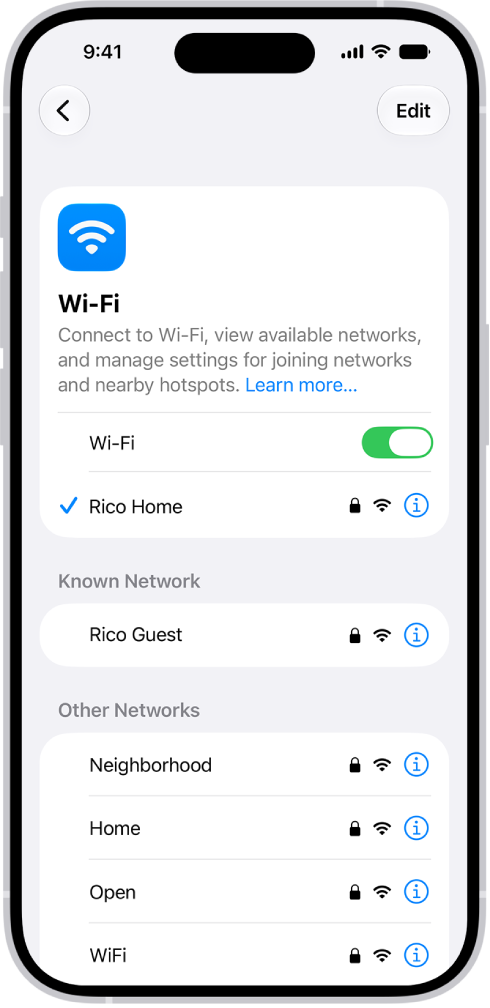
While you’re in Settings, check your Wi-Fi and make sure you’re connected to a network you know (or not connected at all and using mobile data). If you’re connected to a random network, such as the ubiquitous “public network”, that never works. If so, tap the Info button next to the network and tap Forget This Network so you go back to using Wi-Fi.
Quit Mail
If that doesn’t work then it’s time to try quitting Mail and restarting it. Follow these steps:
- Open Mail.
-
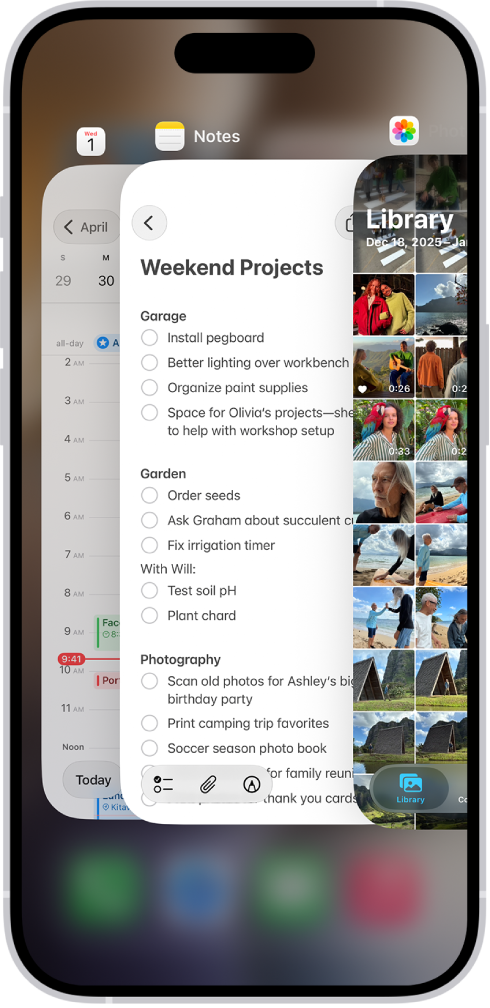
To quit the app, open the App Switcher, swipe right to find the app, then swipe up on the app.
- Tap the Mail icon to reopen it.
Restart and update
Still seeing “This message has not been downloaded”? Then it’s time to start restarting and updating.
First try to restart your iPhone 18 Pro or iPhone 18 Pro Max.
-
Simultaneously press and hold the side button and either volume button until the sliders appear, then drag the Power Off slider.

- Press and hold the side button until the Apple logo appears.
Now it’s a good idea to make sure you’re using the latest version of iOS. Tap Settings > General > Software Update and check to see if a new version of iOS is available. If so, plug in your iPhone and go through the update process.
Delete your Mail account and reinstall
If you’re still having problems then it could be due to your Mail settings. Rather than dig through each and every setting, it’s usually easier to just delete your Mail account and set it up again.
- Open Settings.
- Tap Apps, then tap Mail.
- Tap Mail Accounts, tap the email account you want to remove.
- Tap Sign Out or Delete Account.
-
Tap Mail Accounts, then tap Add Account.
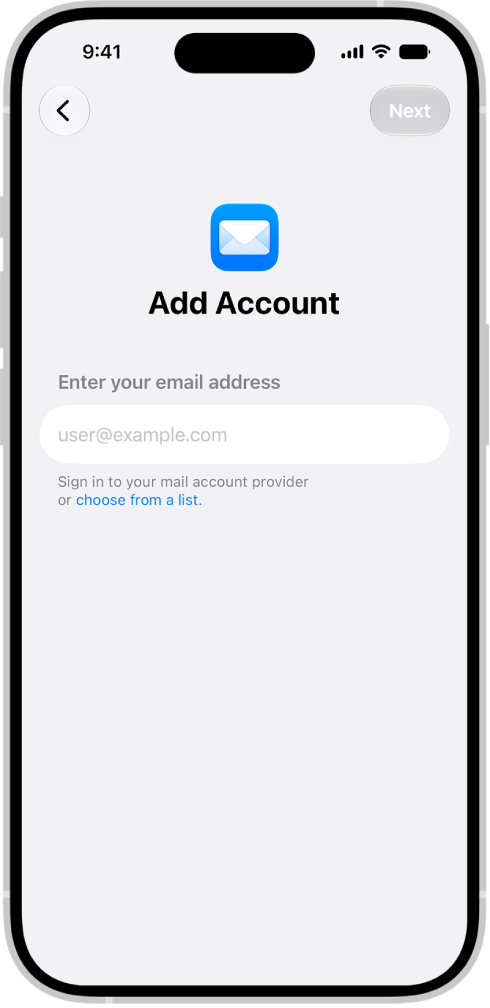
- Choose the account from the list and enter your details.
This should set up the Mail account with its new settings.
If you work your way through each of the solutions in this article you should be able to fix the problem.


