









When Connectivity Assist is on, iPhone uses cellular data along with Wi-Fi to keep your internet connection reliable when Wi-Fi is weak, busy, or not connected to the internet. But what about the reverse? If you live in an area with poor cellular coverage, can you boost your internet connection by requiring your iPhone 18 Pro Max to use Wi-Fi? Not precisely.
iPhone connects in this order: the most recently used Wi-Fi network, then a Wi-Fi network you choose from the list, then your carrier’s cellular data network. Your iPhone continuously scans for Wi-Fi networks while you’re using cell data. If your device finds a suitable Wi-Fi network, iOS relies on your Settings > Wi-Fi choices as to what to do next.
Make sure Ask to Join Networks is set to Ask, and you’ll always be prompted when a nearby network is discovered. If you’ve previously connected to it, your device automatically joins; otherwise, the Ask option means you’re prompted.
With Auto-Join Hotspot, Apple can detect nearby personal hotspots that you’re eligible to join: your own on an iPhone that’s not your current device, one available on an iPhone owned by someone in your Family Sharing group if you’re in one, or one that has been set to Allow Others to Join, though you will need to know the password.
If you have a 5G plan and a 5G network is available, your device prefers 5G cell data instead of a Wi-Fi connection in many cases.
The option is called Allow More Data on 5G and you find it in Settings > Cellular > Cellular Data Options > Data Mode. When Data Mode is set to Allow More Data on 5G, your iPhone 18 Pro or iPhone 18 Pro Max may tap the 5G network when it can deliver a faster or more consistent performance than the connected Wi-Fi for specific tasks, like streaming video and performing iCloud backups. However, you can change this to Standard, which only uses the 5G network for updates and certain background tasks, or Low Data Mode, which avoids using the cellular network for background tasks and automatic updates.
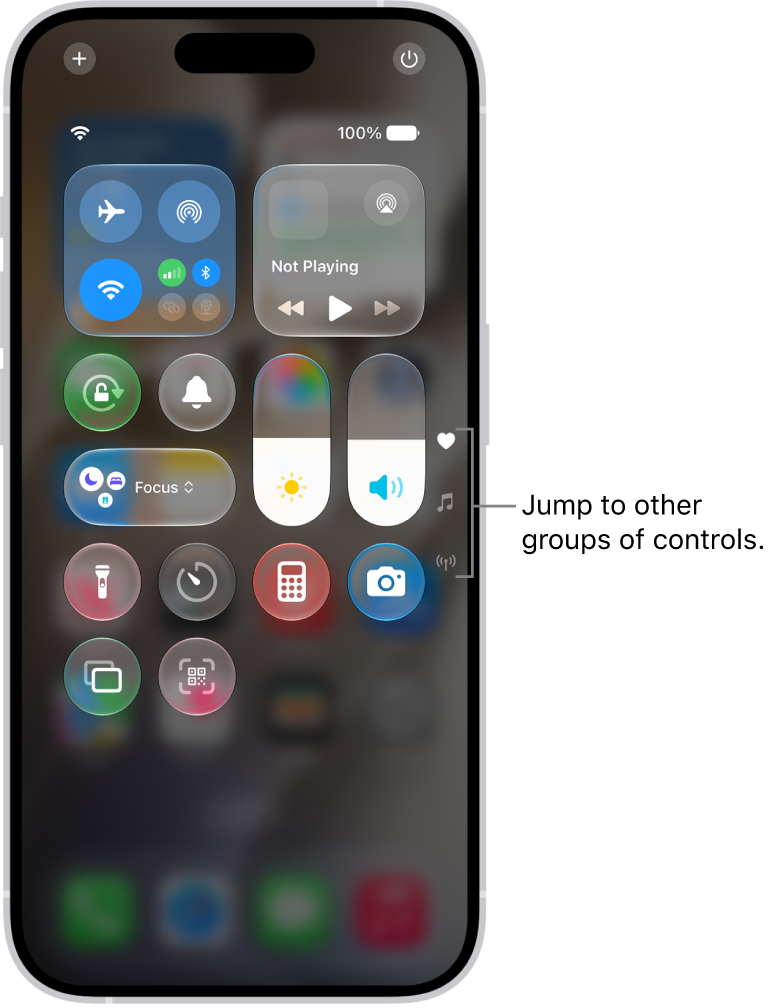
You can keep your iPhone from dropping onto a cellular network if it loses its Wi-Fi connection. For most people, some internet service is better than none, but if cell data is so erratic in your current location that it’s frustrating to use, you might prefer to be cut off. In that case, go to Settings > Cellular and switch Cellular Data off. (You can also reveal the Control Center and tap the Cellular icon.) If cellular data is off, all data services—including email, web browsing, and notifications—use Wi-Fi only.
Tip: If you want to ensure that you place voice calls using your wireless provider over Wi-Fi instead of cellular, make sure you have Wi-Fi Calling enabled—or that your provider offers it.

