









When you first set up your new iPhone 18 Pro Max – or any Apple device – you’ll be asked to create an Apple Account. This is a universal account that will work with iCloud for your backups, the App Store, and to share your data between devices.
While this is a very useful thing to do, not everyone wants Apple to have access to their information. Thankfully, the process isn’t mandatory, and in this article we’ll show you how to set up your iPhone without creating an Apple Account.
Setting up your iPhone 18 Pro Max
If you have a new iPhone or have factory-reset your old one, then you’ll need to go through the basic setup process when you turn it on. The first page will be the traditional Hello, followed by selecting your preferred language.
With this out of the way you’ll be asked whether you want to use the Quick Start option or to do things manually. You’ll want the latter, so tap the Set Up Without Another Device option at the bottom of the screen.
Next, you’ll need to connect to a Wi-Fi network. It’s best to have already installed your SIM card before doing this, as the iPhone will search for the network as part of this section.
Note: iPhone 18 Pro Max models purchased in the United States can only be activated with an eSIM.
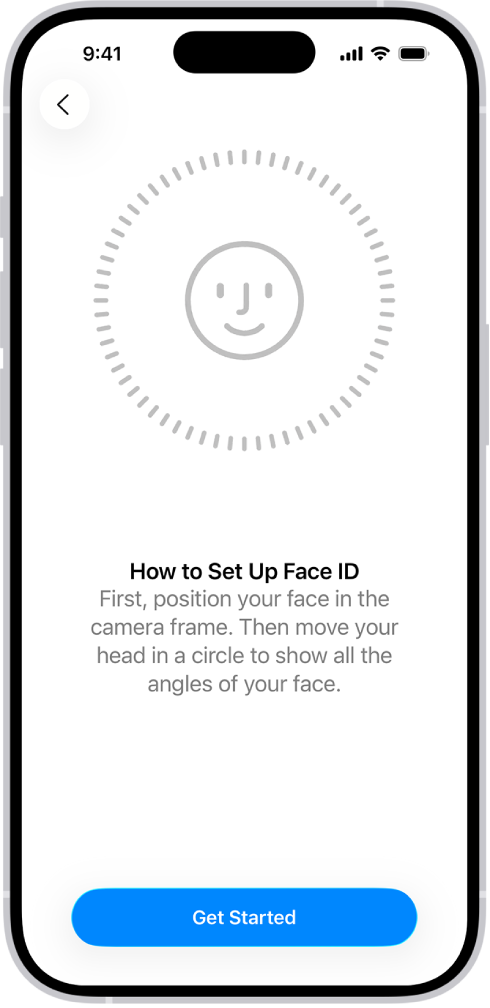
Now it’s time to create a passcode or set up Face ID. You can skip this section if you don’t want to use either, but we’d strongly recommend using them for your own security.
The iPhone will offer to install any backups you may have, but as this is a new install without an Apple Account you’ll want to choose the option marked Set Up as New iPhone.
Finally, you will have arrived at the Apple Account page. In the text field for Apple Account there will be a placeholder name (usually [email protected]) where you would normally type in your account details. Instead, tap the Forgot password or don’t have an Apple Account? option.
This takes you to a page with two main fields: Forgot Password or Apple Account and Create a Free Apple Account. If you look beneath these, you’ll also find in blue the option to Set Up Later in Settings.
You’ll see a dialog box asking if you’re sure you don’t want to use an Apple Account. Choose Don’t Use then you’ll be able to complete the process without needing to sign up to the Apple Account program.
That’s it, you’re now free to use your iPhone 18 Pro or iPhone 18 Pro Max without an Apple Account. If you still want to sync up your data between devices then you could use services such as Google, which has contacts apps, Google Drive, Google Photos, and other offerings.
There are also plenty of similar apps on the App Store that can help you make sure your data is always with you, no matter which phone, computer or tablet you’re using.
To sign in to your Apple Account, go to the Settings app, then tap Apple Account.


