






We tested NoteTell Money Reader on U.S. bills at the counter and in the dark, by voice and vibration. It’s an offline iPhone app for people who are blind or have low vision.
Disclosure: NoteTell Money Reader is made by GeeksModo Limited, the company that owns and publishes GeeksModo. This is the maker’s own review, so read it with that in mind.
The founder of GeeksModo Limited, who built NoteTell, lost his sight at 17. One day, he was at a shop in Kikuyu, a town near Nairobi, Kenya.
He handed the shopkeeper a bill and asked what it was.
“Five hundred,” the shopkeeper said.
He bought something for 100 shillings and got 400 back. Afterward, he learned he had handed over a 1,000-shilling bill.
It happened again. Other shopkeepers shortchanged him, and so did matatu conductors, who collect fares on Kenya’s minibus taxis. Each time, all he had was the word of the person holding his money.
If you are blind or have low vision, you may have stood at that same counter. This review covers what the NoteTell Money Reader iPhone app does when you pay with U.S. dollars and check your change, in daylight and in a dark room, and what the app can’t do.
How blind people tell U.S. bills apart today
Every current U.S. bill, from $1 to $100, is the same size. The Bureau of Engraving and Printing plans to add a raised feature you can feel, starting with a new $10 bill.
Because every bill feels alike, many blind people fold their bills. One common system keeps $1 bills flat, folds $5 bills short edge to short edge, folds $10 bills long edge to long edge, and folds $20 bills both ways. That works for money you have sorted. A cashier’s change comes back loose and unfolded.
What NoteTell does, and your privacy
NoteTell Money Reader is an iPhone app that identifies bills in real time. NoteTell doesn’t require an internet connection, so it identifies bills anywhere, at any time.
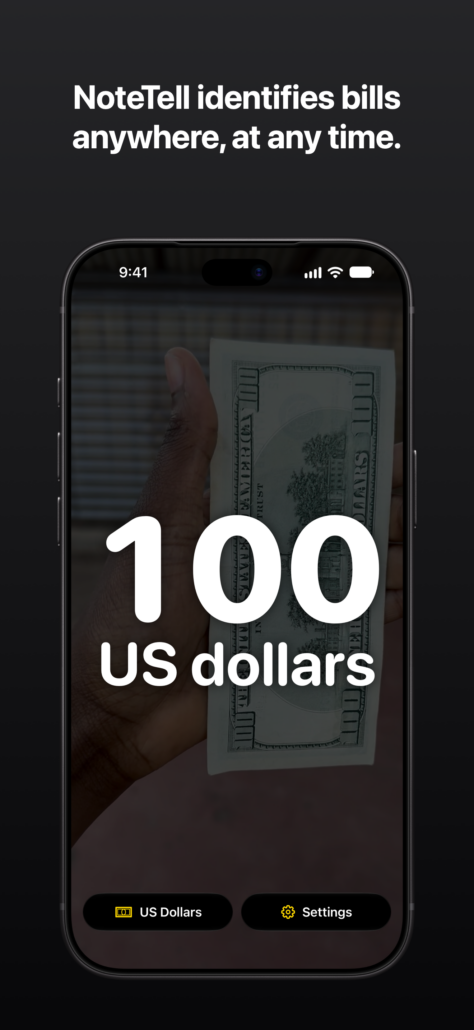
It doesn’t guess. If NoteTell isn’t sure of a bill, it stays quiet and keeps looking.
There is no account and no sign-in. Camera images aren’t stored on your iPhone or shared with anyone. The App Store privacy label reads “Data Not Collected.”
Getting started
First, download NoteTell Money Reader from the App Store. The download is free.
When you open the app, VoiceOver starts on the Welcome to NoteTell heading. A one-sentence subtitle follows, then six features, each read as a title and then one sentence. From the heading, swipe right 14 times to reach Continue. Without VoiceOver, tap Continue.
On an iPhone set to the United States region, swipe right twice from the Select Your Currency heading to reach US Dollars. Double-tap it, or tap it without VoiceOver, then do the same on the button that allows the camera when your iPhone asks. If you decline by mistake, NoteTell shows an Open Settings button. Double-tap it and turn on Camera. From then on, NoteTell opens straight to the camera screen.
When the camera is ready, the middle of the screen says “Point the back camera at a banknote.” Two buttons sit side by side at the bottom, US Dollars and Settings. Swipe right from the message for “Currency: US Dollars,” and again for Settings. While nothing is in view, a soft sound every 10 seconds tells you NoteTell is still looking.
Hold a $1 bill about a hand span from the back camera, the raised lens in one corner. You hear “one US dollar,” usually in well under a second.
Try NoteTell Money Reader at home first with a $1 bill and a $5 bill, which it identifies for free. A $10 or larger bill needs the full version, so start the free trial, explained below, before your first trip to a counter.
At the counter
Hold the iPhone in one hand with the screen toward you, and keep your fingers off the lens. Hold the bill in your other hand, a hand span away. Either side of the bill works.
Before you pay, hold up the bill you plan to hand over. For a $5 bill, NoteTell says “five US dollars.”
While the bill stays in view, the value repeats. Take it away, and NoteTell finishes the value it’s saying. Now and then, it says the value once more before it stops. When it goes quiet, or VoiceOver says “Point the back camera at a banknote,” hold up the next bill.
Checking your change
Change is where NoteTell Money Reader helps most, because nobody folded it for you. In our tests with U.S. bills, including older designs of $5 to $100 bills, NoteTell never named a wrong amount.
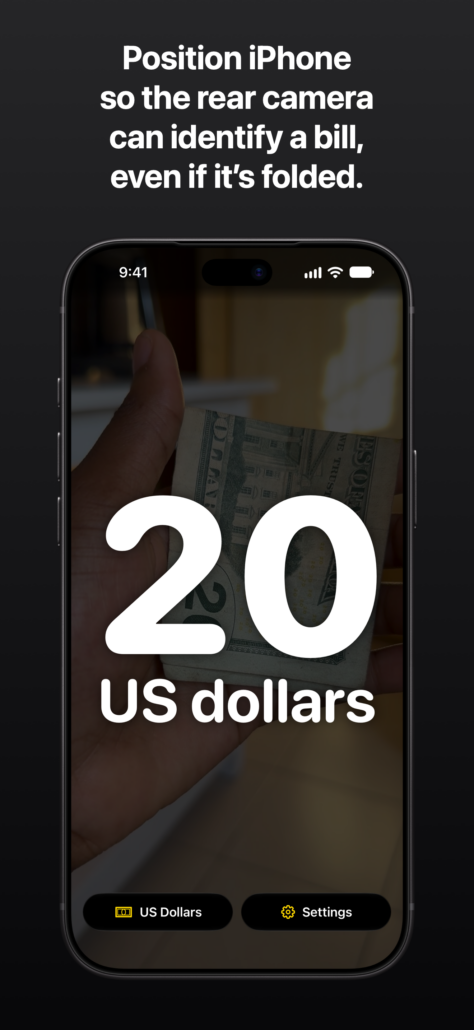
It helps to ask for the bills and coins separately. Put the coins away, then hold up one bill at a time. NoteTell names a bill even when it is folded or partly covered. If NoteTell stays quiet on a folded bill, unfold it.
On the screen and on a braille display
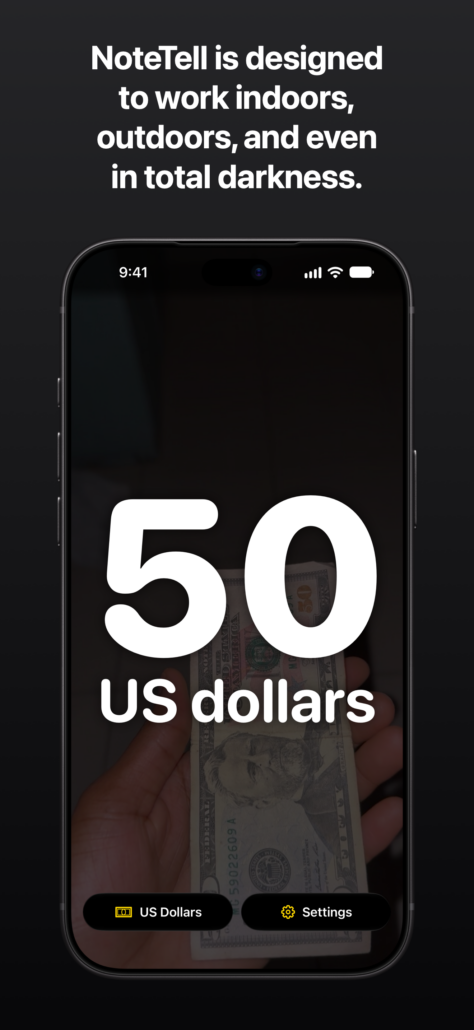
When NoteTell names a bill, the value replaces the message in the middle of the screen. It is a large white number over a darkened camera picture, such as a 5 over the words “US dollars.” The number stays while the bill is in view and disappears when you lower it.
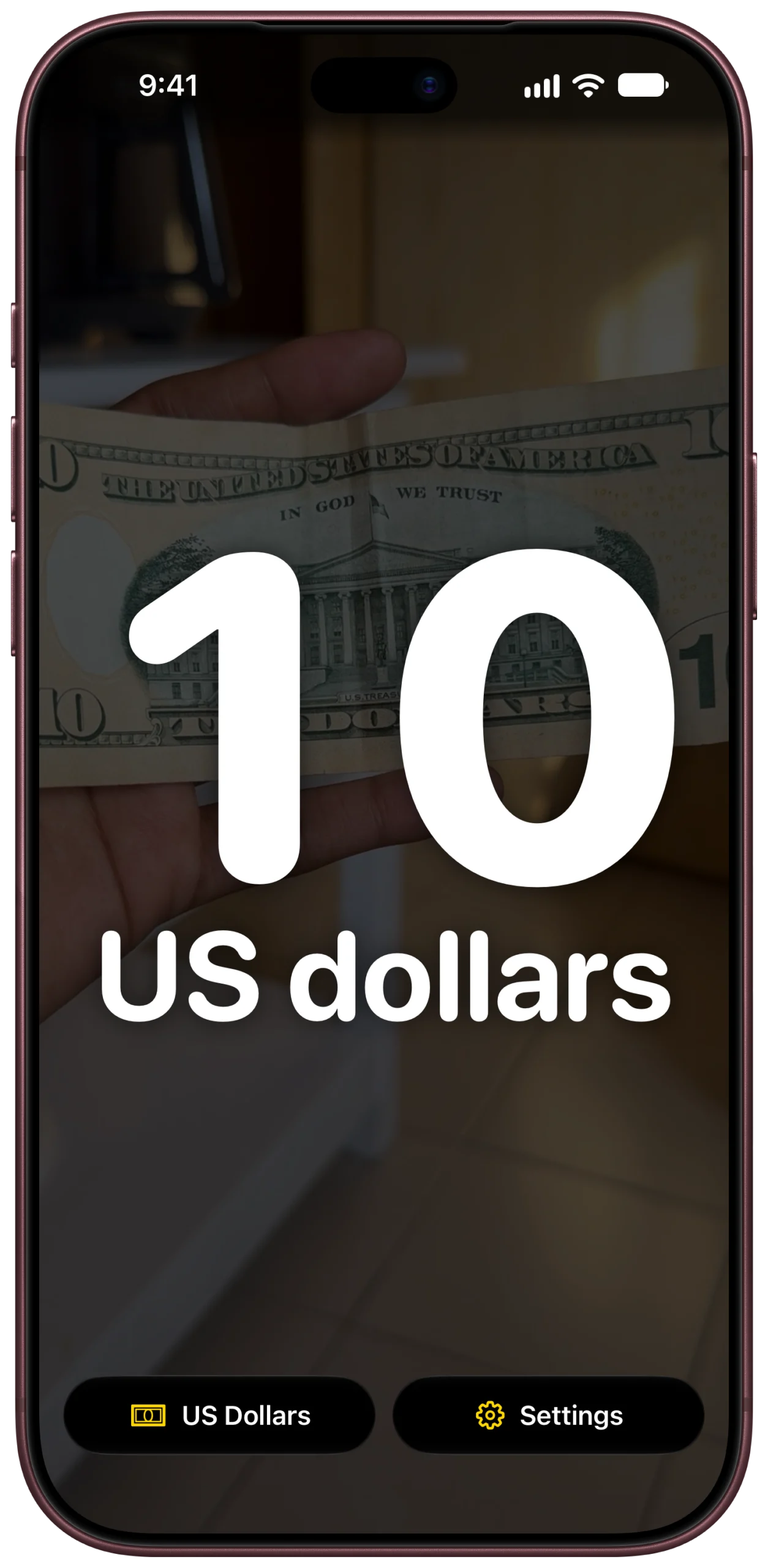
If you use larger text, the message and both buttons grow with it, and at the largest text sizes the buttons stack one above the other.
With VoiceOver on, you hear the value in the VoiceOver voice and speaking rate you already use. If you use a braille display with VoiceOver, you can use NoteTell to get the value of each bill in real time. Without VoiceOver, NoteTell speaks in the iPhone’s built-in voice, even when your iPhone is set to silent.
In the dark
NoteTell Money Reader is designed to work indoors, outdoors, and even in total darkness. When your environment is too dark to identify bills, NoteTell turns the flashlight on automatically.
It waits for about a second and a half of darkness with no bill in view. The first time the light comes on after you open the camera screen, NoteTell says “Flashlight on,” even in Vibration Mode. After 10 seconds with nothing in view, it turns the light off to check the room, and on again if it is still dark. In our tests in the dark, NoteTell never named a wrong amount.
Silent checks with vibration
On a quiet bus or at a bank counter, you may not want your phone announcing your cash.
With VoiceOver on, double-tap with two fingers anywhere on the camera screen. NoteTell says “Vibration Mode.” From then on, you feel each bill’s own pattern once, and the value isn’t spoken. This stays on after you close and reopen the app. To feel a pattern again, move the bill away and bring it back. The same two-finger double-tap brings speech back, and NoteTell says “Speech Mode.”
Without VoiceOver, tap Settings on the camera screen and turn off Speak Amounts.
Either way, a Vibration Mode label appears at the top of the camera screen, and VoiceOver reads it first. The searching sound doesn’t play in Vibration Mode.
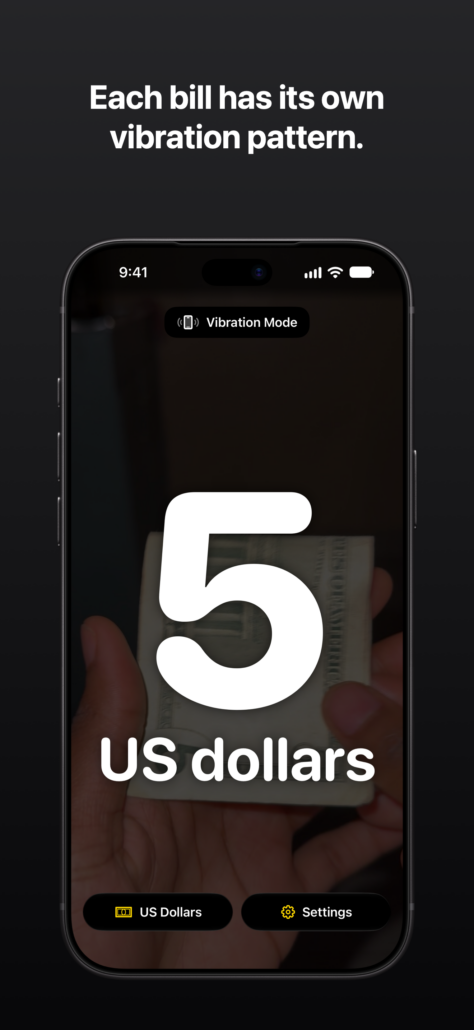
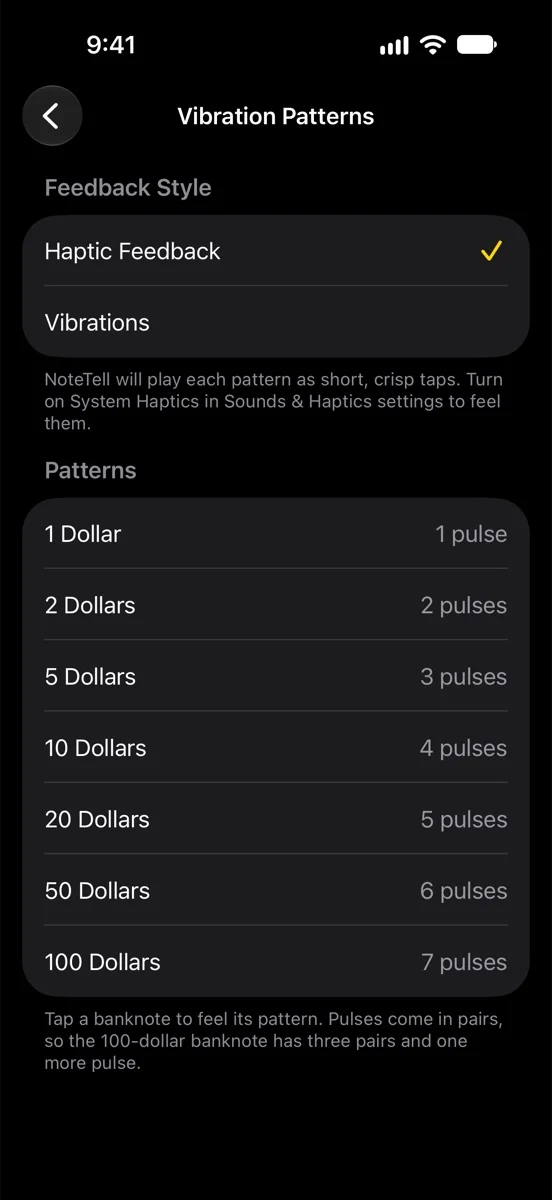
A $1 bill is one pulse, a $2 bill two and a $5 bill three. Each higher bill adds one, up to seven for a $100 bill. The pulses come in pairs. A $20 bill is five pulses, so it feels like tap-tap, pause, tap-tap, pause, tap.
Check one setting before you go out. On the camera screen, open Settings, then Vibration Patterns. Feedback Style defaults to Haptic Feedback, which plays short, crisp taps. For those, System Haptics must be on. You’ll find it in the iPhone Settings app, under Sounds & Haptics.
If System Haptics is off, Haptic Feedback plays nothing, so a named bill feels the same as no bill. In that case, choose Vibrations. Its longer, stronger pulses play either way and are easier to feel through a pocket. Once that’s set, no pulse means NoteTell hasn’t named the bill yet.
On the Vibration Patterns page, each bill has a row, from 1 Dollar to 100 Dollars. Double-tap a row with VoiceOver, or tap it, to feel its pattern.
Settings worth knowing
Repeat While in View is on by default. Turn it off to hear each bill once. Announcement defaults to Amount and Currency, so NoteTell says “twenty US dollars.” Choose Amount Only to hear just “twenty.”
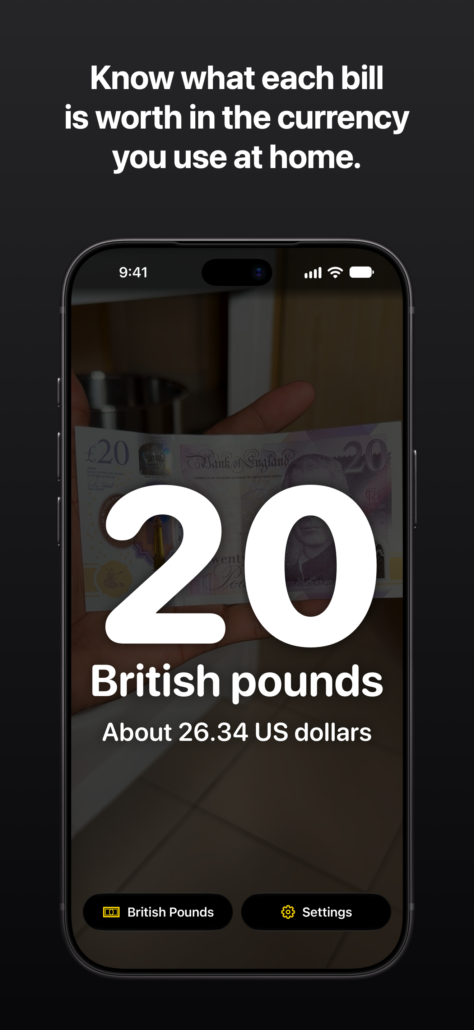
Currency Conversion is part of the full version and is off by default. When you travel, use the currency button on the camera screen to switch to the local currency, such as Euros. Then open Settings, open Currency Conversion and choose US Dollars, under Suggested. After the amount, NoteTell says roughly what each bill is worth in dollars and shows it in smaller type under the number. With Announcement set to Amount Only, it does neither.
Set it up while your iPhone is connected to the internet, so NoteTell gets the latest rates. After that, conversion works offline. NoteTell won’t use rates more than 30 days old. Once they are older than that, NoteTell stops converting and says “Currency rates unavailable” once, after an amount. Open NoteTell while connected at least once a month.
In NoteTell Settings, Siri & Shortcuts lists ways to open the app ready to identify bills. You can ask Siri, “Identify currency with NoteTell.” On an iPhone with an Action button, you can set the button to Identify Currency.
What’s free and what’s in the full version
NoteTell Money Reader identifies $1, $2 and $5 bills for free. The full version names every U.S. bill from $1 to $100 and every bill in every currency the app supports.
Without the full version, a bill of $10 or more isn’t named. Before you start the trial, NoteTell shows and says, “Identifying this bill requires the full version of NoteTell. You can buy the full version or start a 14-day free trial in NoteTell Settings.” It says this even in Vibration Mode and plays one long vibration instead of the pulses.
A Full Version button then appears above the currency and Settings buttons. VoiceOver reads it after Settings. Double-tap it, or tap it without VoiceOver, to open the Full Version page. Once the trial has ended, the button offers to buy the full version and opens Apple’s purchase sheet.
To try the full version of NoteTell Money Reader free for 14 days, open NoteTell Settings, then Full Version, then Start 14-Day Free Trial. With VoiceOver, double-tap each one. Apple’s purchase sheet opens, and the trial costs nothing. Confirm it the way you confirm any App Store download. On an iPhone with Face ID, double-click the side button. With Touch ID, rest your finger on the Home button.
With three days or fewer left, NoteTell shows a reminder on the camera screen. After the trial ends, another says, “Your free trial has ended.” Not Now closes either one. You aren’t charged when the trial ends, and NoteTell goes back to the free bills.
The full version is a one-time purchase with no subscription, and you can share it with up to five family members through Family Sharing. If the full version doesn’t show up on a new iPhone, open NoteTell Settings, then Full Version, and choose Restore Missing Purchases. For anything else, NoteTell Support can help.
What it doesn’t do
NoteTell Money Reader names one bill at a time. It doesn’t read coins, add up your money or tell a real bill from a fake. The app’s How to Use NoteTell page says, “NoteTell may make mistakes, and it can’t tell whether a banknote is genuine.”
We haven’t tested what NoteTell does with two bills in view at once.
Who it suits
NoteTell Money Reader can check the bills a cashier hands you, in daylight and in a dark room.
If you have low vision, the large number may be all you need. Turn off Speak Amounts, and you can read it while NoteTell vibrates instead of saying the value. If you are DeafBlind, or would rather feel than hear, Vibration Mode gives a pulse count for each bill without speaking its value.
That 1,000-shilling bill in Kikuyu cost the founder 500 shillings. He built NoteTell Money Reader so the next bill would be named before it left his hand.
Product information
- App: NoteTell Money Reader
- Version reviewed: 1.1.2
- Developer: GeeksModo Limited, which owns and publishes GeeksModo; this is the maker’s own review
- Platform: Designed for iPhone; iOS 17 or later
- Currencies: Angolan kwanza, British pound, Burundian franc, Ethiopian birr, euro in both the first and Europa series, Kenyan shilling, South African rand, Tanzanian shilling, Turkish lira, Ugandan shilling, U.S. dollar, West African CFA franc and Zambian kwacha
- Free version: U.S. $1, $2 and $5 bills, and the two lowest bills in every other currency
- Full version: every supported bill, as a one-time purchase, with a 14-day free trial
- Works offline: yes
- App Store: NoteTell Money Reader on the App Store