Got a tip for us?

Dave Johnson

Dave Johnson is the editor-in-chief at GeeksModo where he oversees all of site’s evergreen content to ensure it’s up to date with the latest information. Hailing from New Jersey in the US, he has over seven years of experience in the tech journalism space and holds a degree in English Literature. In his spare time, Dave can found checking out the latest video games, immersing himself in his favorite sporting pastime of football, and petting every dog he comes across in the outside world.

Dave Johnson's Articles

A paper clip or SIM eject tool is inserted into the small hole of the SIM tray on the left side of iPad to eject and remove the tray.

How to set up cellular service on iPad (Wi-Fi + Cellular models)

You can set up cellular service on iPad Wi-Fi + Cellular models with an eSIM or physical SIM, and lock your SIM card.
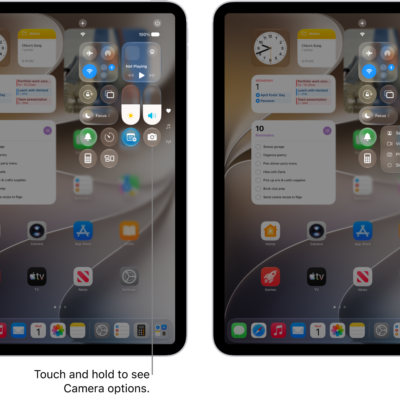
The iPad Control Center. Controls for Airplane Mode, cellular data, Wi-Fi, and Bluetooth are in the top-left group in Control Center for Wi-Fi + Cellular iPad models. The Camera control is at the bottom right of Control Center. The screen on the right shows the quick menu of options that appear when you touch and hold the Camera control.

How to use and customize Control Center on iPad

You can use and customize Control Center on iPad for instant access to controls like Airplane Mode, volume, and brightness.
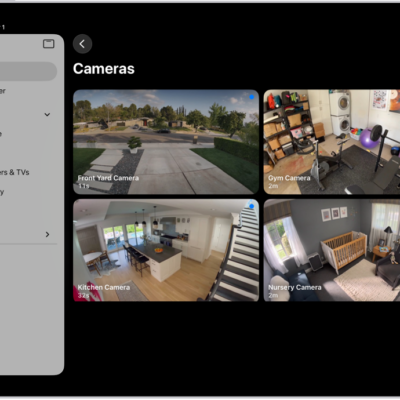
The Home app with the sidebar on the left. Home is highlighted. On the right are images from five security cameras.

How to use Face Recognition in Home on iPad

You can use Face Recognition in Home on iPad with a HomeKit Secure Video camera or doorbell to know who's at your door.
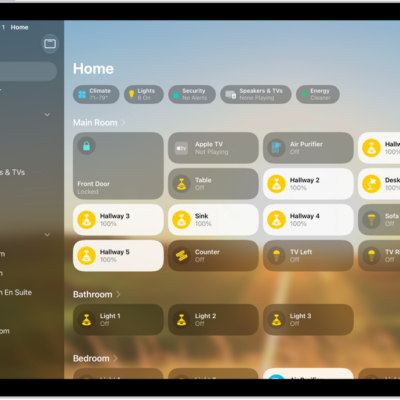
The Home app with the sidebar on the left, showing Home, Automation, and Discover tabs near the top left. Categories and Rooms in the home appear below. To the right of the sidebar, at the top, are the Intercom, Add, and More Options buttons. Category buttons appear near the top. Below that are scenes, camera images, and a room with its accessories.

How to set up accessories with Home on iPad

You can set up accessories with Home on iPad, add an accessory, show accessories in a room, and change room assignments.

A green arrow pointing to the button in the top right of iPad.

How to wake, unlock, and lock iPad

You can wake, unlock, and lock iPad with Face ID, Touch ID, or a passcode, and iPad locks on its own when you're not using it.
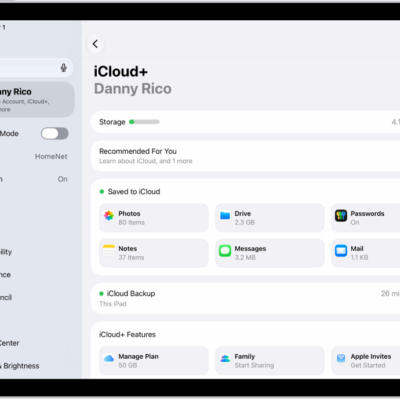
The iCloud settings screen showing the iCloud storage meter and a list of apps and features, including Photos, iCloud Drive, and iCloud Mail that can be used with iCloud.

How to back up and sync your photos and videos with iCloud on iPad

You can back up and sync your photos and videos with iCloud Photos on iPad, check their sync status, and see them on any device.
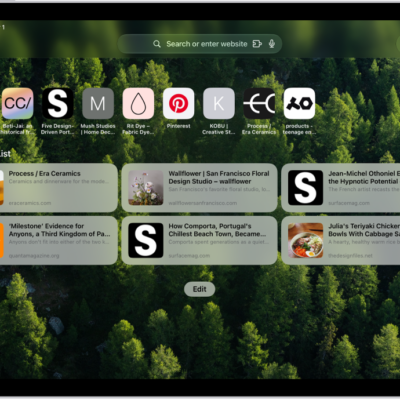
The Safari start page shown with sections for Favorites and the Reading List. Along the top, from left to right, are the Sidebar button, the Previous button, the search field, the Share button, the New Tab button, and the Tab Overview button.

How to find links shared with you in Safari on iPad

You can find links shared with you in Safari on iPad in the Shared with You section, show them on your start page, or remove them.
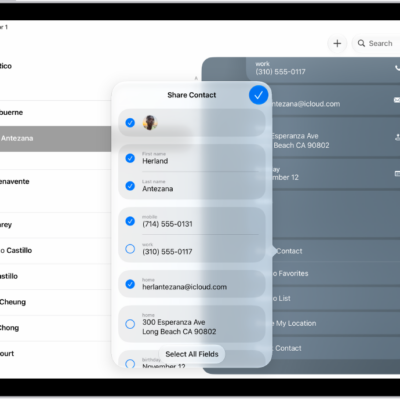
The Share Contact window in the Contacts app.

How to share contacts on iPad

You can share contacts on iPad from the Contacts app with Messages, Mail, or another sharing option.
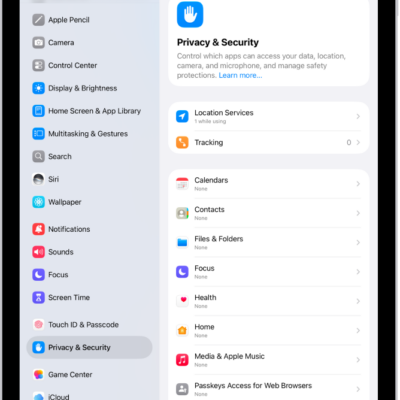
The Privacy & Security screen, with settings for Location Services and Tracking, and settings to control which apps can access your data.

How to control what you share on iPad

You can control what you share on iPad, choosing which apps can access your data, location, camera, and microphone.
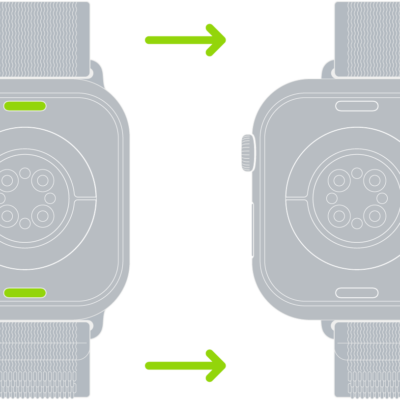
Two images of Apple Watch. The image on the left shows the band release button. The image on the right shows a watch band partially inserted into the band slot.

How to clean and care for your Apple Watch band

You can find band care information for Apple Watch, including how to clean leather, stainless steel, and other Apple-branded bands.