









Moses Johnson
Moses Johnson's Articles
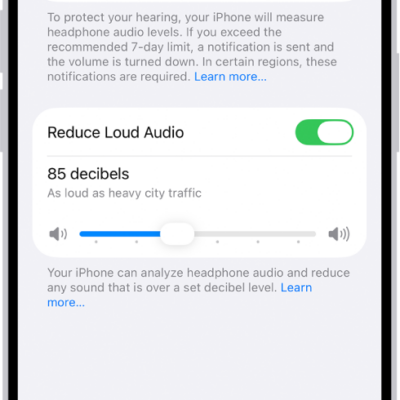
How to adjust accessibility audio settings on Apple Watch
You can turn on Mono Audio on Apple Watch, adjust the audio balance, change AirPods settings, and turn on headphone notifications.
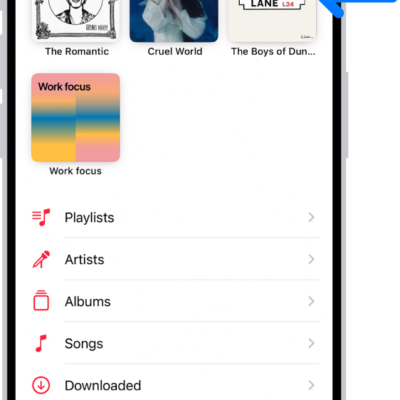
How to pin albums, songs, and more in Music on Apple Watch
You can pin albums, songs, playlists, and artists to the top of your library in Music on Apple Watch, and unpin them anytime.
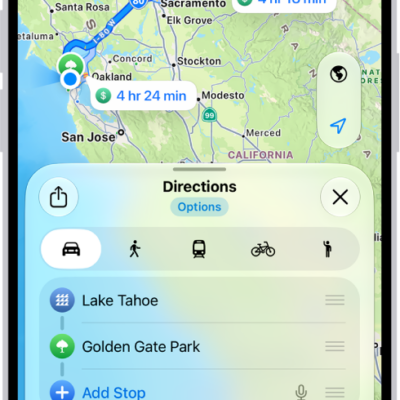
How to get started with Maps on iPhone
You can get started with Maps on iPhone to get directions, explore places in 3D, find local businesses, and save your go-to addresses.
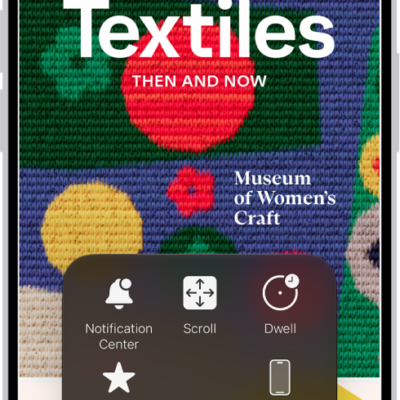
How to use Switch Control on iPhone to select items, perform actions, and more
You can select items with item mode, a gliding cursor, head tracking, or eye tracking, then perform actions with Switch Control on iPhone.
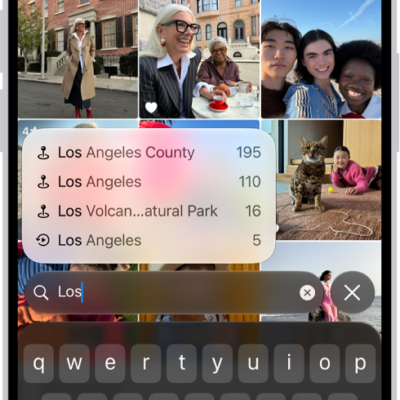
How to search for photos and videos on iPhone
You can search for photos and videos on iPhone by date, place, or person, and describe what you want with Apple Intelligence.
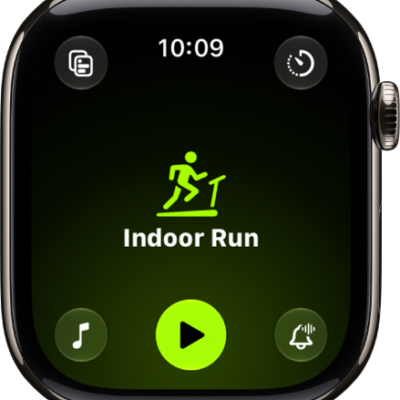
How to run with Apple Watch
You can run with Apple Watch, use running workout views and metrics, set a pace or race a route, and track your training load.
How to change settings in Workout on Apple Watch
You can change settings in Workout on Apple Watch, calibrate your watch, change measurement units, and pause running and cycling workouts.
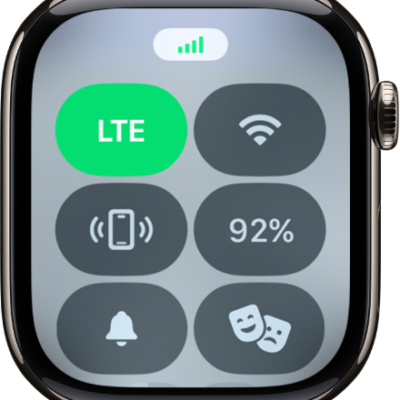
How to use Apple Watch without its paired iPhone
You can use Apple Watch without its paired iPhone over Wi-Fi or cellular, and still use alarms, timers, and GPS for outdoor workouts.
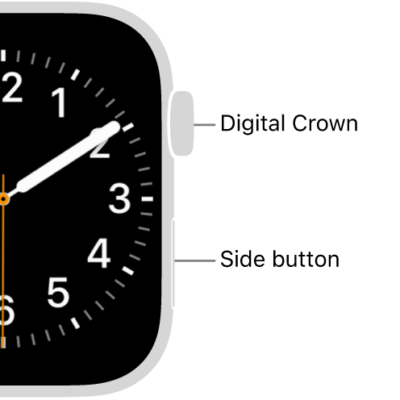
How to recover Apple Watch
You can recover Apple Watch with your nearby iPhone when it shows a watch and iPhone animation, then follow the steps on iPhone.
How to unpair and erase Apple Watch
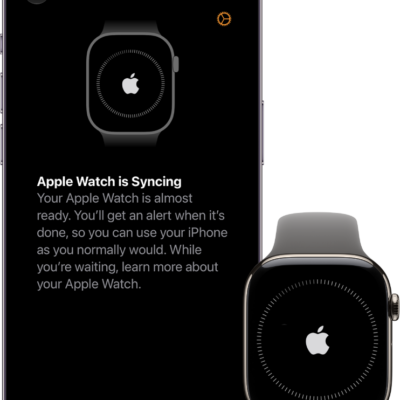
You can unpair and erase Apple Watch to remove Activation Lock before you sell it, or erase it and keep it paired, and remove your cellular plan.