Got a tip for us?

Tyler Stephen

I'm Tyler Stephen, from the US state of Maine. I have a life-long passion for technology, and in addition to writing here, I am also on the editorial team of AppleVis.com. I've been totally blind from birth and thus rely on screenreading software like VoiceOver on Apple products and NVDA on Windows. I have been a Mac user since 2005 and an iOS user since 2010, in addition to also having used Windows, Linux, and Chrome OS. On this site and elsewhere, I hope to write pieces that educate and entertain people, as well as bring attention to the accessibility or inaccessibility of various technologies. You can find me on mastodon at mastodon.applevis.com/@tyler.

Tyler Stephen's Articles

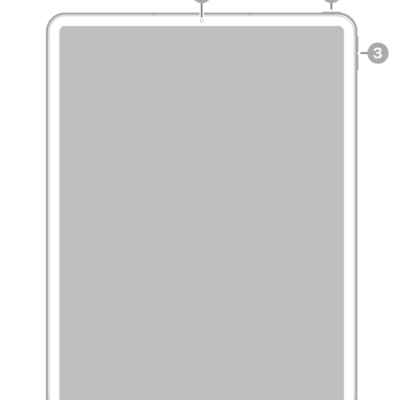
The front view of iPad Pro with callouts to the front camera at the top center, the top button at the top right, and the volume buttons on the right.

iPad Pro 12.9-inch (5th generation) hardware: buttons, cameras, and ports

You can learn the location of the cameras, buttons, and other essential hardware features on iPad Pro 12.9-inch (5th generation).
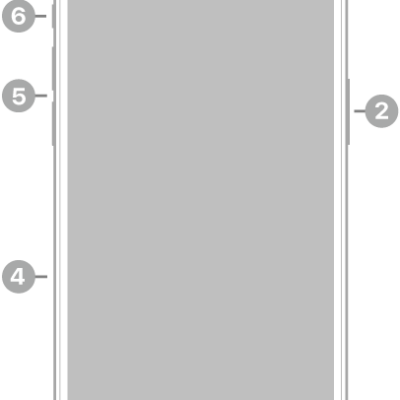
The front view of iPhone 15 Pro Max. The front camera is at the top center. The side button is on the right side. The USB-C connector is on the bottom. On the left side, from bottom to top, are the SIM tray, the volume buttons, and the Action button.

iPhone 15 Pro Max hardware: buttons, cameras, and ports

You can find the cameras, buttons, and other essential hardware features on iPhone 15 Pro Max, plus links to help you get started.

A Group FaceTime call with five participants. Each participant appears in a separate tile. The FaceTime controls are at the bottom-right side of the screen.

How to use SharePlay to watch, listen, and play together in FaceTime on iPhone

You can watch shows and movies, listen to music, and play games in sync with friends on a call with SharePlay in FaceTime on iPhone.

AirPods are shown. One of the AirPods is tapped twice.

How to make and answer calls with AirPods 1 or AirPods 2

You can make and answer calls with AirPods 1 or AirPods 2, end calls, and answer a second phone call using Siri or the controls on your AirPods.
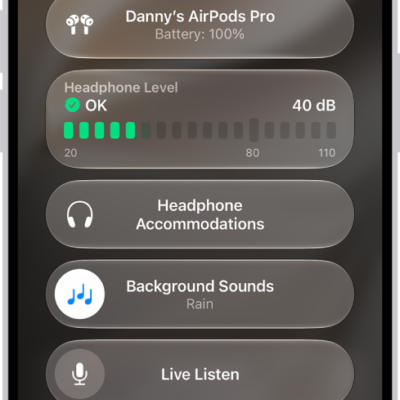
The Hearing Devices screen in Control Center. From top to bottom, it includes the Headphone Level in decibels, Hearing Assistance, Background Sounds, and Live Listen.

How to play background sounds on AirPods

You can play background sounds on AirPods, like ocean or rain, to mask unwanted noise, and set the sound, volume, and a timer.

AirPods Pro 3 in their charging case.

How to tell which AirPods you have: every model by year

You can find out which AirPods you have by comparing release years, controls, and charging cases for every AirPods, AirPods Pro, and AirPods Max model.
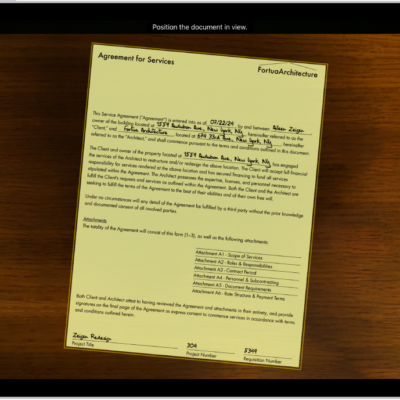
A screen showing a document being scanned. The Take Picture button is at the bottom center.

How to scan documents with your iPad camera

You can scan documents with your iPad camera on supported models, then save them in Files, open them in Preview, or share them.
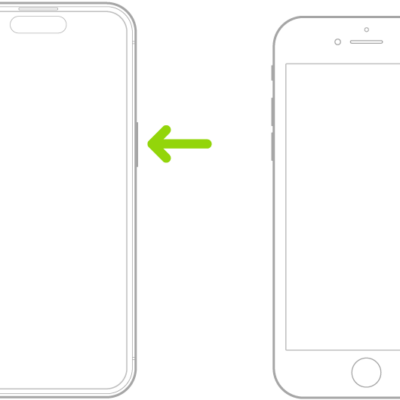
Two iPhone models, screens facing up. On the iPhone with Face ID, the volume buttons are on the left and the side button is on the right. On the iPhone with the Home button, the side button is on the right.

How to turn iPhone on or off

You can turn iPhone on or off with the side buttons, or turn it off from Control Center or Settings.
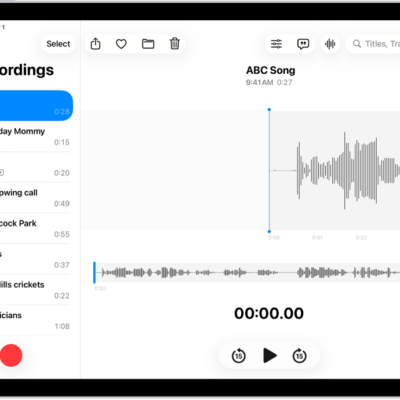
A recording made in Voice Memos. The list of recordings is on the left, with a selected recording at the top. On the right, the waveform has a playhead, which you can drag to go to a specific place in the recording. Above the waveform are the Share, Favorite, Move, Delete, Playback Options, Transcription, and Edit buttons. Below the timeline are the Playback controls.

How to duplicate a recording in Voice Memos on iPad

You can duplicate a recording in Voice Memos on iPad, make changes to the copy, and give it a new name.
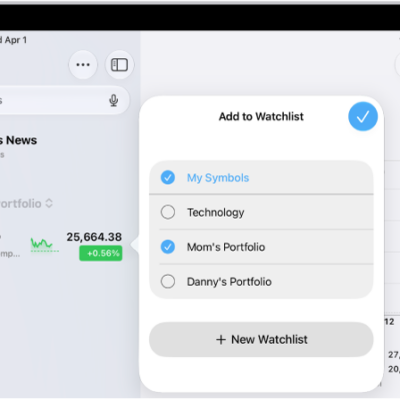
A list of customized watchlists in the Stocks app: My Symbols, Mom's Portfolio, Sustainability, and Entertainment.

How to manage watchlists in Stocks on iPad

You can manage watchlists in Stocks on iPad, create new watchlists, add or remove symbols, and switch between watchlists.