Got a tip for us?

Tyler Stephen

I'm Tyler Stephen, from the US state of Maine. I have a life-long passion for technology, and in addition to writing here, I am also on the editorial team of AppleVis.com. I've been totally blind from birth and thus rely on screenreading software like VoiceOver on Apple products and NVDA on Windows. I have been a Mac user since 2005 and an iOS user since 2010, in addition to also having used Windows, Linux, and Chrome OS. On this site and elsewhere, I hope to write pieces that educate and entertain people, as well as bring attention to the accessibility or inaccessibility of various technologies. You can find me on mastodon at mastodon.applevis.com/@tyler.

Tyler Stephen's Articles

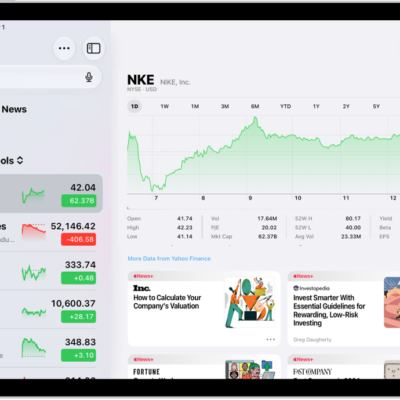
The Stocks screen on iPad includes a chart showing the performance for a stock over the course of a morning. On the left are a list of ticker symbols. Above the chart are buttons to display the stock performance over a week or larger increments of months and years, up to 10 years. Below the chart are stock details such as opening price, high, low, and market cap, and links to business-related news.

How to check stocks on iPad

You can check stocks on iPad in the Stocks app, manage your My Symbols watchlist, and view charts, details, and news.
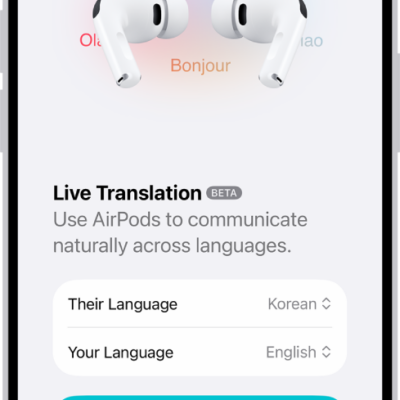
The Translate app on iPhone showing the Live Translation screen. The screen shows two pop-up menus for choosing the other person's language and your language, and a button to start Live Translation.

How to translate in-person conversations with AirPods

You can translate in-person conversations with AirPods using Live Translation, with the translated dialogue also shown on your iPhone.
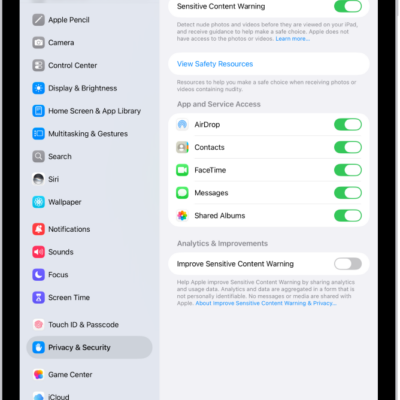
The settings for Sensitive Content Warning, with a button labeled View Safety Resources and a button labeled Improve Sensitive Content Warning for sharing analytics and usage data with Apple.

How to receive warnings about sensitive content on iPad

You can receive warnings about sensitive content on iPad with Sensitive Content Warning, for yourself or a family member.
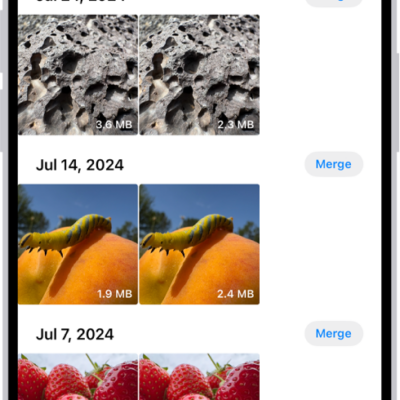
The Duplicates screen, showing duplicate photos next to each other. On the right side of the screen are Merge buttons to merge each pair of duplicate photos.

How to merge duplicate photos and videos on iPad

You can merge duplicate photos and videos on iPad from the Duplicates collection to save space and clean up your library.
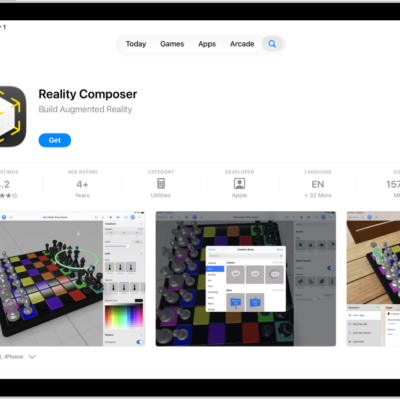
The information page for an app in the App Store. The page shows the Get button, ratings, age ratings, the developer, screenshots, and more. At the top center, from left to right, are the following buttons: Today, Games, Apps, Arcade, and Search.

How to share and send apps in the App Store on iPad

You can share and send apps in the App Store on iPad, share a link to an app, or send it as a gift.

The iCloud settings screen showing the iCloud storage meter and a list of apps and features, including Photos, iCloud Drive, and iCloud Mail that can be used with iCloud.

How to manage storage on iPad

You can manage storage on iPad, check available space, remove items, and offload unused apps automatically.
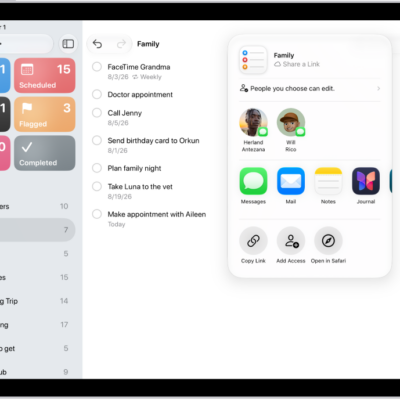
The Reminders app, showing a grocery list with options for sharing on the right.

How to print a list in Reminders on iPad

You can print a list in Reminders on iPad, like a grocery list, checklist, or project tasks, from the More button.
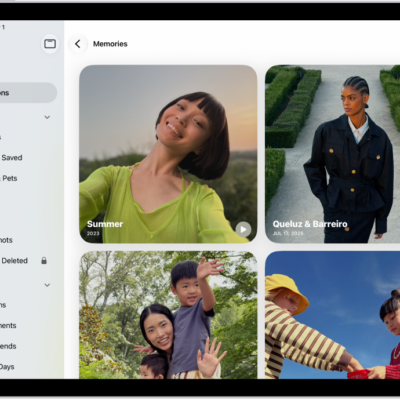
The Photos app is open to the Memories collection. The All tab is selected, with a list of memories below.

How to share or delete memories in Photos on iPad

You can share or delete memories in Photos on iPad, share memory movies, play them with AirPlay, and feature people less.
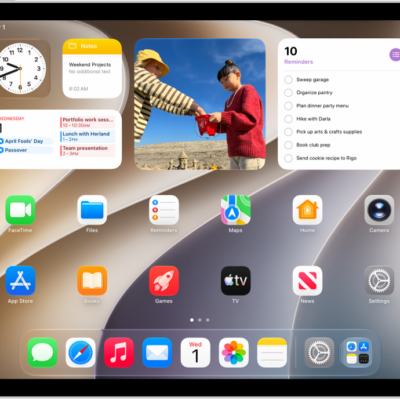
The iPad Home Screen with several app icons, including the Settings app icon, which you can tap to change your iPad sound volume, screen brightness, and more.

How to change the name of your iPad

You can change the name of your iPad, which is used by iCloud, AirDrop, Bluetooth, Personal Hotspot, and your computer.
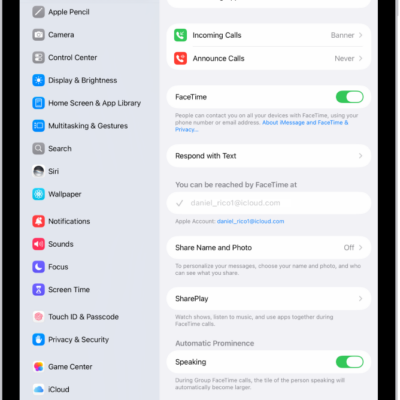
The FaceTime Settings screen, showing the control to turn FaceTime on or off and the phone number and email address where you can be reached.

How to change your Phone settings on iPad

You can change your Phone settings on iPad, hide your Caller ID, turn on Dial Assist, and change the default calling app.