Got a tip for us?

Tyler Stephen

I'm Tyler Stephen, from the US state of Maine. I have a life-long passion for technology, and in addition to writing here, I am also on the editorial team of AppleVis.com. I've been totally blind from birth and thus rely on screenreading software like VoiceOver on Apple products and NVDA on Windows. I have been a Mac user since 2005 and an iOS user since 2010, in addition to also having used Windows, Linux, and Chrome OS. On this site and elsewhere, I hope to write pieces that educate and entertain people, as well as bring attention to the accessibility or inaccessibility of various technologies. You can find me on mastodon at mastodon.applevis.com/@tyler.

Tyler Stephen's Articles

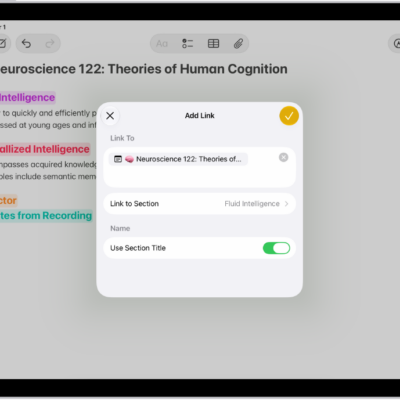
Adding a link to a section in a note in the Notes app.

How to add links in Notes on iPad

You can add links in Notes on iPad to webpages, other notes, or sections, and tap addresses, phone numbers, and dates to take action.
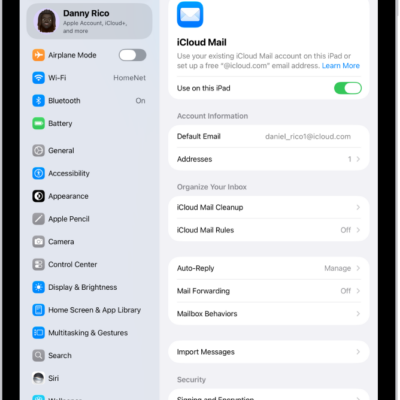
The Settings app, open to the iCloud Mail screen. Custom Email Domain is at the bottom of the menu.

How to use iCloud Mail rules to automatically apply actions to emails in Mail on iPad

You can use iCloud Mail rules on iPad to automatically move, delete, forward, or mark emails as read based on criteria you set.
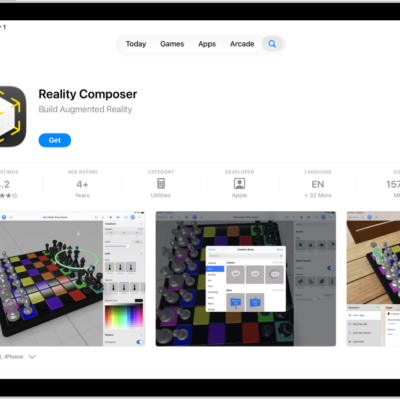
The information page for an app in the App Store. The page shows the Get button, ratings, age ratings, the developer, screenshots, and more. At the top center, from left to right, are the following buttons: Today, Games, Apps, Arcade, and Search.

How to install and manage fonts on iPad

You can install and manage fonts on iPad by downloading them from the App Store and using them in your documents.
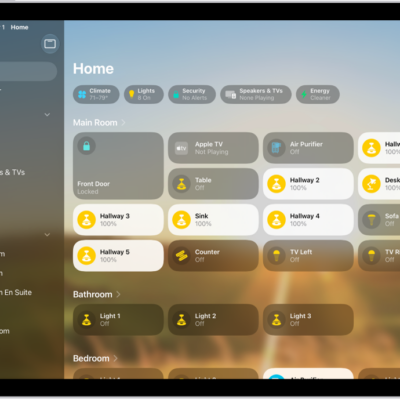
The Home app with the sidebar on the left, showing Home, Automation, and Discover tabs near the top left. Categories and Rooms in the home appear below. To the right of the sidebar, at the top, are the Intercom, Add, and More Options buttons. Category buttons appear near the top. Below that are scenes, camera images, and a room with its accessories.

How to add more homes with iPad

You can add more homes with iPad in the Home app, give each one a name and wallpaper, and switch between them.
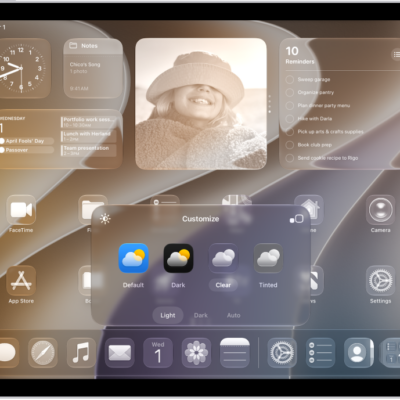
The iPad Home Screen with clear app icons.

How to customize apps and widgets on the iPad Home Screen

You can customize apps and widgets on the iPad Home Screen, change icon size, tint, and appearance, and resize widgets.

A Settings screen showing Accessibility options such as VoiceOver, Live Recognition, and Audio Descriptions.

What Switch Control is and how it works on iPad

You can learn about Switch Control on iPad, an assistive technology that lets you interact with iPad using switches.
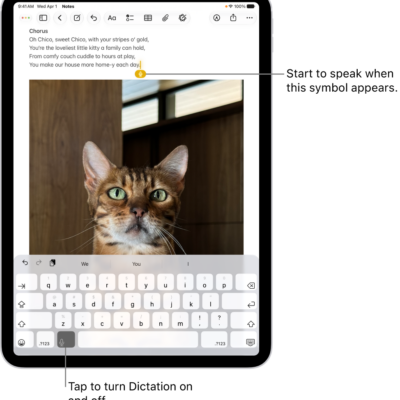
The onscreen keyboard is open in the Notes app. The Dictation button at the bottom of the keyboard is selected and the Dictation button appears below the insertion point in the text field.

How to dictate text while using an Apple external keyboard with iPad

You can dictate text while using an Apple external keyboard with iPad, with punctuation and emoji inserted as you speak.
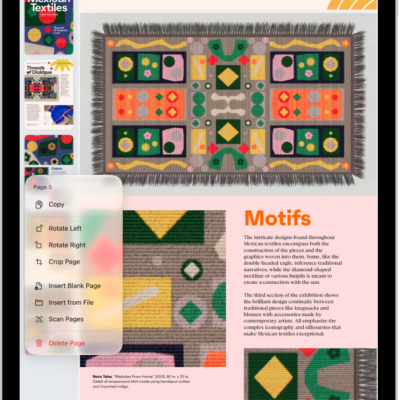
Thumbnail view of PDF with page options visible.

How to add, delete, rotate, move, or crop PDF pages in Preview on iPad

You can add, delete, rotate, move, or crop PDF pages in Preview on iPad, and insert blank pages, images, or scans.
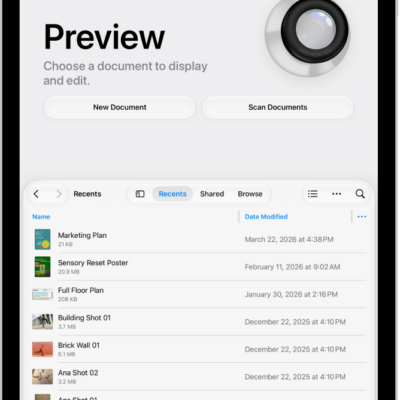
The main screen of the Preview app. The New Document and Scan Documents buttons are in the middle of the screen. Toward the bottom of the screen are the Recents, Shared, and Browse tabs.

How to print PDFs or images in Preview on iPad

You can print PDFs or images in Preview on iPad from the Actions Menu by selecting a printer.

The Maps app showing a map of a downtown area. On the left is the search field, categories for nearby services, City Guides, and recommended guides.

How to get information about places in Maps on iPad

You can get information about places in Maps on iPad, see addresses and reviews on place cards, and save information about a place.