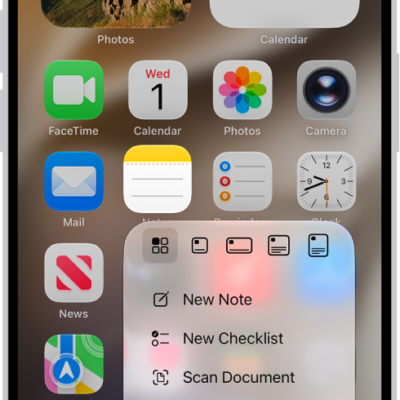
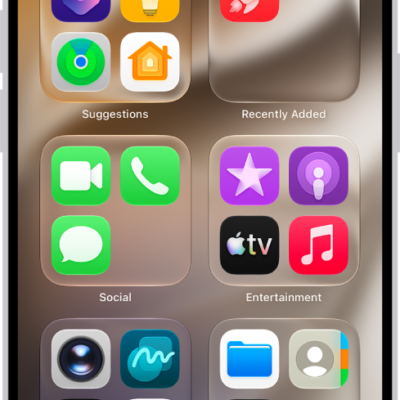
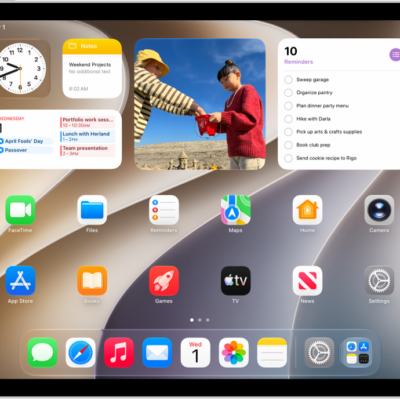
You can change how app icons and widgets look on your Home Screen—adjust their size, apply a color tint, or switch between light and dark appearances. Auto gives icons and widgets a dark look at night, and a light appearance during the day.
In large size, the app names disappear, and a clear look makes the icons translucent. You can resize a widget, too. Some apps don’t offer every widget size, though, while others offer sizes up to extra large.
If you’d like to add, remove, or edit what a widget displays, see our article, Add, edit, and remove widgets.
Customize the look of app icons
- Go to the Home Screen.
- Touch and hold the Home Screen background until the icons begin to jiggle.
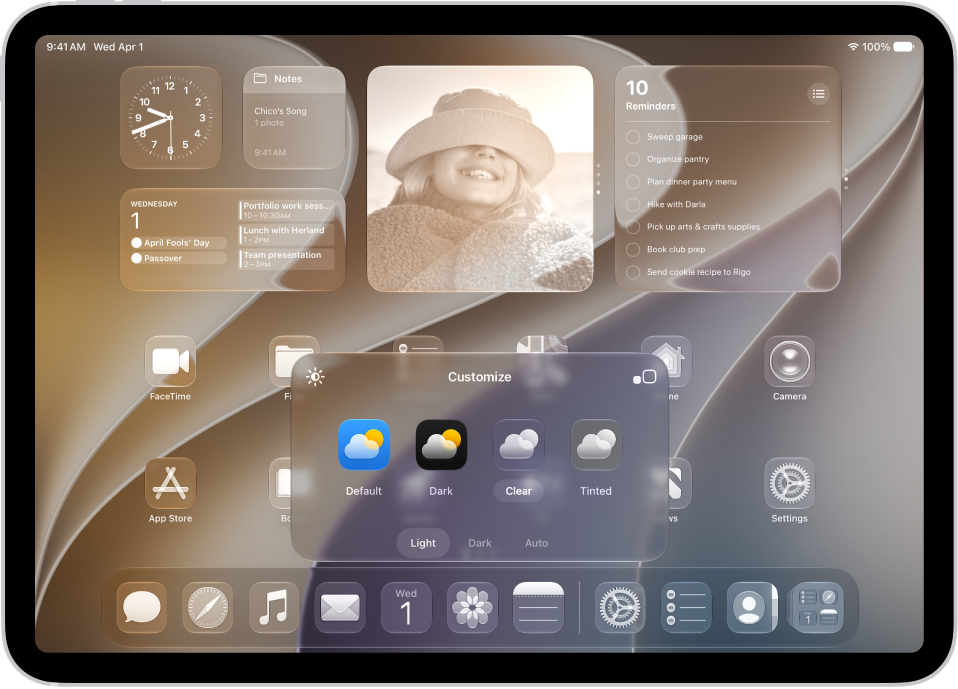
- Tap the Edit button at the top of the screen. Then choose Customize.
- Do any of the following:
- Make the icons larger: Tap the LargeAppIcons button. In large size, the names of the apps disappear.
- Choose a dark appearance: Tap Dark. To show icons and widgets with a dark appearance at night and a light appearance during the day, tap Auto.
- Give the icons a clear look: Tap Clear to make the icons translucent, then choose Light, Dark, or Auto.
- Add a color tint: Tap Tinted. Use the sliders to choose the color and saturation (or use the eyedropper to select a color in your wallpaper). Then choose Light, Dark, or Auto.
Resize a widget
- Go to the Home Screen.
- Touch and hold the app icon or widget on your Home Screen.
-
Choose a widget size.
Note: Not all apps offer every widget size. Some apps provide only small and medium widgets, while others offer sizes up to extra large.
To change the widget back to an app icon, touch and hold it, then tap the App Icon button.
See also