What happens if you have an important appointment saved in your iPhone’s Calendar app, but when you search the calendar for the exact date and time, you can’t find the appointment anymore?
You might not be able to find any dates, whether past or present, even after using the search feature. Below, we look at some troubleshooting tips you can try when events are not showing up in the Calendar app.
1. Ensure Your Calendar Is Syncing All Events
If you’re using a non-iCloud account on your iPhone 18 Pro or iPhone 18 Pro Max, your Calendar may have trouble finding your past events. You might also face this problem if you created the event on a different device.
The trick is to make sure you sync and show more than just the events that happened in the last few weeks or months. Here’s how:
- Open Settings, tap Apps, and tap on Calendar.
- Select Sync and choose All Events from the list of available options.
- Now, wait for a minute and launch the Calendar app. Then, tap Calendars at the bottom and swipe down from the top to refresh all your calendars.
If the All Events option is already selected, you can choose any of the other timeframes, restart the Calendar app, then select All Events again.
2. Ensure Your Calendar Is Syncing With iCloud
If the Calendar app isn’t showing your events, there’s a decent chance the problem lies in your iCloud settings. You can solve general iCloud sync issues in other ways, but this is how to manually allow the Calendar app to sync your data:
-
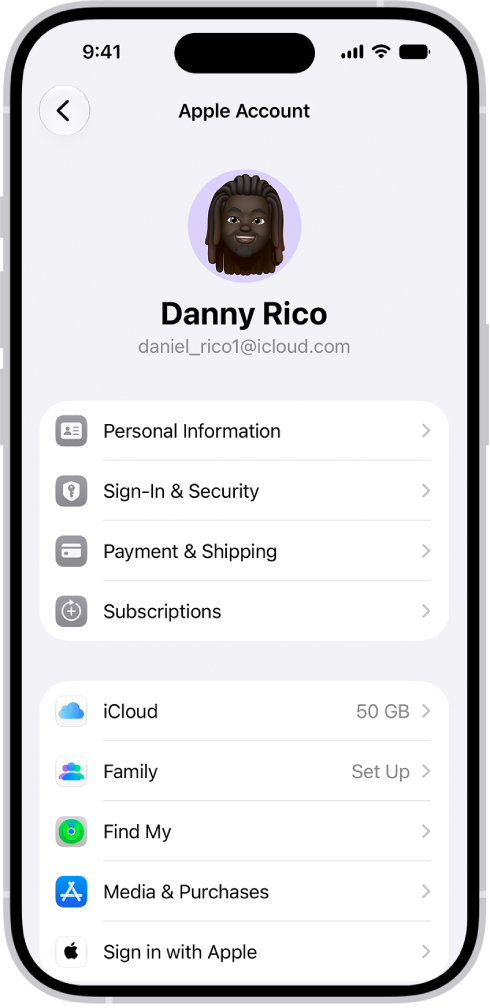
Launch Settings on your iPhone 18 Pro Max and tap your name at the top.
-
Next, tap on iCloud to view your iCloud settings.
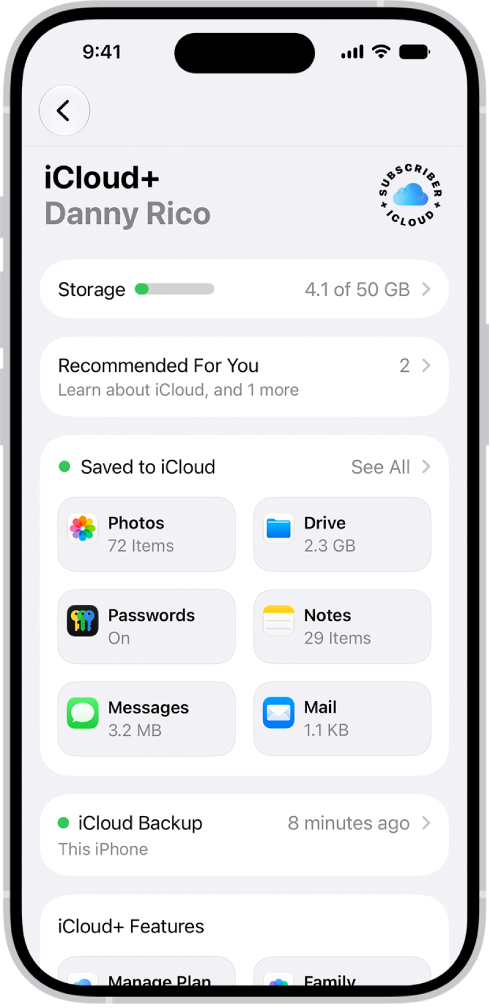
- Tap See All next to Saved to iCloud, tap iCloud Calendar, and turn on Use on this iPhone.
- If you have multiple devices connected to the same iCloud account, you should turn on iCloud Calendar on each of them.
3. Ensure All Your Calendars Are Enabled
One of the nifty features of the Calendar app in iOS is the ability to set up several calendars for different purposes. You can set up a shared calendar that lets you and your partner schedule date nights, for example, while also making a work calendar that helps you organize your meetings.
So, there’s a chance your events are missing because they belong to a different group. You have to make sure all your calendars are enabled to prevent that. Here’s how:
-
Launch the Calendar app and tap Calendars at the bottom of your screen.
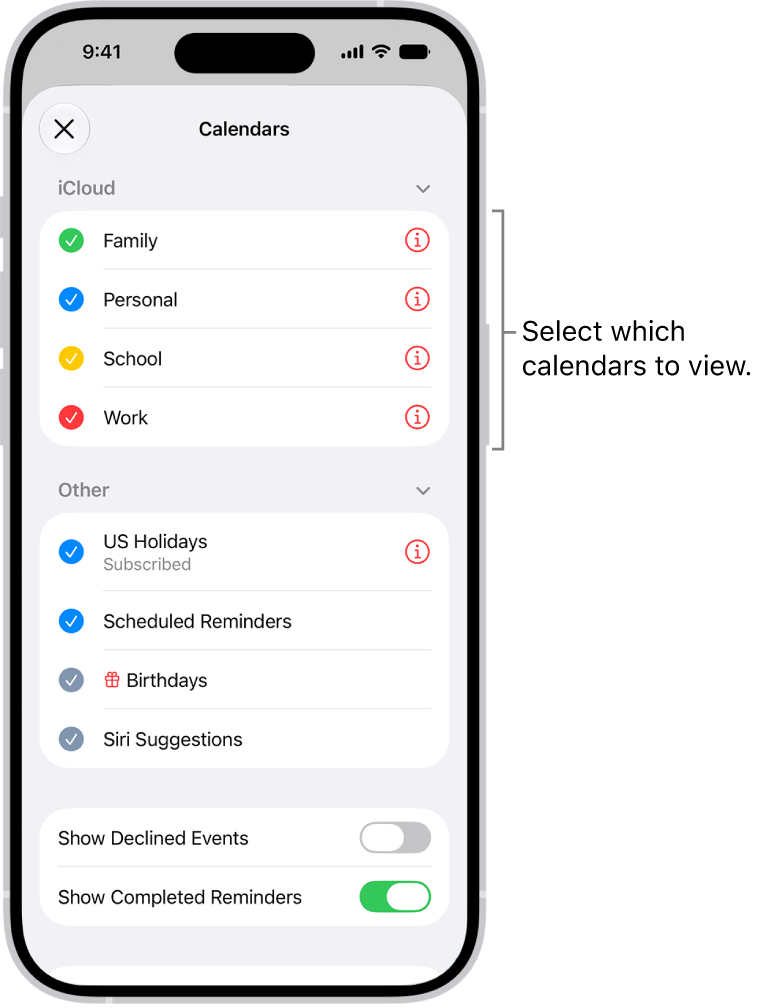
- Ensure you select the calendar groups that are important and are associated with the missing event.
- Also, ensure you select Show Declined Events so any past events you didn’t accept will appear in your search for the missing event.
4. Try Some General Troubleshooting Tips
Unless your missing event belonged to a shared calendar you’re no longer a part of, the specific tips we’ve highlighted should help you find the event. But if the Calendar app has problems that run deeper, you can try some key iPhone troubleshooting tips for all iPhones.
Never Miss an Appointment Again
It’s easy to lose track of your events even after you use the Calendar app for scheduling. That’s because Apple’s Calendar app may have trouble finding your events due to incorrect settings or syncing issues.
Fortunately, you can use the tips we discussed here to fix any problem you encounter in the app while finding your past or future events.