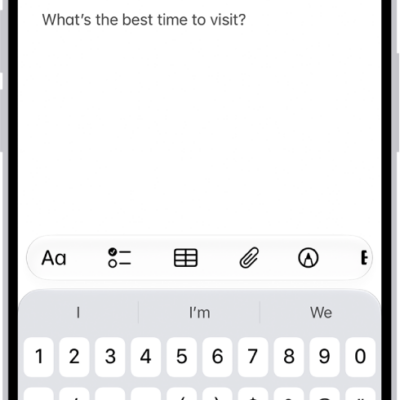
Use the Notes app to draw a sketch or jot a handwritten note with your finger. Choose from a variety of Markup tools and colors, and draw straight lines with the ruler.
Your handwriting isn’t just a picture, either. You can search it in supported languages, select it, and even paste it as typed text in another note or app, and iPhone can straighten your writing and suggest spelling corrections.
Use drawing and handwriting tools
- Start the Notes app on your iPhone.
- In a note, tap the Handwriting Tools button. Then draw or write with your finger.
-
Do any of the following:
- Change color or tools: Use the Markup tools.
- Adjust the handwriting area: Drag the resize handle (on the left) up or down.
Tip: You can search handwritten text (in supported languages) in Notes. If the note doesn’t have a title, the first line of handwritten text becomes the suggested title. To edit the title, scroll to the top of the note, then tap Edit.
Select and edit drawings and handwriting
With Smart Selection, you can select drawings and handwriting. You can move, copy, or delete the selection within the note. You can even paste it as typed text in another note or app. Note: Smart Selection and handwriting transcription work if the system language of your iPhone is set to a supported language in Settings > General > Language & Region > iPhone Language.
- Start the Notes app on your iPhone.
- In a note, select drawings and handwriting with your finger using any of the following methods:
- With the Lasso tool: Tap the Handwriting Tools button and tap the Lasso tool. Then use your finger to outline the objects you want to select.
- With gestures:
- Touch and hold, then drag to expand the selection.
- Double-tap to select a word.
- Triple-tap to select a sentence.
- Drag the handles to adjust the selection as needed.
- Tap the selection and choose an option.
Work with handwritten text
iPhone can also straighten your handwriting and suggest spelling corrections.
- Start the Notes app on your iPhone.
- In a note, select the handwriting.
- Do any of the following:
- Make your writing more level: Tap Straighten.
- Correct spelling: Tap an underlined word and choose how you want to correct it. The fix appears in your own writing style.
- Move handwriting: Touch and hold the selected text and then drag it to a new position.
- To erase text, scratch out the writing and then hold down your finger on iPhone. (Supported when using a markup tool such as Pen, Mono line, or Marker.)
Drag images from other apps
You can drag images from other apps to a note and combine them with handwritten and drawn content. After you add an image to the drawing area, you can reposition and resize the image.
Use Image Wand
If Apple Intelligence is turned on, you can use Image Wand in Notes to generate images based on rough sketches you create. You can also select empty space to create an image based on words and images from the surrounding area. Note: Apple Intelligence on iOS 27 or later is available on an Apple Intelligence-enabled iPhone 15 Pro, iPhone 15 Pro Max, or iPhone 16 model or later. Apple Intelligence is not available in all languages or regions. Usage limits may apply.* *Apple Intelligence is available with Siri and device language set to Chinese (Simplified), Chinese (Traditional), Danish, Dutch, English, French, German, Italian, Japanese, Korean, Norwegian, Portuguese, Spanish, Swedish, Turkish, or Vietnamese. Some features may not be available in all regions or languages. Some devices may not be available in all regions. Siri AI is available in beta in iOS 27, iPadOS 27, macOS 27, watchOS 27, and visionOS 27 and requires an Apple Intelligence–enabled device set to a supported language. Available in English to start. Siri AI will not be initially available in the EU on iOS, iPadOS, and watchOS. Certain Apple Intelligence features that rely on server-side models are subject to daily usage limits, including but not limited to Siri AI, Intelligent Photo Editing Tools, Image Playground, and AFM 3 Cloud models in Shortcuts. Daily limits may vary by feature, request complexity, system demand, system policies, and other factors. Expanded access to such features will be available for a fee in the future. Use of these features is subject to the Apple Intelligence Terms and Conditions.