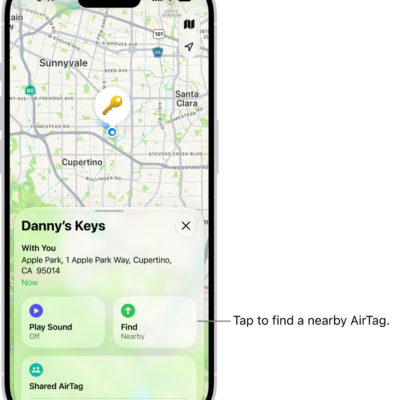
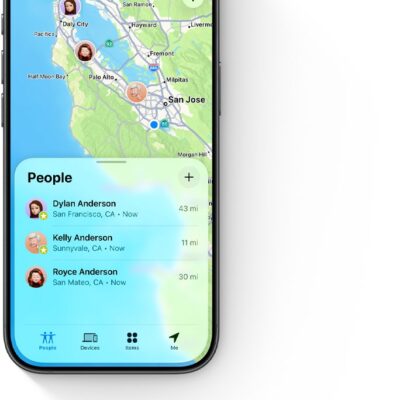
You can change the map view or distance units that appear in the Find My app. A button at the right of the map shows whether the current map is for exploring or viewing from a satellite, and you can choose another map type, or change the view to 2D or 3D in some locations.
Change the map view
The button at the right of the map tells you if the current map is for exploring or for viewing from a satellite.
- Start the Find My app on your iPhone.
- To choose a different map, tap the button at the right and then choose another map type.
- Tap the Close button.
You can also tap 2D or 3D at the right to change the view (not available in all locations).
Quick tip: Zoom in if you don’t see 2D or 3D. Or, to see the 3D view, swipe up with two fingers.
Change distance units
To change the default distance units, use Settings.
Tag: Find My