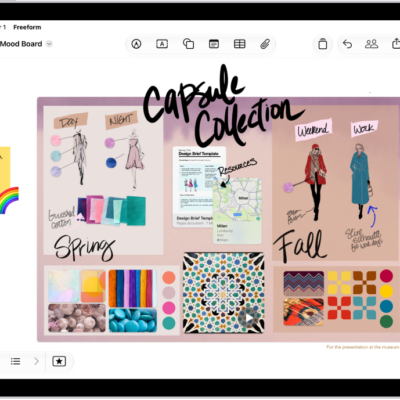
When you want the text in your sticky notes, shapes, or text boxes to have a consistent look in Freeform, like the font, size, and color, you can copy the style from one item and paste it in another.
Depending on the item you paste into, fonts, line weight, or color are matched. If you like an item’s style, you can also save it, and every new item like that on your board uses the saved style.
- Go to the Freeform app on your iPad.
- Tap an item on a board and make any adjustments to the formatting—so it has the style you want to copy.
- When you have an item that’s formatted in a style you like, tap it to show its formatting tools.
- Tap the More button and tap Style. Tap Copy Style.
- Tap to select and show the formatting tools for an item whose style you want to change.
-
Tap the More button, tap Style, and then tap Paste Style.
Depending on the item you’re pasting a style into, fonts, line weight, or color are matched.
For linked or placed files, pasted styles update corners and shadows.
Quick tip: When you like an item’s style, you can save it, and every similar item you add to your board afterward uses the saved style. To save it, tap to select the text box, tap the More button, and tap Style, then choose Save as Insert Style.
See also