In the FaceTime app, you can block FaceTime calls from unknown callers and report the calls as spam or junk. You can block a caller while the call is ringing, during a call, or after a call has ended, and report the call to Apple as spam. You can also unblock a caller later.
Block a FaceTime call
Getting an unwanted FaceTime call? You can block the caller.
Do one of the following:
- While the call is ringing, tap the left side of the call notification, tap Join FaceTime at the top of the screen, then tap Block Caller.
- During a call, tap the email address or phone number, tap Block Caller, then tap Block. (You may need to tap the FaceTime window for the email address or phone number to appear.)
- In your FaceTime call history, tap the call, tap Block Contact, then tap Block.
Block a Group FaceTime call
If you receive an unwanted Group FaceTime call from unknown callers, you can block the call initiator (or all participants) by doing one of the following:
- While the call is ringing: Tap the left side of the notification to expand the window, tap the people count at the top of the screen, then tap Block All Participants.
- During a Group FaceTime call: Tap the people count at the top of the screen, then tap Block Unknown Participants or Block All Participants.
- After a Group FaceTime call has ended: Tap the call in the call history, then tap Block All Participants.
Report a FaceTime call as spam
When an unwanted FaceTime call comes from an unknown caller, you can report it to Apple as spam.
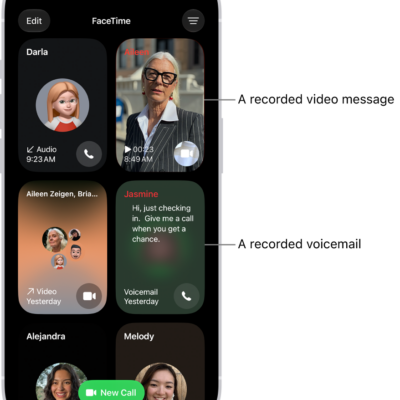
Touch and hold the tile in your call history, then tap Report Spam.
Unblock a caller
Do one of the following:
-
In the FaceTime app: Tap the call in the call history.
Tap the caller’s contact information (if the call was a Group FaceTime call), then tap Unblock Contact.
-
In the Settings app: Tap Apps, tap FaceTime, then tap Blocked Contacts.
Swipe left on the contact information, then tap Unblock.