You can browse the web, view websites, preview website links, translate webpages, and add the Safari app back to your Home Screen if it gets removed. Sign in to iCloud with the same Apple Account on multiple devices to keep your open tabs, bookmarks, history, and Reading List up to date across all your devices.
A few small tricks make browsing easier, too. You can jump back to the top of a long page in one move, or preview a link without opening the page.
Go to a webpage
- Start the Safari app on your iPhone.
- Enter the name or web address (URL) of the webpage in the search field.
View websites with Safari
- Start the Safari app on your iPhone.
-
Do any of the following:
- Get back to the top: Tap the top edge of the screen. Then tap it again to quickly return to the top of a long page.
- See more of the page: Turn iPhone to landscape orientation.
- Refresh the page: Pull down from the top of the page
-
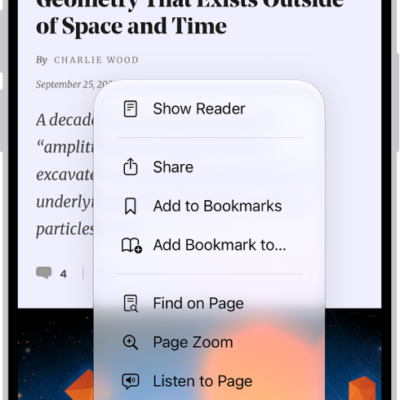
Share links: At the bottom of the page, tap the Page Menu button, then tap Share.
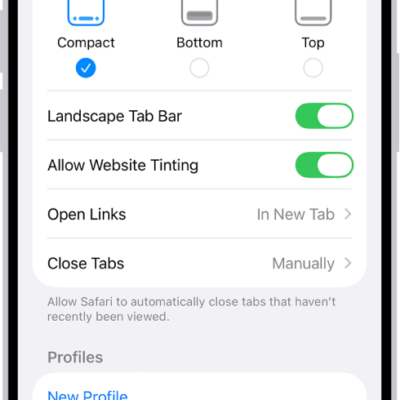
If your Tabs layout is Bottom or Top, tap the Share button.
Preview website links
- Start the Safari app on your iPhone.
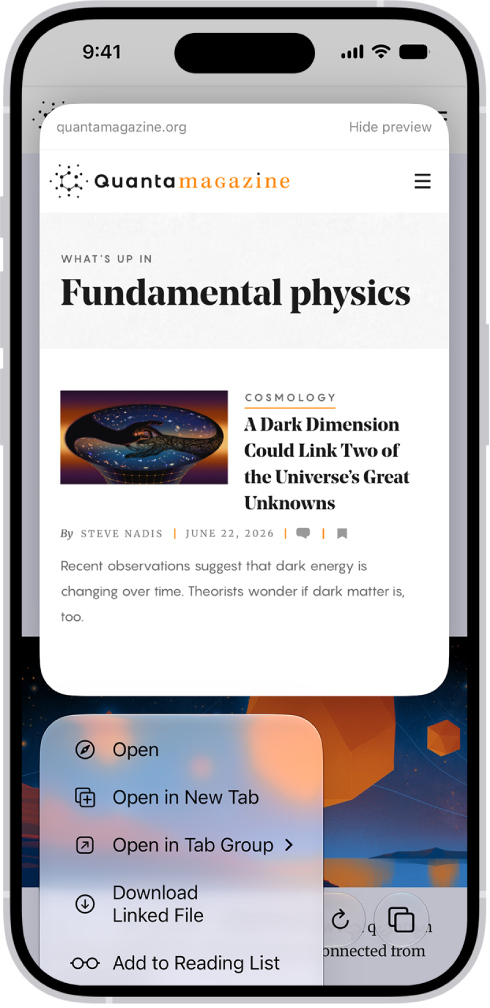
- Touch and hold a link in Safari to see a preview of the link without opening the page.
To open the link, tap the preview, or choose Open. To close the preview and stay on the current page, tap anywhere outside the preview.
Translate a webpage or image
Safari can translate the text of a webpage or image that’s in another language when you view it, though this isn’t available in all languages or regions.
- Start the Safari app on your iPhone.
- Go to a webpage.
- Tap the Page Menu button and tap Translate to [language] (if translation is available).
Use Apple Intelligence to summarize a webpage
The Safari app can generate summaries of webpages with Apple Intelligence.
Note: Apple Intelligence on iOS 27 or later is available on an Apple Intelligence-enabled iPhone 15 Pro, iPhone 15 Pro Max, or iPhone 16 model or later. Apple Intelligence is not available in all languages or regions. Usage limits may apply.*
- Go to a website in the Safari app on your iPhone.
- Go to a webpage.
- Tap the Page Menu button, then tap Summarize.
The Summarize menu item only appears when the website supports it, but Writing Tools can also summarize webpages.
Get notified when a website changes
Safari can use Apple Intelligence to let you know when a website updates content you’re interested in, like a price or item change.
Note: Apple Intelligence on iOS 27 or later is available on an Apple Intelligence-enabled iPhone 15 Pro, iPhone 15 Pro Max, or iPhone 16 model or later. Apple Intelligence is not available in all languages or regions. Usage limits may apply.*
- Start the Safari app on your iPhone.
- Go to a webpage.
- Tap the Page Menu button, then tap Notify Me.
- Enter details about what Safari should look for.
- If necessary, tap Edit to adjust how often Safari should check for updates and tap the checkmark button.
If Safari detects that a website has been updated, a notification appears on your iPhone at the time interval you set.
Add Safari back to your Home Screen
Safari missing from your Home Screen? Find it in App Library and add it back.
- On the Home Screen, swipe left until you see the App Library.
- Enter “Safari” in the search field.
- Touch and hold the Safari app icon. Then tap Add to Home Screen.
*Apple Intelligence is available with Siri and device language set to Chinese (Simplified), Chinese (Traditional), Danish, Dutch, English, French, German, Italian, Japanese, Korean, Norwegian, Portuguese, Spanish, Swedish, Turkish, or Vietnamese. Some features may not be available in all regions or languages. Some devices may not be available in all regions. Siri AI is available in beta in iOS 27, iPadOS 27, macOS 27, watchOS 27, and visionOS 27 and requires an Apple Intelligence–enabled device set to a supported language. Available in English to start. Siri AI will not be initially available in the EU on iOS, iPadOS, and watchOS. Certain Apple Intelligence features that rely on server-side models are subject to daily usage limits, including but not limited to Siri AI, Intelligent Photo Editing Tools, Image Playground, and AFM 3 Cloud models in Shortcuts. Daily limits may vary by feature, request complexity, system demand, system policies, and other factors. Expanded access to such features will be available for a fee in the future. Use of these features is subject to the Apple Intelligence Terms and Conditions.