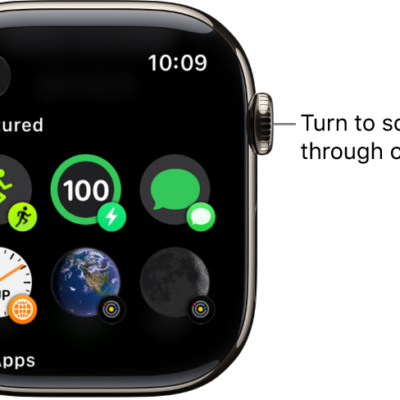
Personalize your Apple Watch face so it looks the way you want and provides the functions you need. Choose a design, adjust colors and features, then add it to your collection. Switch faces at any time to see the right timekeeping tools—or to shake things up.
The Face Gallery in the Apple Watch app is the easiest way to see all of the available watch faces, customize one, and add it to your collection. But if your iPhone isn’t handy, you can customize the face right on your watch. You can delete a face from your collection, too. For more, see Apple Watch faces and their features.
Add a watch face in the Face Gallery
From the Face Gallery, you can customize any watch face that looks interesting, choose complications, and add the face to your collection.
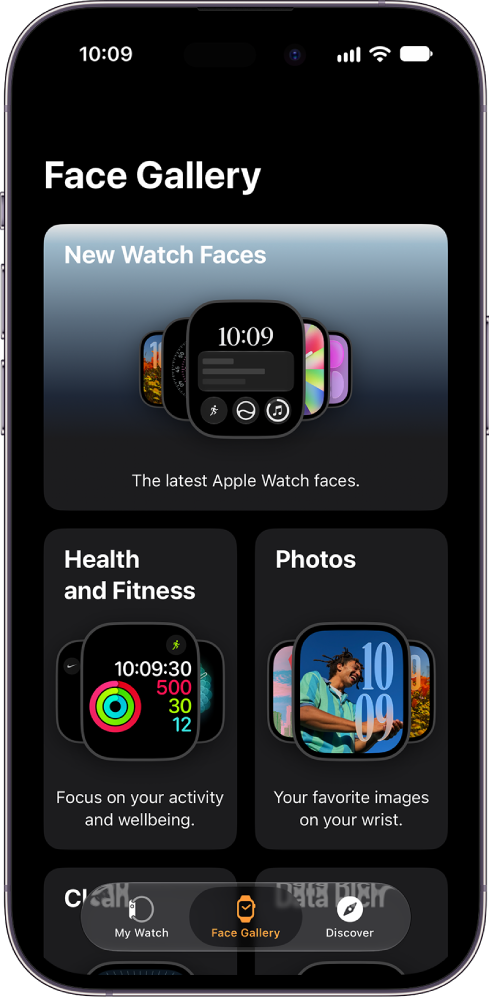
- Start the Apple Watch app on your iPhone.
-
Tap Face Gallery and then tap a category like Health and Fitness, Photos, or Data Rich.
To view all watch faces, scroll down, then tap See All Watch Faces.
- Scroll to a face and tap Get. Tap an option.
-
To customize the watch face, do any of the following:
-
Choose features for a face: Tap a feature such as color or style.
As you play with different options, the face at the top changes so you can make sure the design is just right.
-
Add complications: Tap a complication position (such as Top Left, Top Right, or Bottom), swipe to see which complications are available for that position, and tap the one you want.
If you decide you don’t want a complication in that position, scroll to the top of the list and tap Off.
-
Choose features for a face: Tap a feature such as color or style.
-
When you’re finished customizing your watch face, tap Add to Watch.
The face is added to your collection and becomes the current face on your Apple Watch.
Add a watch face to your Apple Watch
Your own collection of custom faces can even include variations of the same design.
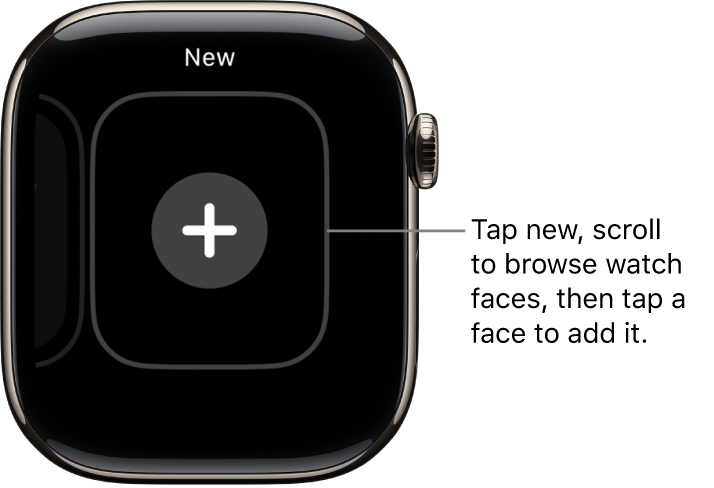
- With the current watch face showing, touch and hold the display.
- Swipe left all the way to the end and tap the Add button.
-
Tap a collection, such as New Watch Faces or Data Rich, to browse a specific category of watch faces.
Tip: To view all watch faces, scroll down, then tap All Watch Faces.
-
Tap Get next to the watch face you want and tap Add.
After you add the watch face, you can customize it.
Choose a different watch face
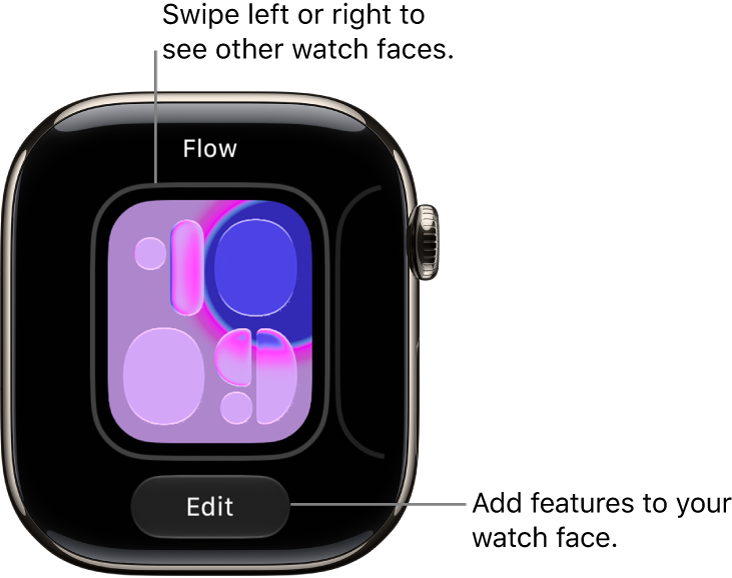
- With the current watch face showing, touch and hold the display.
-
Swipe to the watch face you want and tap it.
Tip: You can also swipe from one watch face to another. Go to the Settings app on your Apple Watch, tap Clock, then turn on Swipe to Switch Watch Face.
View your collection
All your watch faces are visible at a glance.
- Start the Apple Watch app on your iPhone.
- Tap My Watch. Swipe through your collection below My Faces.
To rearrange the order of your collection, tap Edit in My Faces, then drag the Reorder icon next to a watch face up or down.
You can also rearrange the order of your collection on Apple Watch. With the current watch face showing, touch and hold the display, touch and hold again, then drag the selected watch face left or right.
Delete a face from your collection
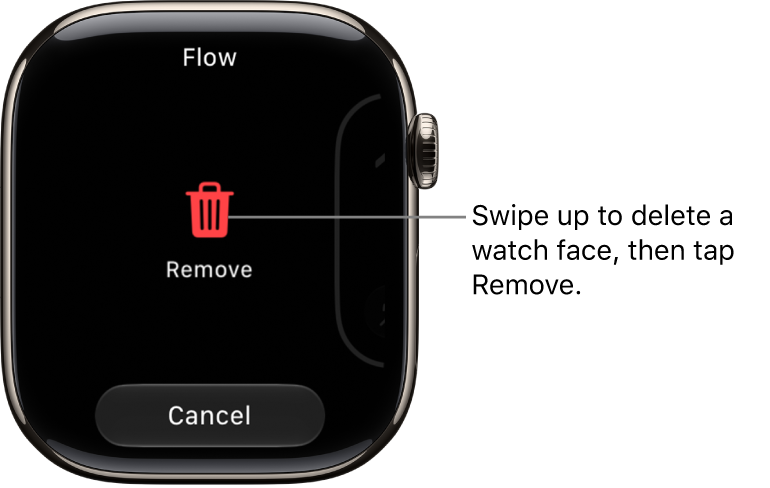
- With the current watch face showing, touch and hold the display.
- Swipe to the face you don’t want, swipe up, and tap Remove.
Or, on your iPhone, go to the Apple Watch app, tap My Watch, then tap Edit in the My Faces area. Tap the Delete button next to the watch faces you want to delete, then tap Remove.
The watch face can always be added again later.
Set the watch ahead
- Start the Settings app on your Apple Watch.
- Tap Clock.
- Tap +0 min and then turn the Digital Crown to set the watch ahead by as much as 59 minutes.
Only the time shown on the watch face changes with this setting. Alarms, times in notifications, and any other times, like World Clock, aren’t affected.