In your Phone settings on iPhone, you can hide your Caller ID on outgoing calls, prioritize caller identification apps, turn on Dial Assist, and change the default calling app. Dial Assist then automatically determines the correct international or local prefix when you’re dialing.
Change the Phone app layout
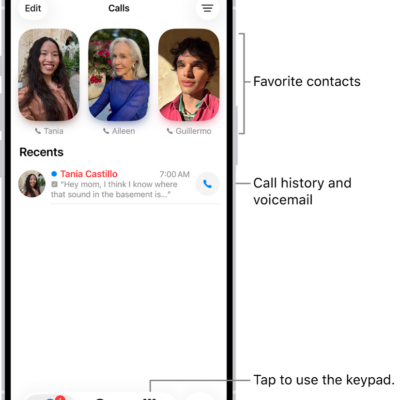
The Unified layout combines your Favorites, Recents, and Voicemails in a single tab, while the Classic layout sorts them into separate tabs. You can use either one.
- Open the Phone app on your iPhone.
- Tap Calls or Recents.
- Tap the Filter button and then choose one of the following:
- Classic: Your favorite contacts, recent calls, and voicemails are sorted into separate tabs.
- Unified: Your favorite contacts, recent calls, and voicemails are combined and displayed in the Calls tab.
Hide your Caller ID
Keep your Caller ID information from showing on outgoing calls on iPhone.
- Open the Settings app on your iPhone.
- Tap Apps, then tap Phone.
- Tap Show My Caller ID and turn it off.
Note: If Show My Caller ID doesn’t appear, your carrier may not let you turn off your caller ID information.
Prioritize caller identification apps
When a call comes in, your iPhone draws caller ID information mainly from these sources:
- Contacts app: The people in your contacts app.
- Name and Photo Sharing: Callers who have turned on Name and Photo Sharing in Settings > [their name] > Personal Information.
- Carrier Call Directory: Caller information identified by supported carriers.
- Business Call Identification: Caller information identified by Apple Business Connect or your cellular provider.
- Call Identification apps: Any caller information identified by supported caller ID apps.
Additional caller identification apps you’ve installed can be prioritized for identifying incoming calls, and you can reorder them at any point. You might make one caller identification app the preferred one, for example, with the others coming into play only if the primary app can’t identify the caller.
- Open the Settings app on your iPhone.
- Tap Apps and tap Phone. Then tap Call Blocking & Identification.
- Tap Call Blocking & Identification. Tap Edit at the top of the screen.
- Drag the Sort button to reorder the priority of the apps.
Turn on Dial Assist
When you’re dialing, Dial Assist works out the correct international or local prefix automatically.
- Open the Settings app on your iPhone.
- Tap Apps, then tap Phone.
- Scroll down, then turn on Dial Assist.
Change the default calling app
Instead of the built-in Apple Phone app, an alternative, third-party app can be your default for making and receiving phone calls. Just check that the app you want to switch to supports these features, and if you aren’t sure, contact the app developer.
- Open the Settings app on your iPhone.
- Tap Apps, then tap Phone.
- Tap Default Calling App. Tap the app you want set as the default.