You can monitor your Apple Watch battery in several ways: check the current battery level, view usage history and charging patterns, and assess overall battery health.
The quickest check is Control Center, which shows the battery percentage, including for connected accessories like AirPods. You can also add a battery complication to the watch face, or see the time since the last charge. And Apple Watch alerts you when battery capacity is significantly reduced.
Check the battery level of Apple Watch and accessories
-
Press the side button to open Control Center and see the battery percentage.
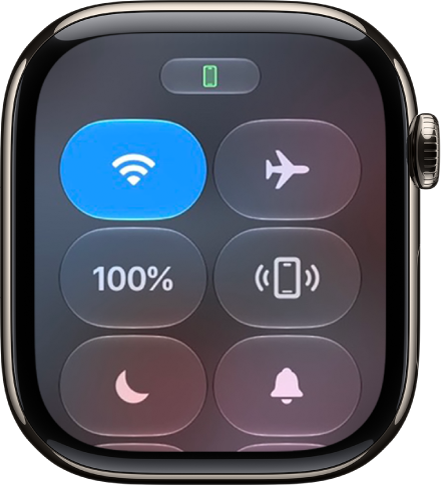
- To see the battery levels of any Bluetooth connected accessories, such as AirPods, tap the battery percentage and turn the Digital Crown.
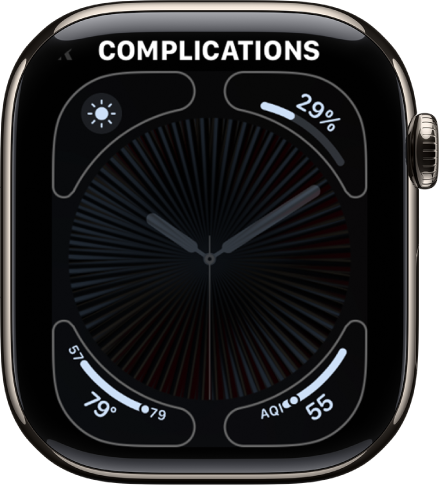
See the battery level on the watch face
If you add a battery complication to the watch face, you can check the battery level at a glance.
Check the time since the last charge
- Start the Settings app on your Apple Watch.
-
Tap Battery.
The Battery screen shows the remaining battery percentage, a graph that details the recent history of the battery charge, and information about when the battery was last charged.
Check battery health
You can check your Apple Watch battery’s capacity relative to when it was new.
- Start the Settings app on your Apple Watch.
- Tap Battery, then tap Battery Health.
- Scroll down to see the maximum capacity.
When battery capacity is significantly reduced, Apple Watch alerts you so you can check your service options.
See also