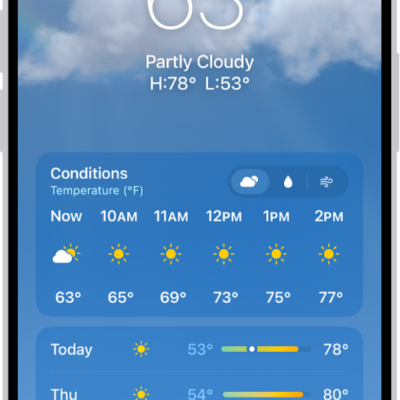
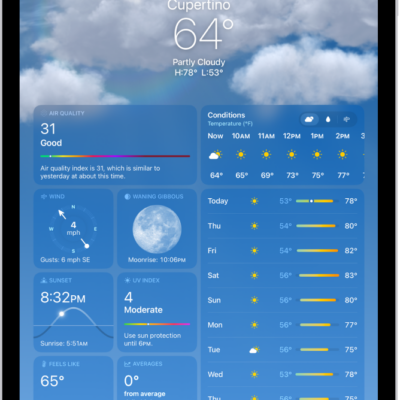
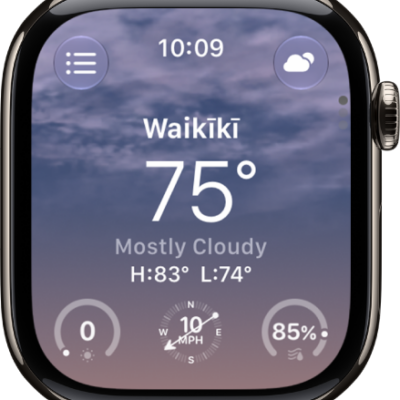
Check the weather for any location around the world and quickly access forecasts for locations you save to your list.
You can search for another location or add one from the weather map, then rearrange or remove locations in your list. Your Home and Work locations can show up in search results, too. And your list stays up to date across your devices, as long as you’re signed in to the same Apple Account.
Here’s how to check the weather in other locations on iPhone.
Search for another location
- Open the Weather app on your iPhone.
- Tap the Location List button.
-
Tap the search field at the top or bottom of the screen. Then enter the name of the city, neighborhood, or location.
Tip: To see your Home and Work locations in search results, go to Settings > Apps > Weather, then turn on Home and Work. Also make sure to turn on Location Services for Weather.
- Tap the location in the search results to display the forecast.
-
Do one of the following:
- Add the location to your list: Tap the Add button.
- Return to the list without adding the location: Tap the Close button and tap the Close button again.
To check the weather in locations you added to your list, swipe left or right when viewing a location, or tap the Location List button, then tap a location.
When you’re signed in to the same Apple Account on your devices, your list of locations stays up to date on each one.
Note: Neighborhood search results aren’t available in all locations.
Add a location from the weather map
- Open the Weather app on your iPhone.
- While checking a forecast and conditions, tap the Weather Map button in the bottom-left corner of the screen. Then change the location of the weather map.
- Touch and hold where you want to add a location. Then tap the Add button.
Rearrange locations in your list
- Open the Weather app on your iPhone.
- Tap the Location List button to display your list.
- Touch and hold the location. Then move it up or down.
Remove a location from your list
- Open the Weather app on your iPhone.
- Tap the Location List button to display your list.
- Swipe left on the location, then tap the Delete button.