









Check the weather for your current location. View the upcoming hourly and 10-day forecast, see severe weather information, and more.
Weather uses Location Services to get your current location’s forecast, and you can turn on Precise Location for better accuracy. The details for your current location are shown first, and you can learn what the weather icons mean. You can look at different times in the hourly forecast, customize the weather units, and send a report about the weather where you are.
Note: Some Weather app features—such as severe weather alerts, air quality, next-hour precipitation, and news—aren’t available in all countries and regions.
Before you begin
To get the forecast for your current location, Weather relies on Location Services. Turning on Precise Location increases the forecast’s accuracy.
- Open Settings, tap Privacy & Security, tap Location Services, and then tap Weather.
- Turn on Precise Location.
Check the local forecast and conditions
-
Start the Weather app on your iPhone.
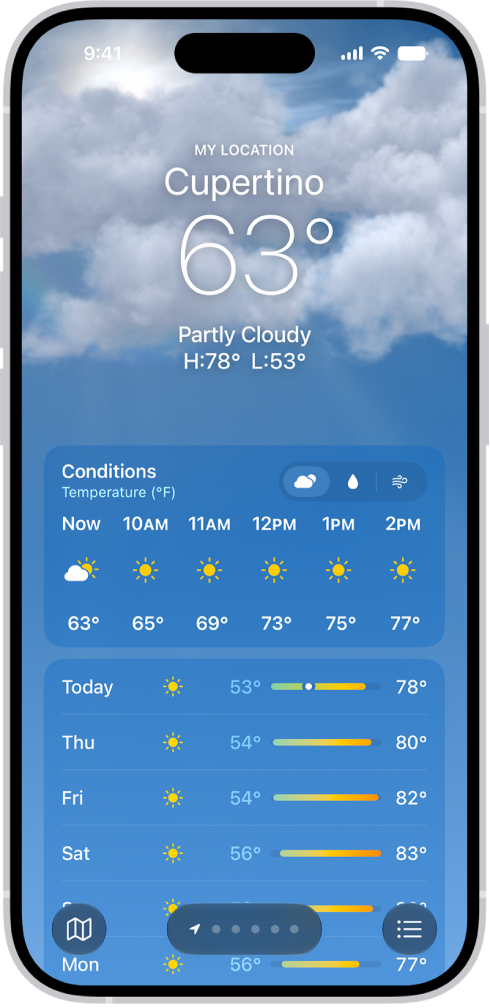
The details for your current location are shown.
If you don’t see the details for the location you want to know about, tap the Location List button, then tap My Location or another location.
-
Do any of the following:
-
Look at different times in the hourly forecast: Swipe the hourly display left or right.
Note: The air quality scale appears above the hourly forecast when air quality reaches a particular level for that location. For some locations, the air quality scale always appears above the hourly forecast.
- Change the hourly and ten-day forecast display: Tap a symbol above the hourly forecast to switch between Conditions, Precipitation, and Wind.
- See the upcoming forecast and information for different conditions: Tap the hourly forecast and tap the Chart Condition button to change the displayed weather condition.
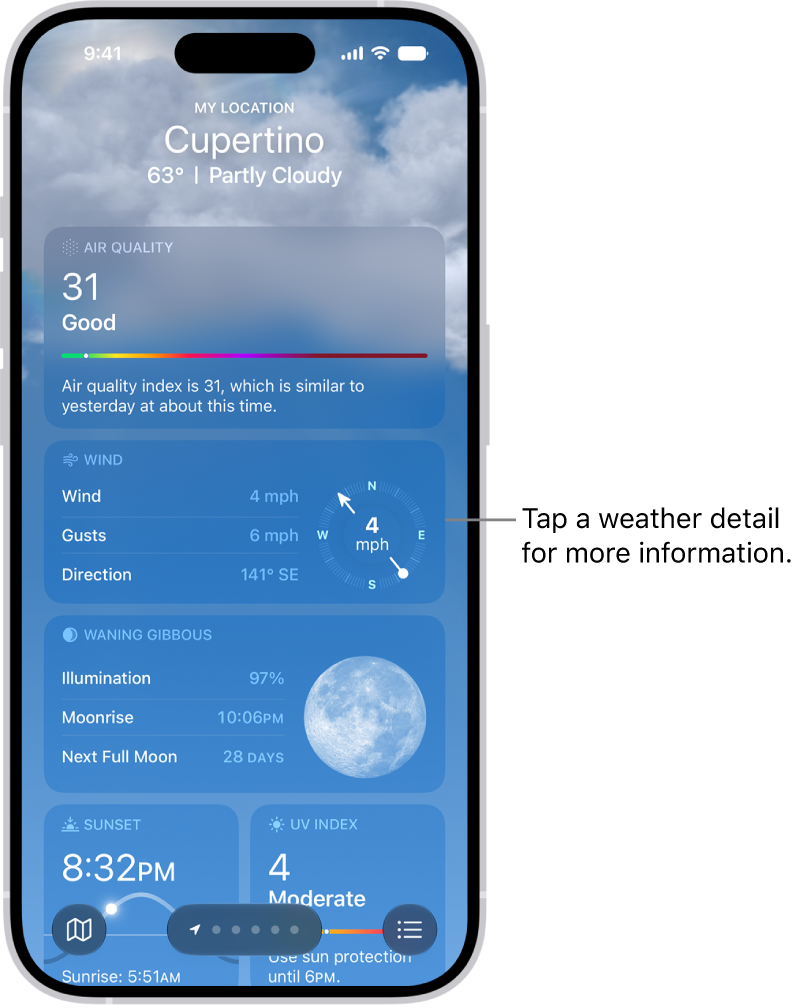
- See more weather details: Each location’s weather page includes detailed information, including potential severe weather alerts, weather-related news, air quality, UV index, wind, visibility, moon phases, and more.
-
Look at different times in the hourly forecast: Swipe the hourly display left or right.
Quick tip: The Averages weather detail shows how today’s temperature or precipitation compares to the historical average, and you can tap it to see more information.
Customize the weather units
Weather data can use different units. For temperature, choose Fahrenheit or Celsius, and for wind, there’s miles per hour, kilometers per hour, knots, or Beaufort.
- Start the Weather app on your iPhone.
- Tap the Location List button.
- Tap the More button, tap Units, and then do any of the following:
- Change temperature units: Tap Fahrenheit, Celsius, or Use system setting.
- Change wind, precipitation, pressure, or distance units: Tap the Action Button menu next to the current measurement unit and then choose an option.
Send a report about the weather
If the weather in your location doesn’t match what’s shown in the Weather app, you can report it.
- Start the Weather app on your iPhone.
- Tap the Location List button, tap the More button, and then tap Report an Issue.
- Tap the options that best describe the weather conditions in your location and tap Submit.
What you share with Apple isn’t associated with your Apple Account.