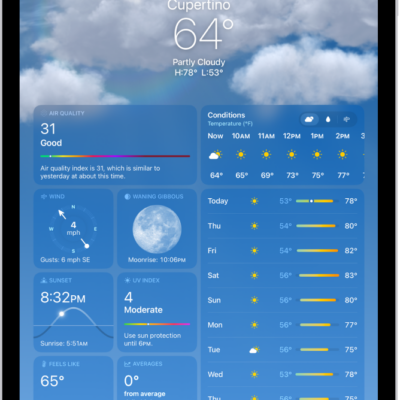
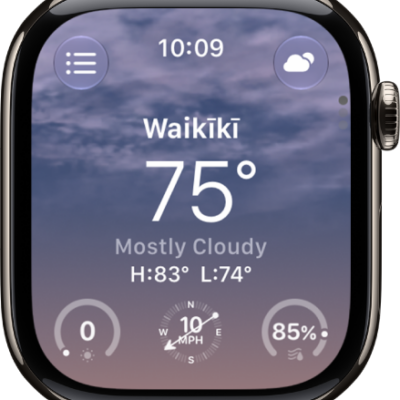
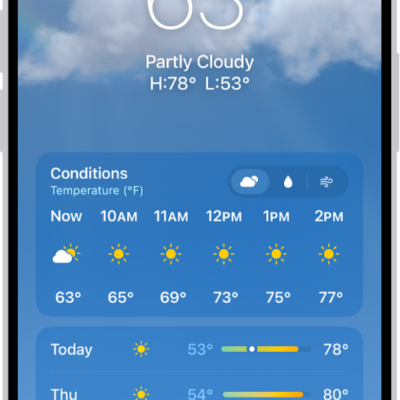
Use Weather widgets to check the forecast and other weather conditions at a glance on your iPad Home Screen. You can choose from a variety of widget sizes and displays when you add a widget to your Home Screen.
You can change the location a Weather widget displays by searching for a city or choosing one from your list, and you can even add more than one Weather widget to check conditions in different locations. It’s also possible to put Weather widgets on your iPad Lock Screen.
Quick tip: You can put more than one Weather widget on your Home Screen to quickly check weather conditions and forecasts in different locations.
Change the location shown in the Weather widget
On your iPad Home Screen, you can change the location that a Weather widget displays.
- Touch and hold the Weather widget on your Home Screen.
- Tap Edit “Weather” or Edit Stack.
- Tap My Location and then search for a city or tap a location from your list that you want to display.
- Tap the screen outside the widget to return to your iPad Home Screen.
Weather widgets work on your iPad Lock Screen, too.
See also