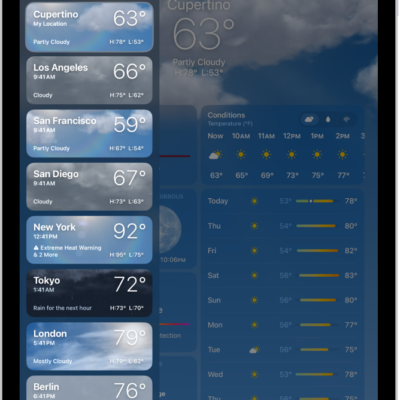
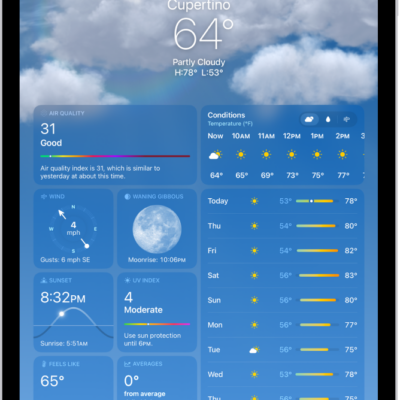
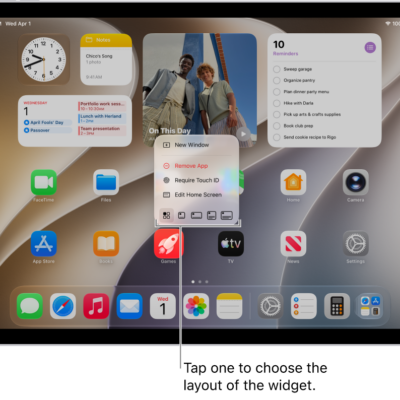
You can use the Weather app to view large precipitation, temperature, air quality, and wind maps in your location or other areas.
You can view a full-screen weather map and show the timeline. The type of weather map shown can change, too, depending on the weather conditions for the selected location. You can also move the map, zoom in and out, and view another location from your list in the sidebar.
Note: Not all features are available in all countries or regions.
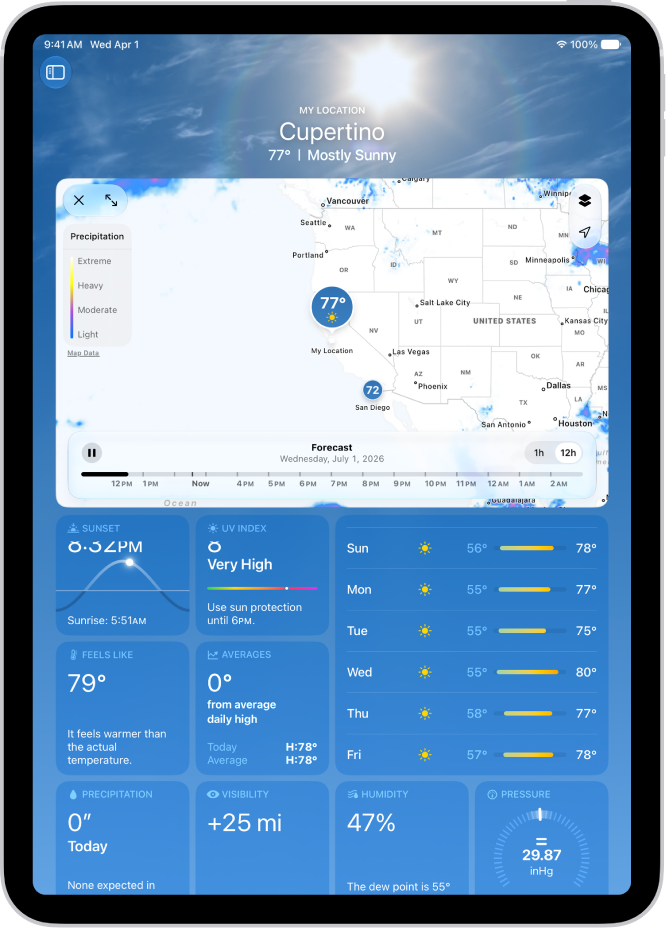
View a full-screen weather map
- Start the Weather app on your iPad.
-
Select a location, scroll down, tap the weather map, and then tap the Toggle Full Screen Map button to enlarge the map to full screen.
Tap the Toggle Full Screen Map button to reduce its size again.
Note: The type of weather map shown can change depending on the weather conditions for the selected location.
- To switch to a precipitation, temperature, air quality, or wind map, tap the Overlay Menu button in the upper right.
-
In a precipitation or wind forecast map, do any of the following:
- Show the timeline: Tap near the bottom of the map.
- Change the duration of the timeline: Tap the Menu button, then switch between 12-Hour Forecast and Next-Hour Forecast.
- Tap the Close button to close the map.
Change the location of the weather map
- Start the Weather app on your iPad.
- Tap the weather map to enlarge it and then do any of the following:
- Move the map: Drag it.
- Zoom in and out: Pinch the screen.
- View another location from your list: Tap a location in the sidebar or swipe left to see the next location in your list. Or while the map is enlarged, tap the Location List button in the upper right and tap a location.
- Return to your current location: Tap the Current Location button in the upper right.
- Add a location to your list, view its current conditions, or view it in Maps: Touch and hold the location on the map and then tap Add [location], View [location], or Open in Maps.
- Tap the Close button to close the map.
See also
- Check the weather on iPad
- Check the weather in other locations on iPad
- Manage weather notifications on iPad
- Use Weather widgets on iPad
Tag: Weather