Got a tip for us?

Maps

You can get travel directions using the Maps app, the Maps widget, Siri, CarPlay, or other devices. You can even get them on your Mac before you leave.

Directions can start from any spot on the map, or from a location in the search field. You can also use the Maps widget, or get directions using CarPlay, your Mac, or your Apple Watch.

Here’s how to use Maps on iPhone.

Note: Not all features are available in all countries or regions.
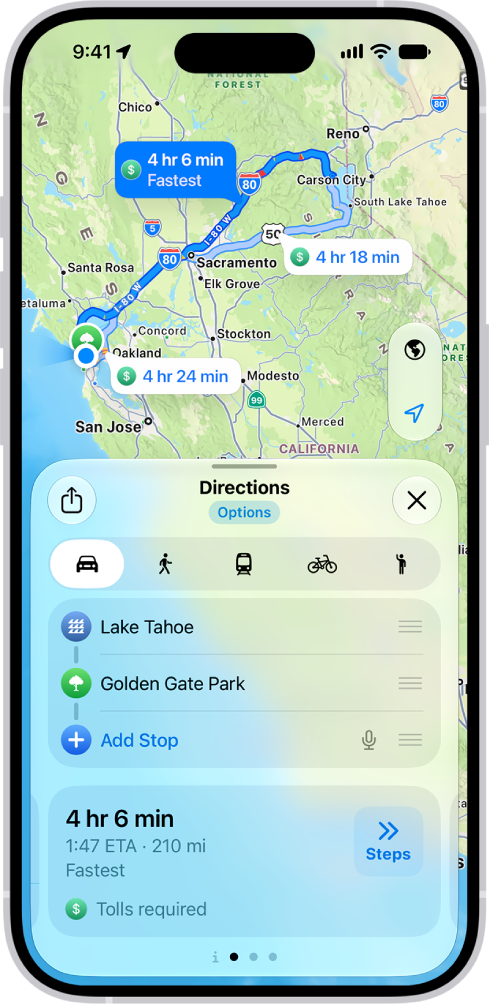
An iPhone showing a map with several driving route options to the same destination. Each route shows the estimated time and distance, and a Go button to start turn-by-turn directions. Color coding on each route indicates traffic conditions.

Important: To get directions, iPhone must be connected to the internet, and Precise Location must be turned on.

Get directions

  1. Open the Maps app on your iPhone.
  2. Touch and hold anywhere on the map or enter a location in the search field.

    You can search for any of the following, for example: An intersection (“8th and Market”) An area (“Greenwich Village”) A landmark (“Guggenheim”) A zip code (“60622”) A business (“movies,” “restaurants San Francisco CA,” “Apple Inc New York”) A request or question (“Find cafes with free Wi-Fi”) Tap the directions button.
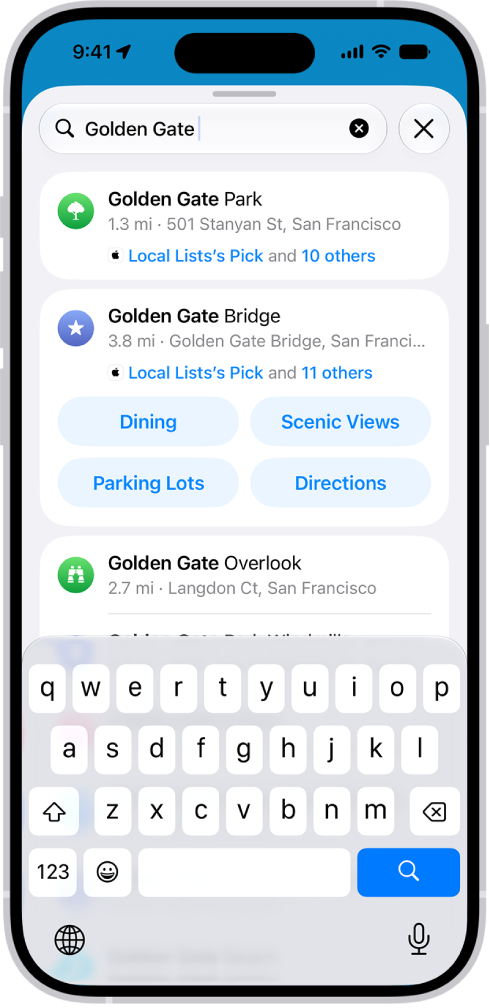
    Search in the Maps app.

    • Do one of the following: If your starting point is My Location: Tap Go for the route you want to take.
    • As you travel along your route, Maps speaks turn-by-turn directions to your destination.
    • If your starting point is another location: Tap Steps for the route you want to take.

You can add stops to your route.

Quick tip: Before you lose your internet connection on your route, send yourself a list of upcoming directions or download offline maps.

Use the Maps widget

With the Maps widget on your Home Screen, you can track your ETA during navigation and get directions to a likely destination.

Before you leave, the Maps widget previews your commute so you know what to expect.
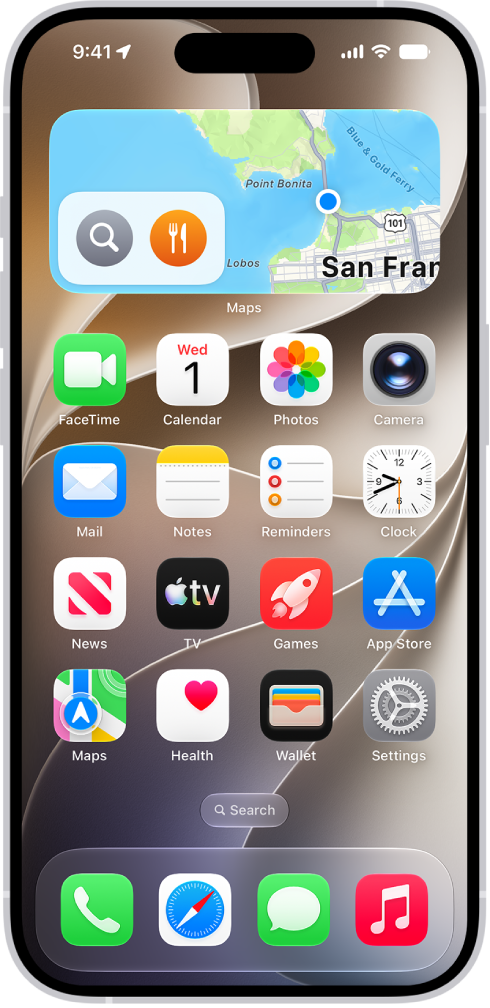
The Maps widget, other widgets, and app icons on an iPhone Home Screen.

Get directions using CarPlay, your Mac, or your Apple Watch

In addition to using your iPhone, you can also get directions from the following: Your car: After you connect your iPhone to CarPlay, you can use CarPlay to get driving directions, estimate your arrival time, and more.

  • Your Mac: Before a big trip or a day of cycling, you can plan your route on your Mac, then choose File > Share > Send to [your iPhone].
  • Your Apple Watch: You can use Apple Watch to get driving, walking, transit, and cycling directions, which you can follow on the watch face and your iPhone.

To see directions elsewhere, sign in to your Apple Account and hand off tasks between your iPhone and your other devices.

Siri: You can use Siri to get directions and stay focused on the road.

For example, ask Siri something like, “Find a charging station” or “Give me directions home.”
Tag: Maps

For some large spaces like airports, transit stations, or shopping malls, you can look at detailed, interior maps to help you get around. You can look at an indoor map before you get there, or when you’re already at the airport or mall. You can also find nearby attractions, restaurants, and services in Maps.

Note: Indoor maps aren’t available for all countries or regions.

  1. Go to the Maps app on your iPad.
  2. Do one of the following:

    • Before you get there: Search for the airport or mall. Tap Indoor Map if it appears in the search result. Or drag the map to show it, zoom in, then tap Look Inside.
    • When you’re at the airport or mall: Tap the Tracking Off button, then tap Look Inside.
  3. To find nearby services, tap a category (like Food, Restrooms, or Gates).

    To get more information about a result, tap it.

  4. To get a map of a different floor, tap the button showing the floor level (zoom in if the button doesn’t appear).

See also

Tag: Maps

The Visited Places feature helps you keep track of places you’ve been, so you can easily revisit or share them later. It shows you where you’ve been with your iPad (Wi-Fi + Cellular) and any iPhone that’s signed in to the same Apple Account.

You can use Visited Places to find locations—like restaurants from a recent trip—and organize them into guides or share them with others. Visited Places are end-to-end encrypted, can’t be read by Apple, and appear on all your synced devices. You can also remove them automatically, or clear them all.

Note: Visited Places isn’t available in all countries or regions.

View a visited place

To see Visited Places in the Maps app, you first need to turn it on and visit at least one place; read our article, Allow Maps to use your location.

  1. Start the Maps app on your iPad.
  2. Tap Places, tap Visited Places, and then do any of the following:
    • Search: Search a place by name, category, address, or notes.
    • Filter: Search using a filter for date, category, or city.
    • Show all visits: Tap All Visits.
  3. Next to a place, tap the More button (on the right side of the place card). Do any of the following:
    • Add to your Places: Tap Add to Places.
    • Share a visited place: Tap Share.
    • Add a personal note: Tap Add a Note.
    • Correct a visited place: Tap Wrong Location.
    • Remove a visited place: Tap Remove.

Automatically remove your visited places

  1. Start the Maps app on your iPad.
  2. Tap Places and tap Visited Places.
  3. Scroll to the bottom, tap Keep Visits, and choose how long you keep them, or choose Forever if you don’t want them to be removed.

Clear all your visited places

  1. Start the Maps app on your iPad.
  2. Tap Places and tap Visited Places.
  3. Scroll to the bottom and then tap Clear History.

See also

Tag: Maps

If you notice something’s missing in Maps—an address, business, transit stop, or another feature—you can add it. You can also report other kinds of issues, such as an incorrect step in directions or a business that has closed, from the Reports option next to the search field.

To change the address used for your home or work, you can add a pin to your Places. And you can clear your location history and delete recent directions in Maps, too.

  1. Go to the Maps app on your iPad.
  2. Do one of the following:
    • Touch and hold the map until a pin marker appears, scroll to the bottom of the card, then tap Report Something Missing.
    • Tap your picture or initials next to the search field, tap Reports, then tap Report a New Issue.
  3. Choose an option and then follow the onscreen instructions.

Any business, large or small, can use Apple Business to help its customers find it in Apple Maps, Wallet, Siri, and more.

See also

Tag: Maps

You can view traffic conditions and report accidents, hazards, and speed checks (where allowed), and you can report when they’re cleared (Wi-Fi + Cellular only).

Apple evaluates incoming incident reports. When there’s a high level of confidence in the reports, incident markers for hazards and accidents are displayed or cleared for other Maps users too. On the map, yellow indicates slowdowns, and red indicates stop-and-go traffic. Siri can report an accident for you, too.

Note: Not all features are available in all countries or regions. Some Maps features on iPad models with Wi-Fi + Cellular require a cellular data plan and Cellular Data turned on in Settings > Apps > Maps. Standard carrier data and text rates may apply. See View or change your cellular data.

Find out about traffic conditions

  1. Go to the Maps app on your iPad.
  2. Tap the Map Modes button at the top right of a map, choose Driving or Satellite, and tap the Close button.

    Yellow indicates slowdowns, and red indicates stop-and-go traffic.

  3. To view a report, tap a marker on the map.

    Markers indicate incidents such as:

    • Road closure
    • Accident
    • Traffic
    • Roadwork
    • General alert or other hazard
    • Speed check

Report traffic incidents

Siri: Ask Siri something like, “Report an accident.” Learn how to use Siri.

Or without using Siri:

  1. Open the Maps app on your iPad.
  2. Do one of the following:

    • When following turn-by-turn driving directions: Tap the Incident Reporting button, then choose an option. You can also tap the route card at the bottom of the screen. Then tap Report an Incident.
    • When not following directions: Tap your picture or initials next to the search field. Tap Reports. Tap Report a New Issue and tap Report an Incident. Choose an option.

      If neither your picture nor initials appear, tap Cancel next to the search field, or tap the search field, then tap Cancel.

Report on the status of a hazard or accident

In select countries or regions, you can report whether incidents have cleared when you’re near them, if you have an iPad with Wi-Fi + Cellular.

Siri: Ask Siri something like, “Clear the accident.” Learn how to use Siri.

Or without using Siri:

  1. Open the Maps app on your iPad.
  2. Tap the incident marker.
  3. Tap Cleared or Still Here.

    (You can’t clear reports of speed checks.)

See also

Tag: Maps

While following driving or cycling directions, you can add places to stop along your route.

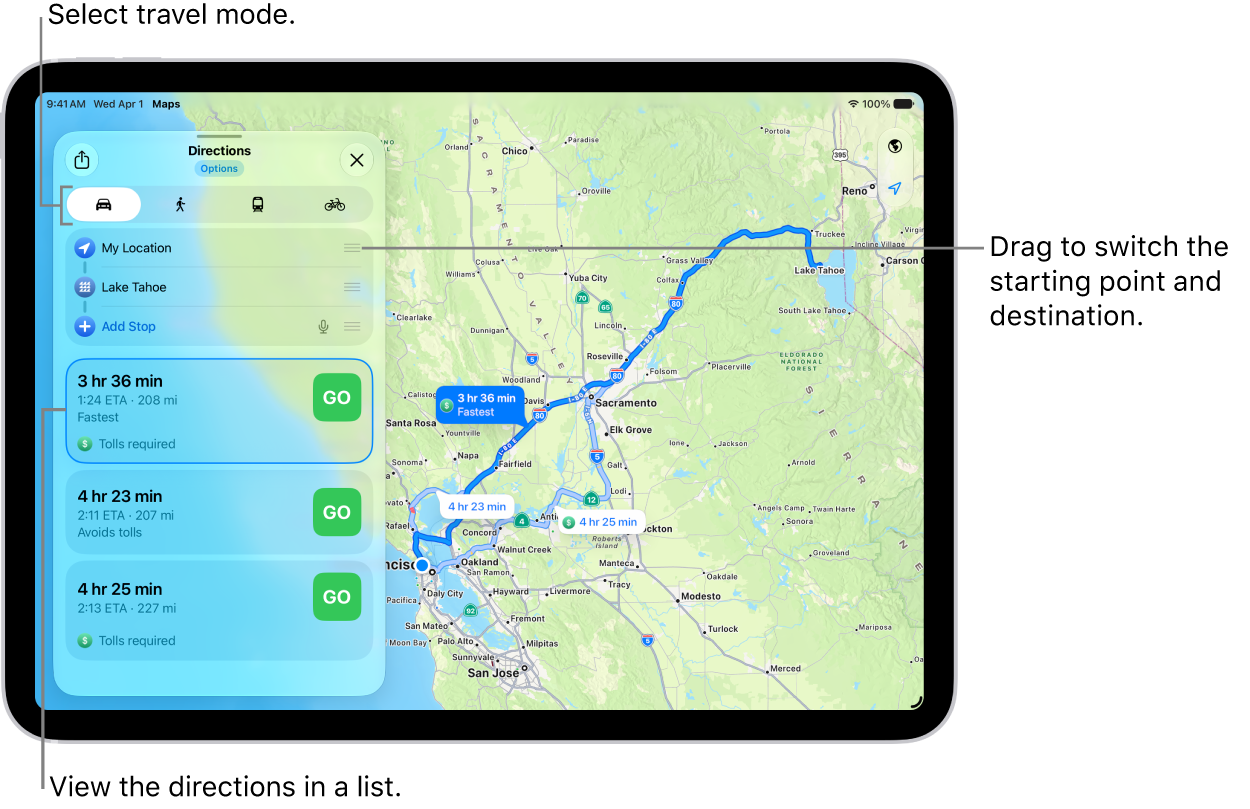
You can add up to 14 stops on a route and create a multistop driving route before you leave. You can also change the starting point or destination, or switch the two. And on an iPad with Wi-Fi + Cellular, you can even add stops on the way while following directions, and your route is updated so the chosen destination is the next stop.

Here’s how to change or add stops to your route in Maps on iPad.

Note: Turn-by-turn spoken directions aren’t available in all countries or regions.

A map with several possible routes for driving directions between My Location and a destination.

Change the starting point or destination

  1. Go to the Maps app on your iPad.
  2. Get directions.
  3. Do one of the following:
    • Switch the starting point and destination: Touch and hold the Reorder button for the starting location and then drag it below the destination.
    • Choose a different starting point or destination: In the Directions list, tap either the start or destination and then use the search field or a recent search result to find and select a different location.

Create a multistop driving route

You can add up to 14 stops along your route.

  1. Open the Maps app on your iPad.
  2. Get driving directions, then do one of the following:
    • Tap Add Stop, then search for the place you want to stop.
    • Zoom in and move the map, tap a place (for example, a landmark or business), then tap Add Stop in the place card.
  3. To reorder the stops, touch and hold the Reorder button for the stop. Then drag it to a new position in the list.

Add a stop while following driving or cycling directions

If your iPad has Wi-Fi + Cellular, you can add stops while you’re following directions to your destination.

  1. Open the Maps app on your iPad.
  2. Get driving or cycling directions and tap Go.
  3. Tap the route card at the bottom of the screen.
  4. Tap Add Stop and then tap a category (or, if you’re looking at driving directions, search for the place you want to stop).
  5. Select a place to stop. Tap Add or Add Stop.

    Your route is updated, and the chosen destination is the next stop.

    If you’re cycling and you decide not to take the detour, tap Resume Route at the top of the screen.

Delete a stop from your driving directions

  1. Open the Maps app on your iPad.
  2. Create a multistop driving route.
  3. Do one of the following:
    • Before you tap Go: Swipe left on any stops you want to delete and tap Delete.
    • After you tap Go: Tap the route card at the bottom of the screen. Tap the Delete button next to the stop.

End directions before you arrive

Siri: Ask Siri something like, “Stop navigating.” Learn how to use Siri.

Or without using Siri:

  1. Open the Maps app on your iPad.
  2. Tap the card at the bottom of the screen and tap End Route.

See also

Tag: Maps

You can share places with others in Maps. For example, you can send a message or email to show people where to meet you. A place on the map or a search result can be shared from the top of its place card.

Quick tip: Even when the Maps app isn’t open, you can share your current location: Touch and hold Maps on the Home Screen, and then tap Send My Location. Read our article, Perform quick actions.

  1. Start the Maps app on your iPad.
  2. Tap a place on the map or a search result.
  3. Tap the Share button (at the top of the place card) and choose an option.

You can also touch and hold the place, then tap Share Location.

See also

Tag: Maps

You can provide ratings and photos of places you visit to help other Maps users. Your ratings and photos appear everywhere you’re signed in to the same Apple Account.

You can edit your ratings later if you change your mind, share your photos publicly, and edit the photos you’ve added. To upload photos to Apple, you need an Apple Account.

Here’s how to rate places and add photos in Maps on iPad.

Note: The Apple Ratings and Photos feature isn’t available in all countries or regions.

Rate a place

  1. Go to the Maps app on your iPad.
  2. Tap a place on the map or a search result, then tap the Like button.
  3. Tap the Like button or the Dislike button for the available categories. Then tap the Done button.

Changed your mind? You can edit your ratings later.

Add photos for a place

  1. Start the Maps app on your iPad.
  2. Tap a place on the map or a search result, then tap the More button.
  3. Tap Add Your Photos and then follow the onscreen instructions.

    To upload your photos to Apple, you need to have an Apple Account.

    Note: If you don’t see ratings categories or the Rate button, you can’t add a photo.

  4. To credit yourself for the photos you contribute, using either your name or a nickname, tap Photo Credit and then turn on Show Credit. If desired, you can enter a nickname for yourself. (The photo credit option you choose applies to all photos you previously submitted and continue to submit.)

Share your photos publicly

It’s up to you to allow companies to use the photos you add to Maps for their own products and services.

  1. Start the Settings app on your iPad.
  2. Tap Apps, then tap Maps.
  3. Turn on Allow Photo Providers to Use Your Photos.

Photos you share include location data, but not your identity. If you turn this setting off, photo providers may no longer use your photos. (It may take a few days to take effect.)

Edit your photos for a place

Besides photos, your photo credit is something you can add or remove, and you can provide a nickname for your photo credit.

  1. Start the Maps app on your iPad.
  2. Tap Places.
  3. Tap the place whose photos you want to edit. Then tap Your Photos.
  4. Do one of the following:
    • Submit another photo: Tap Add Photo.
    • Remove a photo: Tap the More Options button. Tap Delete Your Photo.
    • Change your photo credit: Tap the More Options button. Tap Change Photo Credit. The photo credit option you choose applies to all photos you previously submitted and continue to submit.

Stop getting ratings and photos suggestions

You may receive suggestions in Maps to submit a rating or photo if you recently visited or took a photo of a point of interest. These suggestions use on-device processing and can’t be read by Apple. If you don’t want to receive these suggestions, you can turn them off.

  1. Start the Settings app on your iPad.
  2. Tap Apps, then tap Maps.
  3. Turn off Show Ratings and Photos Suggestions.

See also

Tag: Maps

You can find street addresses and other information about places that appear on maps.

A place card can show its street address, phone number, website, and customer reviews. Many restaurants and other businesses even offer App Clips that let you order or make a reservation. You can get a route to the location, save information about a place, and stop sending restaurant notifications.

Here’s how to get information about places in Maps on iPad.

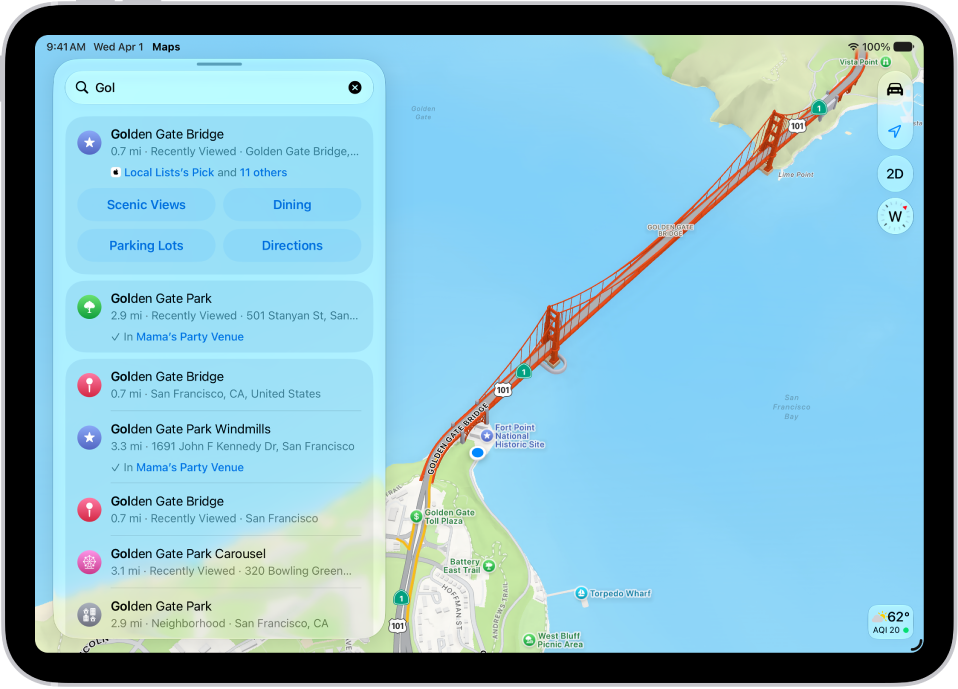
The Maps app showing a map of an area. The search field is in the top left, with results from a search query listed below.

Get information about a place

  1. Go to the Maps app on your iPad.
  2. Tap a place (for example, a city or landmark on a map, a spot that you marked with a pin, or a search result in Maps). Do any of the following:

    • Get a route to the location: Tap the directions button.
    • View more information: Scroll down in the place card.

      The information might include the street address, a phone number, a webpage link, customer reviews, and more. Many restaurants and other businesses offer App Clips that allow you to order or make a reservation by tapping buttons on their place cards.

Save information about a place

You can save a place or add it as a pin to one of your custom guides, or as one of your contacts.

  1. Open the Maps app on your iPad.
  2. Tap a place on a map or a search result in Maps, tap the More button, and then choose an option.

Stop sending restaurant names to a third party

If you install an app with a table-booking extension, it can help you make reservations at restaurants, too. If you’d rather not send it the names of restaurants you view, you can stop that.

  1. Open the Settings app on your iPad.
  2. Tap Apps, then tap Maps.
  3. Tap Restaurant Booking, then turn off the app extension.

See also

Tag: Maps

You can find nearby attractions, services, and more in the Maps app. You can search by a category like Grocery Stores or Restaurants, or enter something like “playgrounds” or “parks,” and Siri can help, too. In select U.S. cities, you can even see Local Lists, with suggestions based on what people view, share, and interact with most.

Note: Nearby suggestions aren’t available in all countries or regions.

Find a nearby attraction, restaurant, or service

Siri: Ask Siri something like, “Find coffee near me.” Learn how to use Siri.

Or without using Siri:

  1. Go to the Maps app on your iPad.
  2. Tap the search field and then do one of the following:

    • Tap a category like Grocery Stores or Restaurants below Find Nearby.
    • Enter something like “playgrounds” or “parks” in the search field, then tap the Search Nearby result.
    • In select U.S. cities, enter “Local Lists” in the search field, tap Guides, then tap a collection, such as restaurants or kid-friendly spots. Suggestions are based on what people view, share, and interact with most on Apple Maps.

    Tip: You can also touch and hold the Maps app icon on the Home Screen, then tap Search Nearby. See Perform quick actions.

    Depending on what you’re looking for, you may be able to apply more search criteria, tap a suggestion to get additional information, and more.

  3. To change the nearby area, drag the map.

For recommendations on where to eat, shop, and explore in great spots around the world, see our guide, Explore places with guides.

See also

Tag: Maps