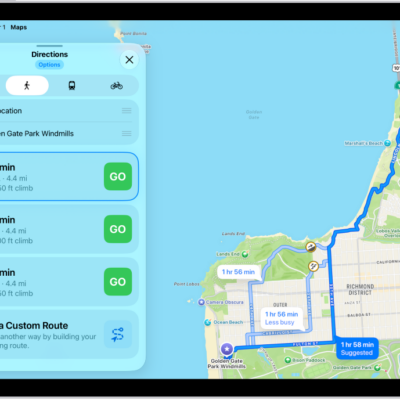
You can get travel directions using the Maps app, the Maps widget, Siri, or other devices. You can also get them on your Mac before you leave.
Maps can speak turn-by-turn directions as you travel, whether you’re driving, cycling, or walking, and Siri can get directions for you so you stay focused on the road. To get directions, iPad must be connected to the internet, with Location Services turned on.
Important: To get directions, iPad must be connected to the internet, and Location Services must be turned on. On Wi-Fi + Cellular models, cellular data rates may apply. See View or change cellular data settings.
Get directions
- Open the Maps app on your iPad.
- Touch and hold anywhere on the map or enter a location in the search field. You can search for any of the following, for example:
- An intersection (“8th and Market”)
- An area (“Greenwich Village”)
- A landmark (“Guggenheim”)
- A zip code (“60622”)
- A business (“movies,” “restaurants San Francisco CA,” “Apple Inc New York”)
- A request or question (“Find cafes with free Wi-Fi”)
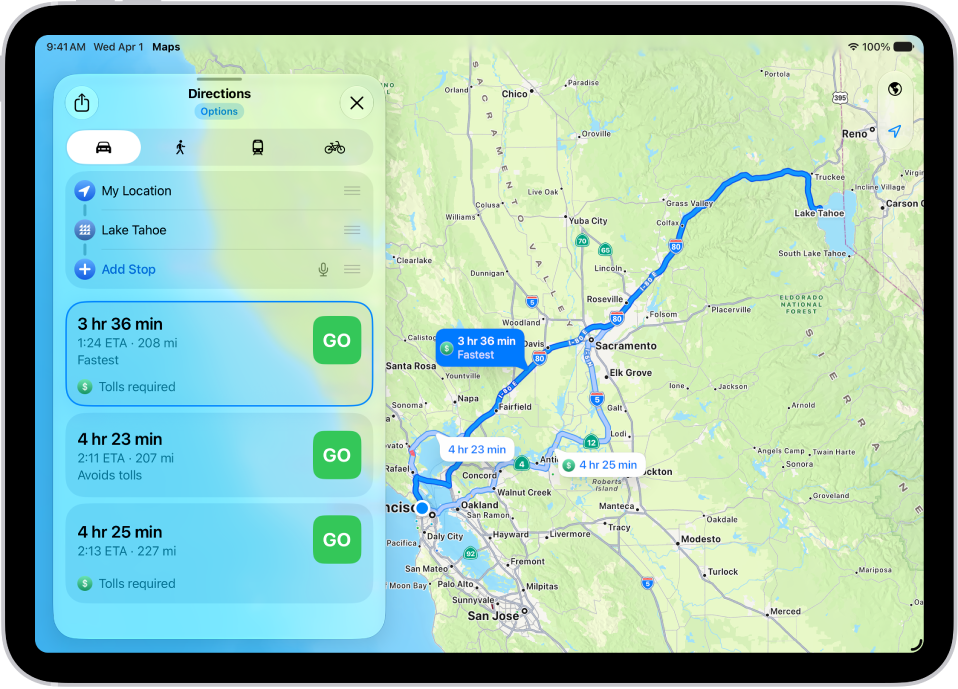
- Tap Directions or the Travel Mode button (driving, walking, transit, or cycling).
- Do one of the following:
- If your starting point is My Location: Tap Go for the route you want to take. As you travel along your route, Maps speaks turn-by-turn directions to your destination.
- If your starting point is another location: Tap Steps for the route you want to take.
Use the Maps widget
If you add the Maps widget, you can get directions to a likely destination right from the Home Screen or Today View.
Use Siri to get directions
Using Siri to get directions helps you keep focused on the road, and turn-by-turn spoken directions let you follow driving, cycling, and walking directions without even glancing at your iPad.
Siri: Ask Siri something like, “Find a charging station.” Learn how to use Siri.
Send directions from your Mac to your iPad
Plan your route on your Mac before a big trip or a day of cycling, and share the details to your iPad. Both your Mac and your iPad need to be signed in to the same Apple Account.
- Go to the Maps app on your Mac.
- Create a route for your trip.
- Choose File > Share > Send to [your device].
Handoff can send directions from iPad to Mac, too. Read our article, Hand off tasks between iPad and your other devices.
Siri: You can use Siri to get directions and stay focused on the road. For example, ask Siri something like, “Find a charging station” or “Give me directions home.” See Use Siri to get directions.
See also
- Share your estimated time of arrival in Maps on iPad
- View a route overview or a list of turns in Maps on iPad
- Delete recent directions in Maps on iPad