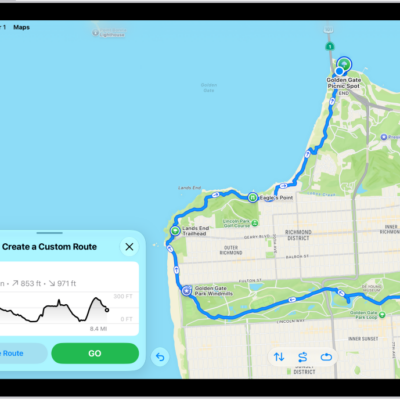
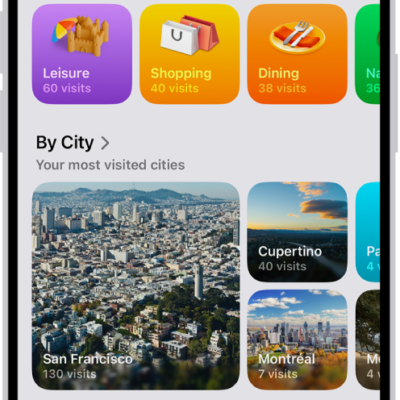
You can find pins, places, guides, and routes in one place: your Places in the Maps app. Add your own personal notes—visible only to you—to saved places, or pin your most frequently visited places for easier access.
You can also save dropped pins and your home, work, and school addresses to Places. When you share a place, your note appears with the shared link.
Here’s how to add places and notes to your Places in Maps on iPad.
Save a place to your Places
- Open the Maps app on your iPad.
- While looking at a place card, do one of the following:
- Tap the Add button. It turns to the Added button.
- Tap the More button, then tap Add to Places.
You can also save dropped pins and home, work, and school addresses to Places.
Add notes to a place
Notes you add to a place are there to read any time. If you share the place, your note shows up as text with the shared link, though it won’t save to the other person’s notes for that place.
- Open the Maps app on your iPad.
- While looking at a place card, tap the More button. Then tap Add a Note.
- Write something and tap the Done button.
Adding a note to a place saves the place to your Places.
Remove a place from your Places
- Open the Maps app on your iPad.
- Tap Places.
- Do one of the following:
- Tap the More button, tap Delete from Places, then tap Delete.
- If you’re in the place card, tap the Added button, tap to deselect Places, then tap the Done button.
Removing a place from your Places deletes any personal notes you added to it.
See also