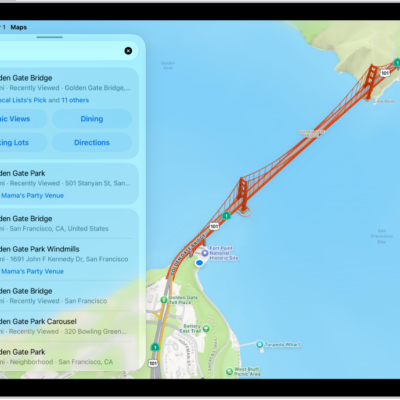
The Visited Places feature helps you keep track of places you’ve been, so you can easily revisit or share them later. It shows you where you’ve been with your iPad (Wi-Fi + Cellular) and any iPhone that’s signed in to the same Apple Account.
You can use Visited Places to find locations—like restaurants from a recent trip—and organize them into guides or share them with others. Visited Places are end-to-end encrypted, can’t be read by Apple, and appear on all your synced devices. You can also remove them automatically, or clear them all.
Note: Visited Places isn’t available in all countries or regions.
View a visited place
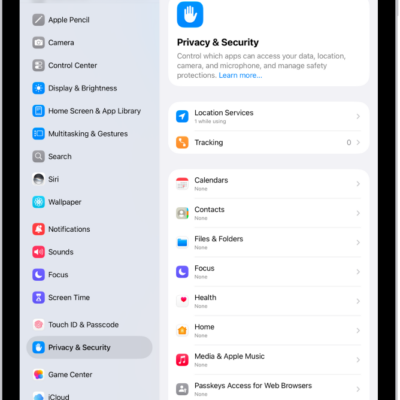
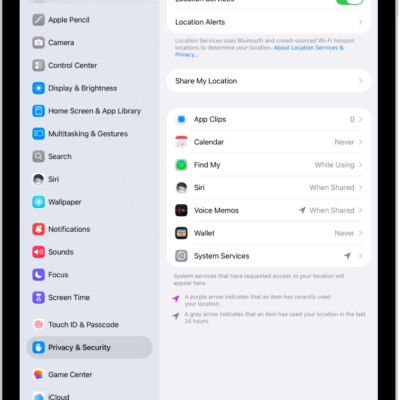
To see Visited Places in the Maps app, you first need to turn it on and visit at least one place; read our article, Allow Maps to use your location.
- Start the Maps app on your iPad.
- Tap Places, tap Visited Places, and then do any of the following:
- Search: Search a place by name, category, address, or notes.
- Filter: Search using a filter for date, category, or city.
- Show all visits: Tap All Visits.
- Next to a place, tap the More button (on the right side of the place card). Do any of the following:
- Add to your Places: Tap Add to Places.
- Share a visited place: Tap Share.
- Add a personal note: Tap Add a Note.
- Correct a visited place: Tap Wrong Location.
- Remove a visited place: Tap Remove.
Automatically remove your visited places
- Start the Maps app on your iPad.
- Tap Places and tap Visited Places.
- Scroll to the bottom, tap Keep Visits, and choose how long you keep them, or choose Forever if you don’t want them to be removed.
Clear all your visited places
- Start the Maps app on your iPad.
- Tap Places and tap Visited Places.
- Scroll to the bottom and then tap Clear History.
See also
- Share places in Maps on iPad
- Get information about places in Maps on iPad
- Add places and notes to your Places in Maps on iPad