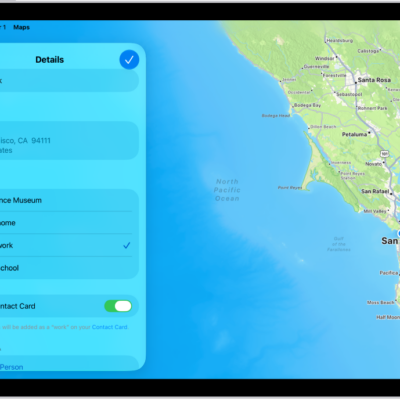
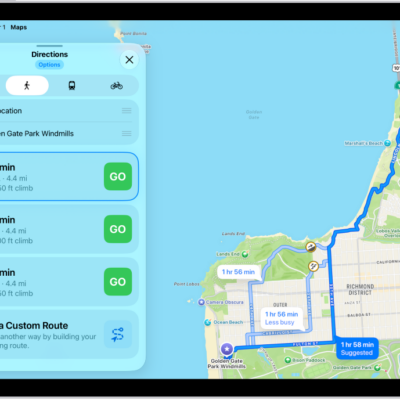
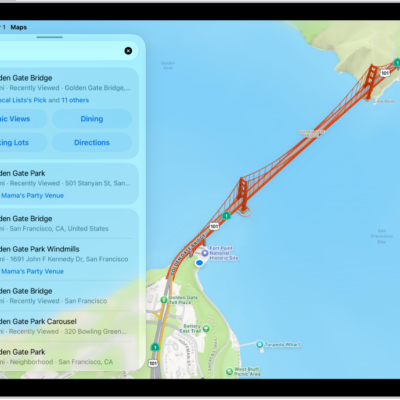
You can find street addresses and other information about places that appear on maps.
A place card can show its street address, phone number, website, and customer reviews. Many restaurants and other businesses even offer App Clips that let you order or make a reservation. You can get a route to the location, save information about a place, and stop sending restaurant notifications.
Here’s how to get information about places in Maps on iPad.
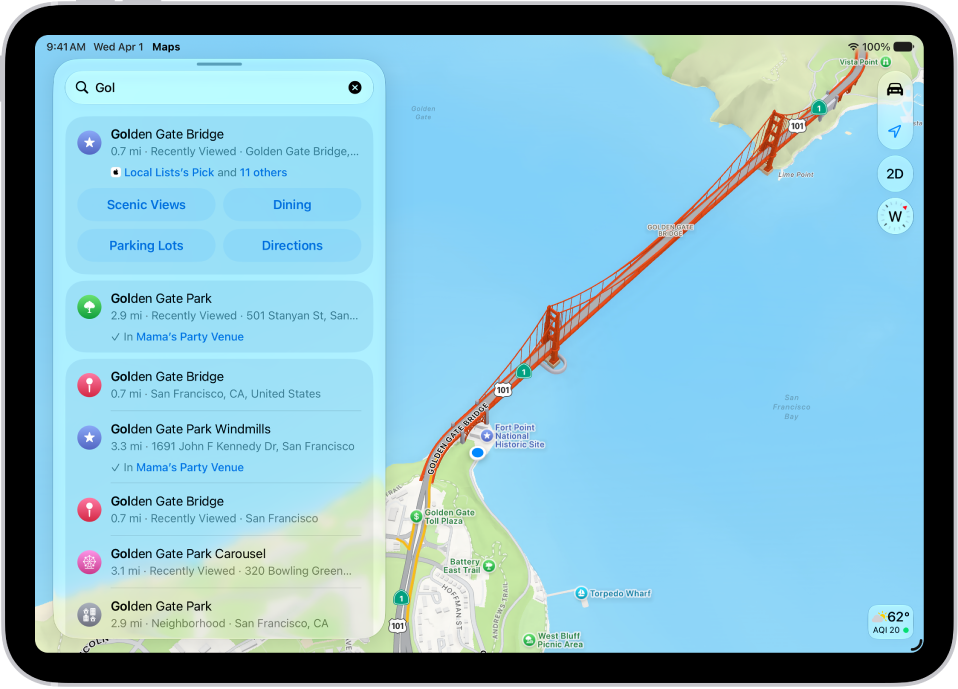
Get information about a place
- Go to the Maps app on your iPad.
-
Tap a place (for example, a city or landmark on a map, a spot that you marked with a pin, or a search result in Maps). Do any of the following:
- Get a route to the location: Tap the directions button.
-
View more information: Scroll down in the place card.
The information might include the street address, a phone number, a webpage link, customer reviews, and more. Many restaurants and other businesses offer App Clips that allow you to order or make a reservation by tapping buttons on their place cards.
Save information about a place
You can save a place or add it as a pin to one of your custom guides, or as one of your contacts.
- Open the Maps app on your iPad.
- Tap a place on a map or a search result in Maps, tap the More button, and then choose an option.
Stop sending restaurant names to a third party
If you install an app with a table-booking extension, it can help you make reservations at restaurants, too. If you’d rather not send it the names of restaurants you view, you can stop that.
- Open the Settings app on your iPad.
- Tap Apps, then tap Maps.
- Tap Restaurant Booking, then turn off the app extension.
See also
- Find nearby attractions, restaurants, and services in Maps on iPad
- Add places and notes to your Places in Maps on iPad