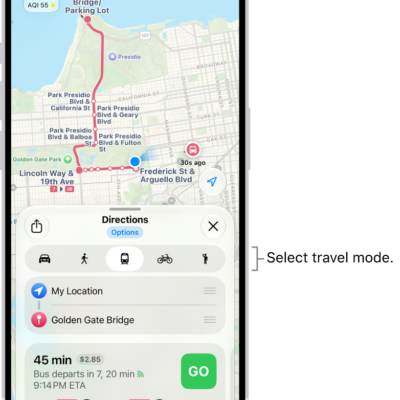
You can get travel directions using the Maps app, the Maps widget, Siri, CarPlay, or other devices. You can even get them on your Mac before you leave.
Directions can start from any spot on the map, or from a location in the search field. You can also use the Maps widget, or get directions using CarPlay, your Mac, or your Apple Watch.
Here’s how to use Maps on iPhone.
Note: Not all features are available in all countries or regions.
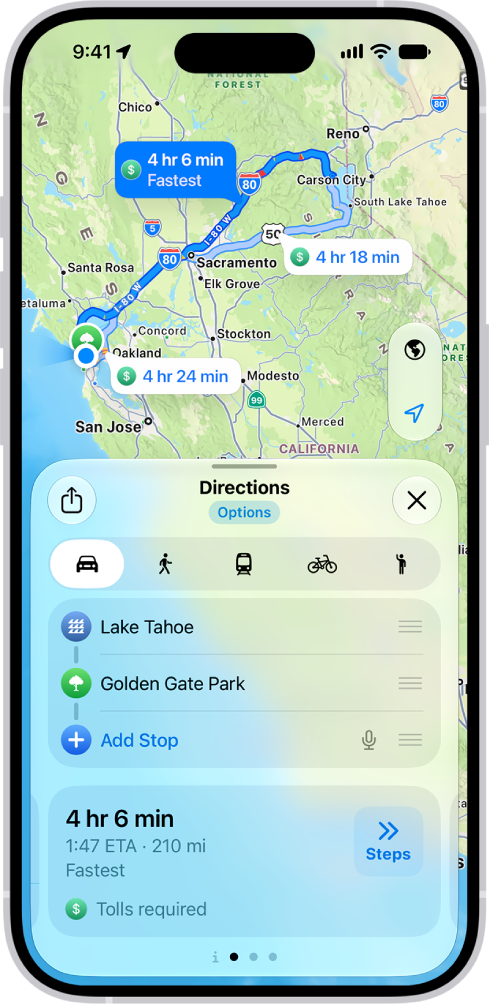
Important: To get directions, iPhone must be connected to the internet, and Precise Location must be turned on.
Get directions
- Open the Maps app on your iPhone.
-
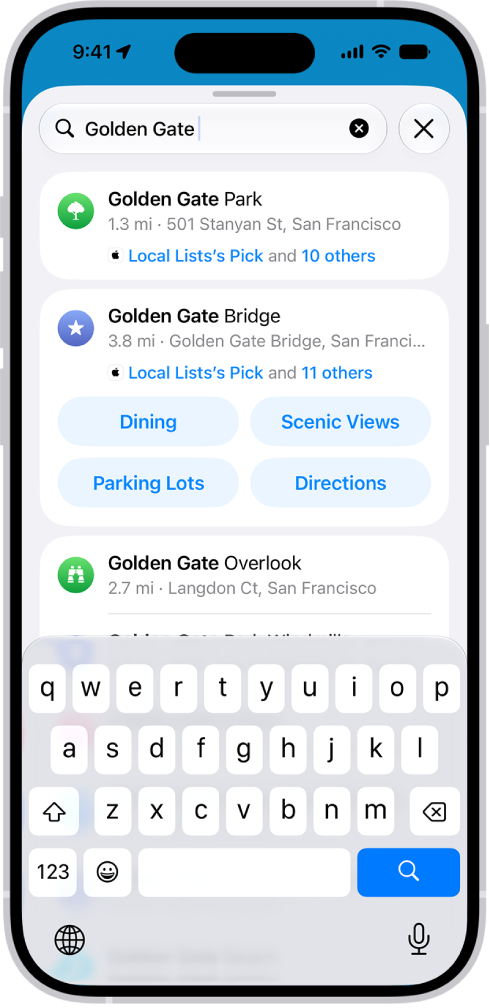
Touch and hold anywhere on the map or enter a location in the search field.
You can search for any of the following, for example: An intersection (“8th and Market”) An area (“Greenwich Village”) A landmark (“Guggenheim”) A zip code (“60622”) A business (“movies,” “restaurants San Francisco CA,” “Apple Inc New York”) A request or question (“Find cafes with free Wi-Fi”) Tap the directions button.
- Do one of the following: If your starting point is My Location: Tap Go for the route you want to take.
- As you travel along your route, Maps speaks turn-by-turn directions to your destination.
- If your starting point is another location: Tap Steps for the route you want to take.
You can add stops to your route.
Quick tip: Before you lose your internet connection on your route, send yourself a list of upcoming directions or download offline maps.
Use the Maps widget
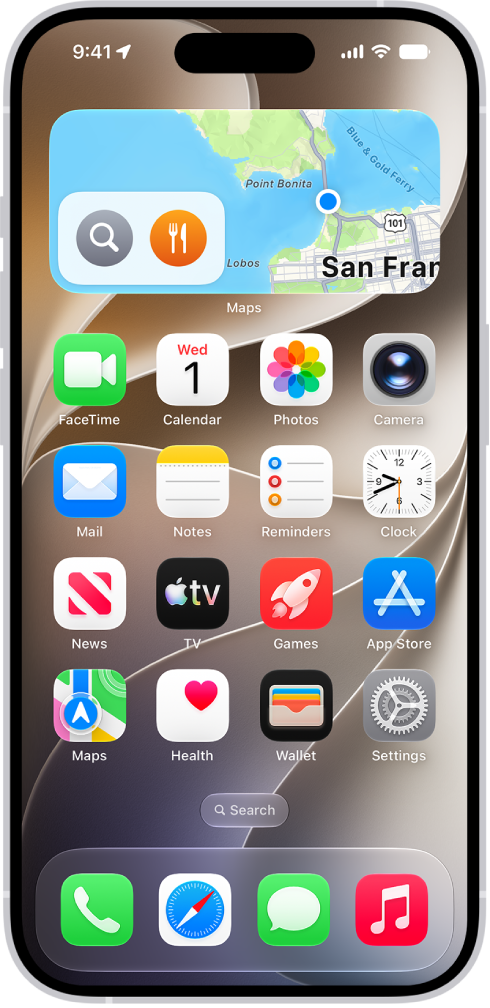
With the Maps widget on your Home Screen, you can track your ETA during navigation and get directions to a likely destination.
Before you leave, the Maps widget previews your commute so you know what to expect.
Get directions using CarPlay, your Mac, or your Apple Watch
In addition to using your iPhone, you can also get directions from the following: Your car: After you connect your iPhone to CarPlay, you can use CarPlay to get driving directions, estimate your arrival time, and more.
- Your Mac: Before a big trip or a day of cycling, you can plan your route on your Mac, then choose File > Share > Send to [your iPhone].
- Your Apple Watch: You can use Apple Watch to get driving, walking, transit, and cycling directions, which you can follow on the watch face and your iPhone.
To see directions elsewhere, sign in to your Apple Account and hand off tasks between your iPhone and your other devices.
Siri: You can use Siri to get directions and stay focused on the road.
For example, ask Siri something like, “Find a charging station” or “Give me directions home.”