The Visited Places feature helps you keep track of places you’ve been, so you can easily revisit or share them later. Use it to find past locations, like restaurants from a recent trip, and organize them into guides or share them with others.
Visited Places are end-to-end encrypted, can’t be read by Apple, and appear on all your synced devices. You can also remove your visited places automatically, or clear them all.
Note: Visited Places isn’t available in all countries or regions.
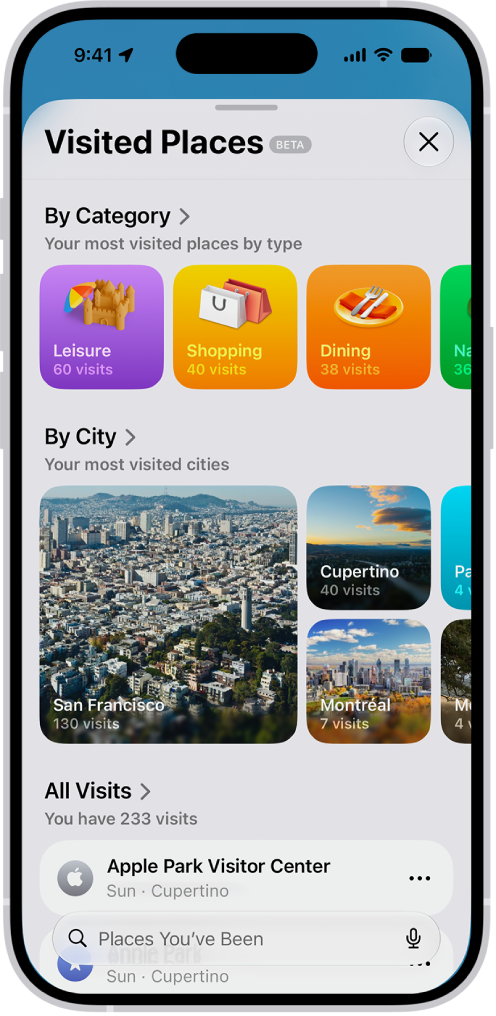
View a visited place
Visited Places won’t show up in the Maps app until you turn it on and visit at least one place.
- Start the Maps app on your iPhone.
- Tap Places, tap Visited Places, and then do any of the following:
- Search: Search for a place by name, category, address, or notes.
- Filter: Search using a filter for date, category, or city.
- Show all visits: Tap All Visits.
- Next to a place, tap the More button (on the right side of the place card). Do any of the following:
- Add to your Places: Tap Add to Places.
- Share a visited place: Tap Share.
- Add a personal note: Tap Add a Note.
- Correct a visited place: Tap Wrong Location.
- Remove a visited place: Tap Remove.
Automatically remove your visited places
- Start the Maps app on your iPhone.
- Tap Places and tap Visited Places.
- Scroll to the bottom, tap Keep Visits, and choose how long you keep them, or choose Forever if you don’t want them to be removed.
Clear all your visited places
- Start the Maps app on your iPhone.
- Tap Places and tap Visited Places.
- Scroll to the bottom and then tap Clear History.
Tag: Maps