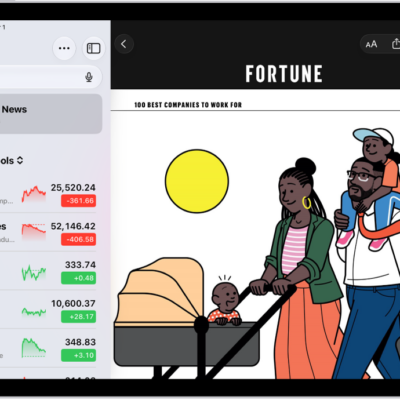
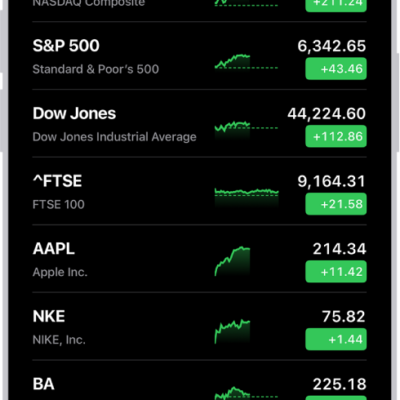
Use a widget to check stocks at a glance on your iPad Home Screen. You can choose its size and how much information it displays.
There are Watchlist and Symbol widgets in different sizes. After you add a Stocks widget, you can change its appearance and the information it displays, like the symbol or the watchlist it shows. You can move it to a new location on your Home Screen, too.
Add a Stocks widget to your Home Screen
- Touch and hold the Home Screen until the apps begin to jiggle.
- Tap the Edit button, then tap Add Widget.
- Tap Stocks in the sidebar. Then swipe left and right to view the different widget types (Watchlist and Symbol) and sizes.
- When you see the option you want, tap Add Widget and then tap the Done button.
To move the widget on your Home Screen, touch and hold the Home Screen until the apps begin to jiggle. Drag the widget to a new location, then tap the Done button.
Change the widget display
With a Stocks widget on your Home Screen, its appearance and the information it displays are yours to change.
- Touch and hold the Stocks widget on your Home Screen.
- Tap Edit Widget and then depending on the type of widget (Watchlist or Symbol), do any of the following:
- Change the widget symbol: Tap the current symbol and then tap the new symbol you want from the watchlist. Or use the search field to search for a new symbol.
- Change the widget watchlist: Tap the name of the current watchlist and then tap the watchlist you want to display.
- Change when news stories appear: Tap In Off Hours, Always, or Never. Choose an option.
- Show the watchlist name: Turn on Show Watchlist Name.
- Show more symbols or additional symbol information: Turn on Show More Details or Show More Symbols.
Quick tip: Adding more than one Stocks widget to your Home Screen, each in a size you choose, means you can quickly see updates for different symbols or watchlists.
The iPad Lock Screen can also show Stocks widgets; read our article, Create a custom Lock Screen.
See also
- Check stocks on iPad
- Manage watchlists in Stocks on iPad
- Move apps and widgets on the iPad Home Screen