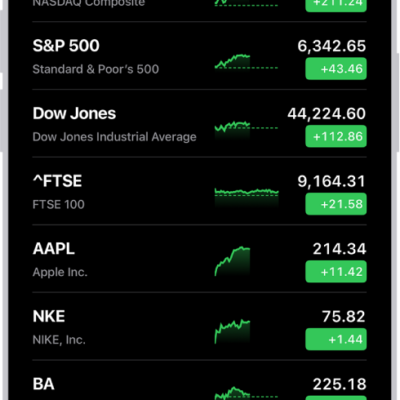
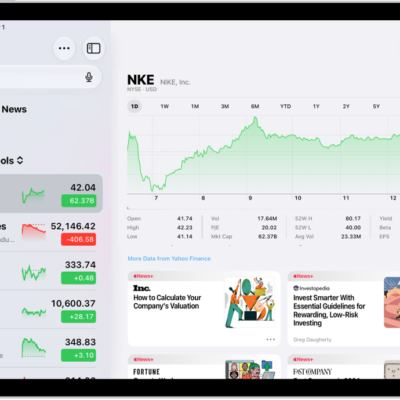
In the Stocks app, you can read business news that’s driving the market. In countries where Apple News is available, you also see stories selected by the Apple News editors and stories from Apple News+.
You can browse Business News and Top Stories, or see stories related to a symbol in your watchlist. You can also listen to a story, and clear recommendations.
Here’s how to read business news in Stocks on iPhone.
Note: Apple News and Apple News+ aren’t available in all countries or regions.
Read a story
- Start the Stocks app on your iPhone.
- Swipe up on Business News or Top Stories to view stories, or tap a symbol in your watchlist to browse related stories.
-
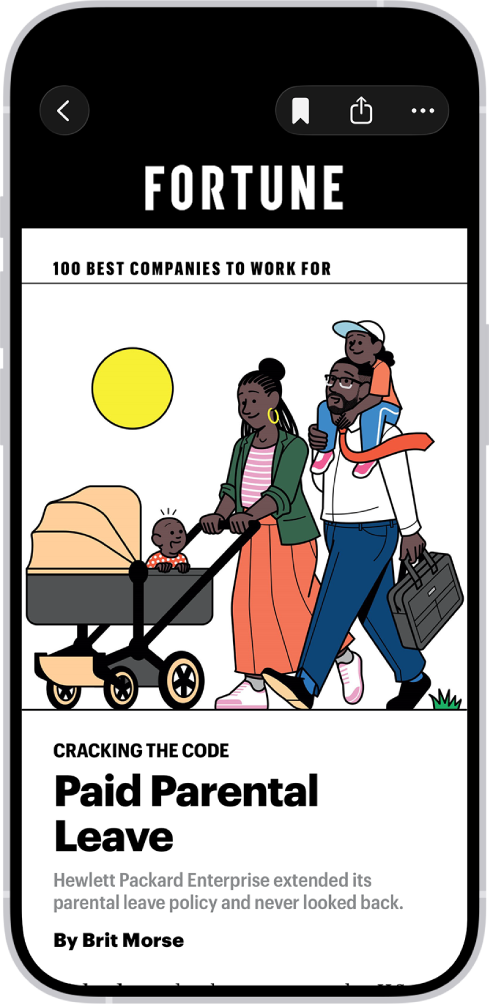
Tap a story to read it. While viewing a story, do any of the following:
- Return to your newsfeed in Stocks: Tap the Back button or Done.
- See more stories from the publication in Apple News: Tap the publisher logo at the top of the screen.
-
Save the story to Apple News: Tap the Bookmark button.
Note: In order to save stories to Apple News, make sure you’re signed in to your Apple Account, then go to Settings > [your name] > iCloud, tap See All next to Saved to iCloud, then turn on News.
- Change the text size: Tap the More Actions button, tap Text Size, and tap the smaller or larger letter to change the text size in the story.
- Share the story: Tap the Share button, then choose a sharing option, such as Messages or Mail.
The newsfeed doesn’t show stories from publications you’ve blocked in Apple News.
Listen to a story
Some news stories include an audio version that you can listen to in the News app. Tap the Play button to listen.
Clear recommendations
The Stocks app recommends stories based on what you’ve read in the past, but you can clear this information.
- Start the Stocks app on your iPhone.
- Tap the More button and tap Clear Recommendations Data.